Knowledge Base & Support Centre

Comprehensive documentation, guides, and resources to help security professionals implement and optimise Privci's Human Vulnerability Scanner. Find answers to technical questions, implementation guides, and best practices.

Contact Support

Knowledge Base

Browse our comprehensive documentation organised by topic area

Getting Started

Guides and tutorials for initial setup, configuration, and running the Human Vulnerability Scanner

Platform Settings Overview

Detailed setup guides, Privci engines, and platform documentation for comprehensive configuration

Training Agents

Guides and tutorials for deploying and understanding Privci’s browser‑based Training Agents

×

Select a Knowledge Base Category

Choose a category from the navigation cards above to view detailed documentation, guides, and tutorials for that section.

View Categories

Getting Started with Privci

1

Initial Setup & Configuration

Privci is designed to align your Human Vulnerability Scan with your internal policies, business context, and approved tools. When you first log in, you’ll be guided through the platform’s initial configuration.

You can revisit these settings at any time from the “Risk Radar” tab. Select “Vulnerability Scan” and then choose “Baseline Setup” at the top of the page.
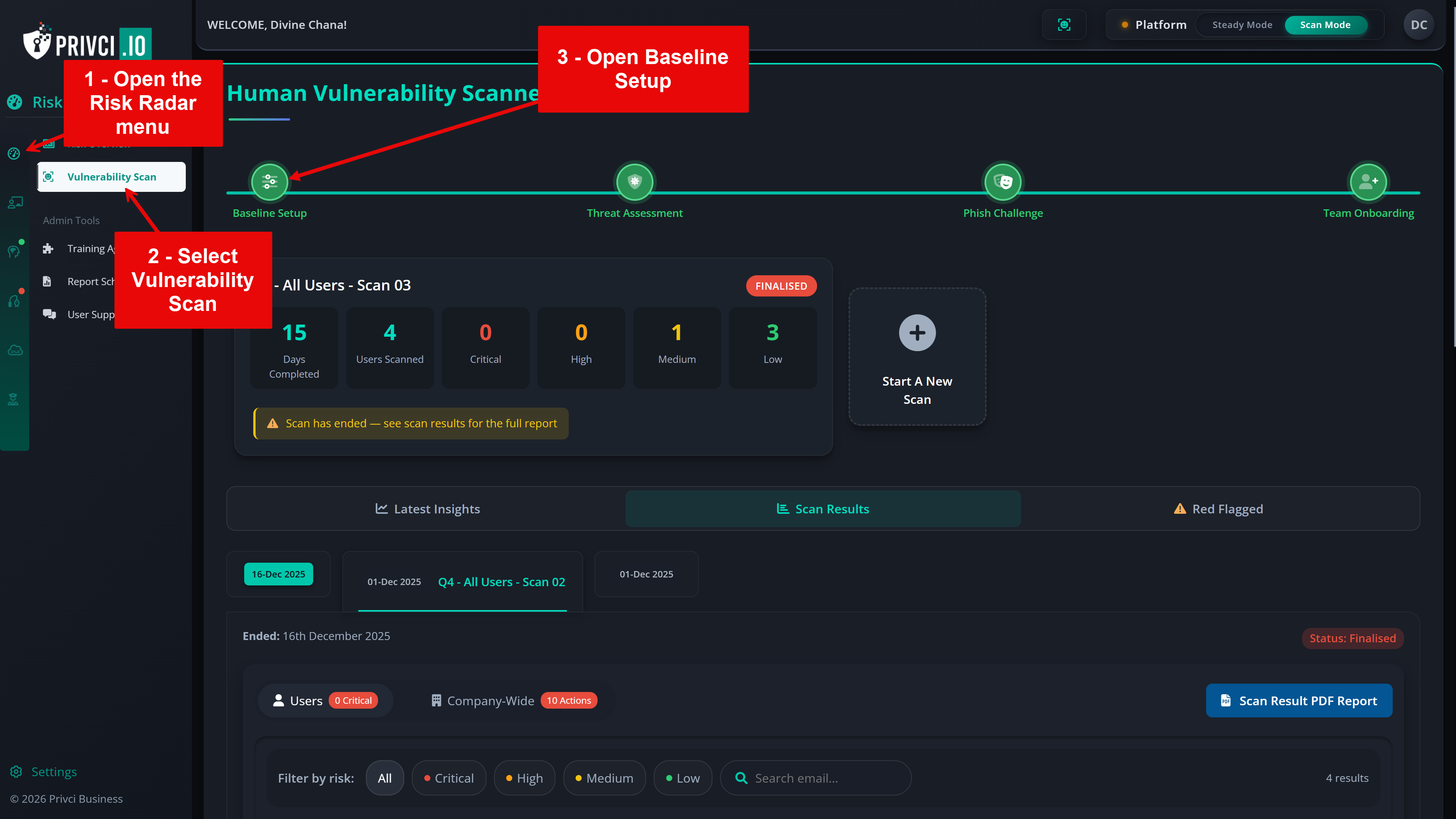
Initial Setup & Configuration page showing Baseline, Threat, Phish, and Team settings

The Initial Setup & Configuration page includes four key areas:

1

Baseline Setup

The Baseline Setup defines the core parameters of your scan: how long it runs, which internal policies are assessed, which domains are in scope, and which email clients are considered “approved” for business use.

  1. Scan Duration. Choose how many days the Human Vulnerability Scan should run. During this period, users are assessed on knowledge, policy alignment, and behaviour in real contexts. We recommend a minimum of 30 days to generate meaningful behavioural insights.
  2. Company Policy. Select or upload the internal policies you want to include in the baseline assessment and violation monitoring. Focus on policies that impact day‑to‑day work, such as email use, internet use, passwords, clear desk practices, and external media.
  3. Email Domain(s). Add the email domains that represent your organisation (for example, @yourcompany.com). These domains are used to determine which users are in scope for the scan and training agent.
  4. Approved Email Client(s). Select the email services your organisation considers approved for business communication. This helps the scanner distinguish between work email environments and personal email services used by your users.
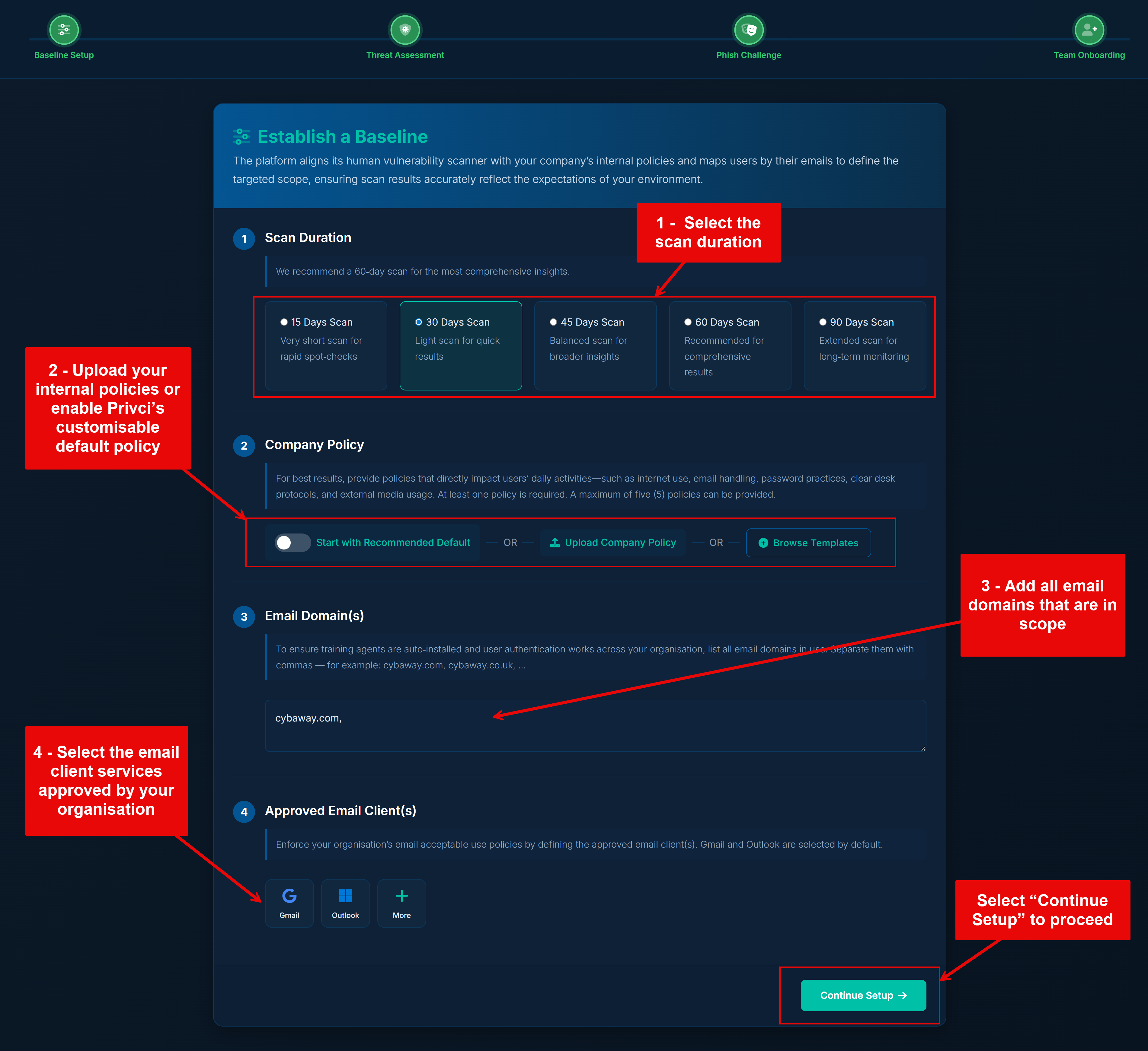
Baseline Setup

Note: If you reduce the scan duration while a scan is already running, the scan will end earlier than originally planned. Always confirm changes before saving to avoid terminating an active scan prematurely.

2

Threat Assessment

The Threat Assessment section defines which threat categories are included in your company‑level risk analysis and which additional knowledge assessments are used during the scan. Privci combines multiple knowledge assessment tools to identify both organisational and individual knowledge gaps across key areas of cybersecurity behaviour.

  1. Threat Scope. We recommend keeping all available threats enabled. These selections do not typically change individual user scores, but they do shape your company‑level threat profile. Your results will be benchmarked against industry averages for each selected threat category.
  2. Knowledge Evaluation. In addition to baseline training, you can enable three key assessment types:
    • Topic of the Week Weekly micro‑assessments delivered via email throughout the scan. Use the “Test Email” option to confirm delivery before the scan begins.
    • Cyberskills Mastery A skills challenge delivered via the training agent. Users complete trophies made up of targeted modules across areas such as awareness, compliance, risk, privacy, malware, and social behaviour.
    • Policy Challenge A policy‑focused challenge delivered via the training agent. Users compete for the Policy Champion Award (top 10% of performers), helping you measure how well your internal policies are understood and applied. By default, all uploaded policies are included.
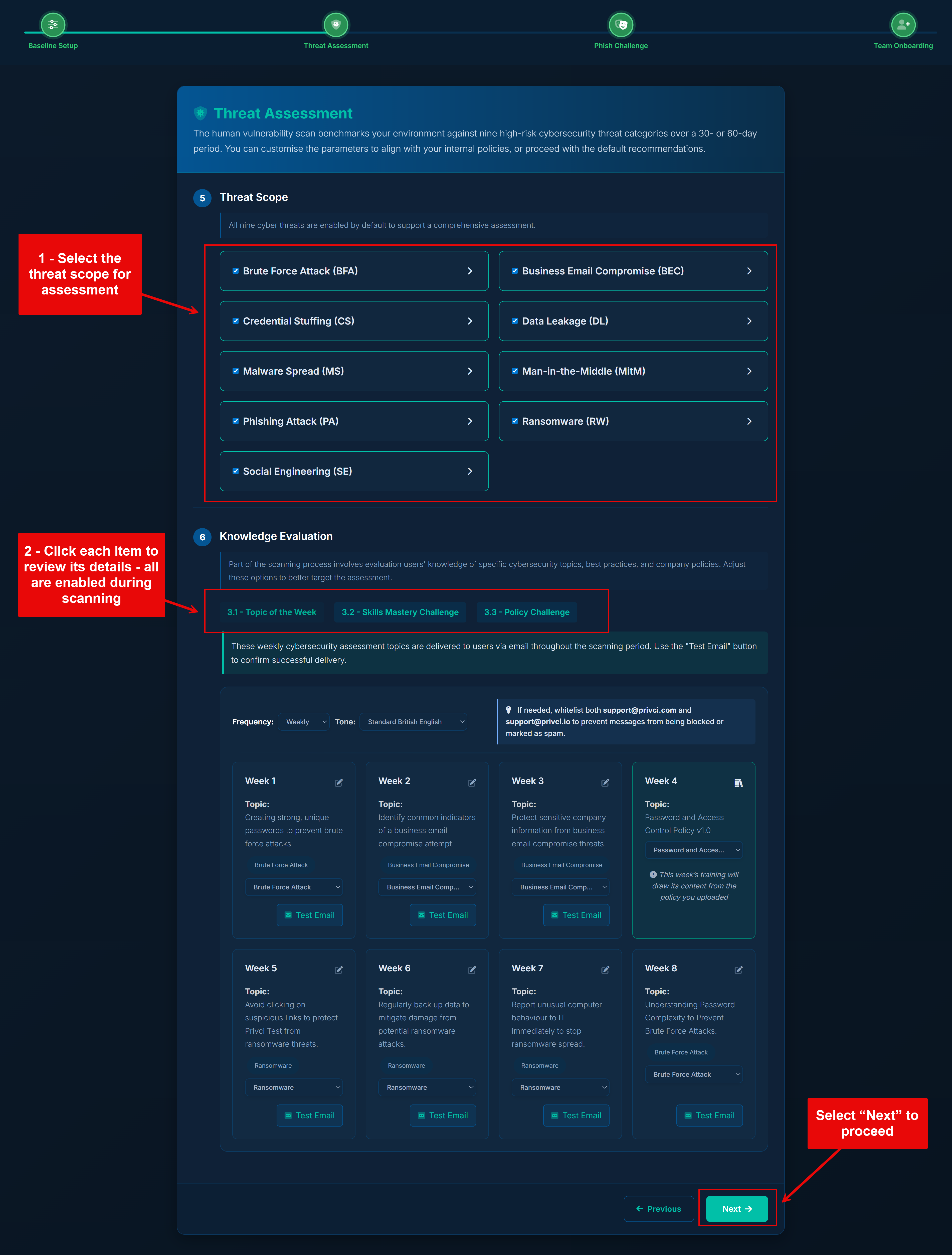
Threat Assessment

Note: Default settings are designed to work well for most organisations. You generally do not need to change these options for your first scan. Advanced configuration can be fine‑tuned later from the admin portal under Awareness Engine and Change Engine settings.

3

Phish Challenge

Each scan includes a built‑in Phish Challenge, which assesses users’ ability to recognise phishing indicators without requiring mail server whitelisting. You can optionally enable full phishing simulations (Phish Tests) during the scan, which do require whitelisting before the scheduled send date.

  1. Phish Master Challenge. Choose the email interface that best matches your organisation’s primary email client. During the scan, users are invited to participate in a phishing challenge that measures both detection skills and response speed. Results contribute to individual scores and the Master Leaderboard.
  2. Auto‑Simulation (Requires whitelisting). If you want live phishing simulations:
    • Enable “Auto‑Simulation”.
    • Whitelist the sender IP addresses and domains used by Privci.
    • Confirm whitelisting before your scheduled phishing campaign date.
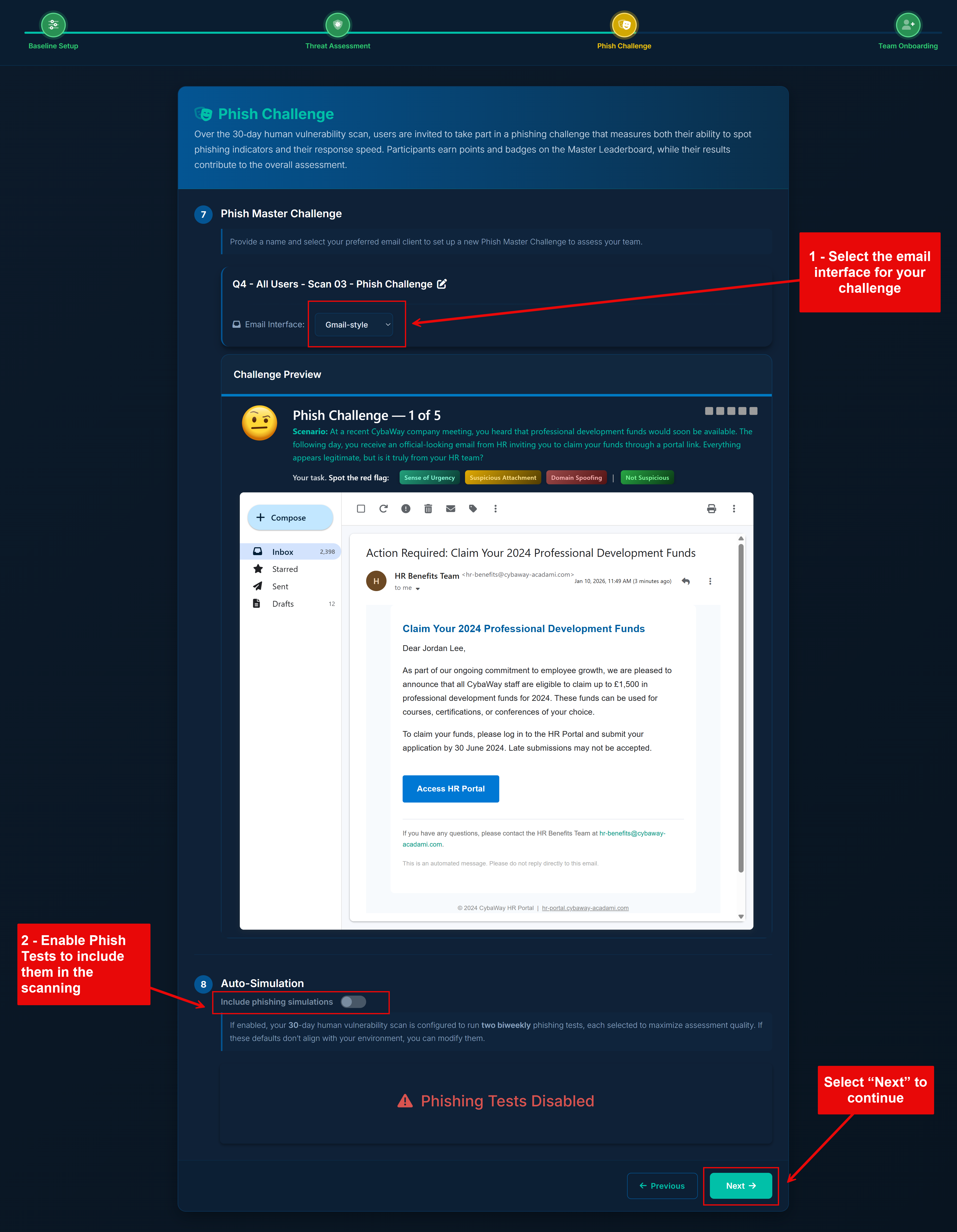
Phish Challenge and Phish Test setup

Note: Detailed configuration for both Phish Challenge and Phish Tests is available in the admin portal under Phish Aware. Whitelisting guides and advanced options (templates, schedules, reporting) are also provided there.

4

Team Onboarding

The final step is onboarding your users. Privci uses browser‑based training agents to personalise each user’s experience and capture behavioural signals during the scan. You can onboard users manually for smaller teams, or use automated integrations for larger environments.

  1. Privci currently provides training agents for: Google Chrome, Microsoft Edge, and Mozilla Firefox.
  2. Choose your onboarding method. For smaller teams, you can:
    • Paste user email addresses (comma‑separated), or
    • Use the Import User List template.
    • Privci will send installation invitations and instructions directly to users if Auto‑send is selected.
  3. Configure scalable onboarding. Larger organisations can use:
    • Google Workspace Sync
    • Azure AD Integration
    • Choose Direct Agent Installation for additional deployment guides that match your existing environment (e.g., GPO, MDM)
  4. Set your Time Zone and branding. Choose the appropriate time zone and optionally upload your company logo to improve personalisation, especially for email communications and phishing‑related content.
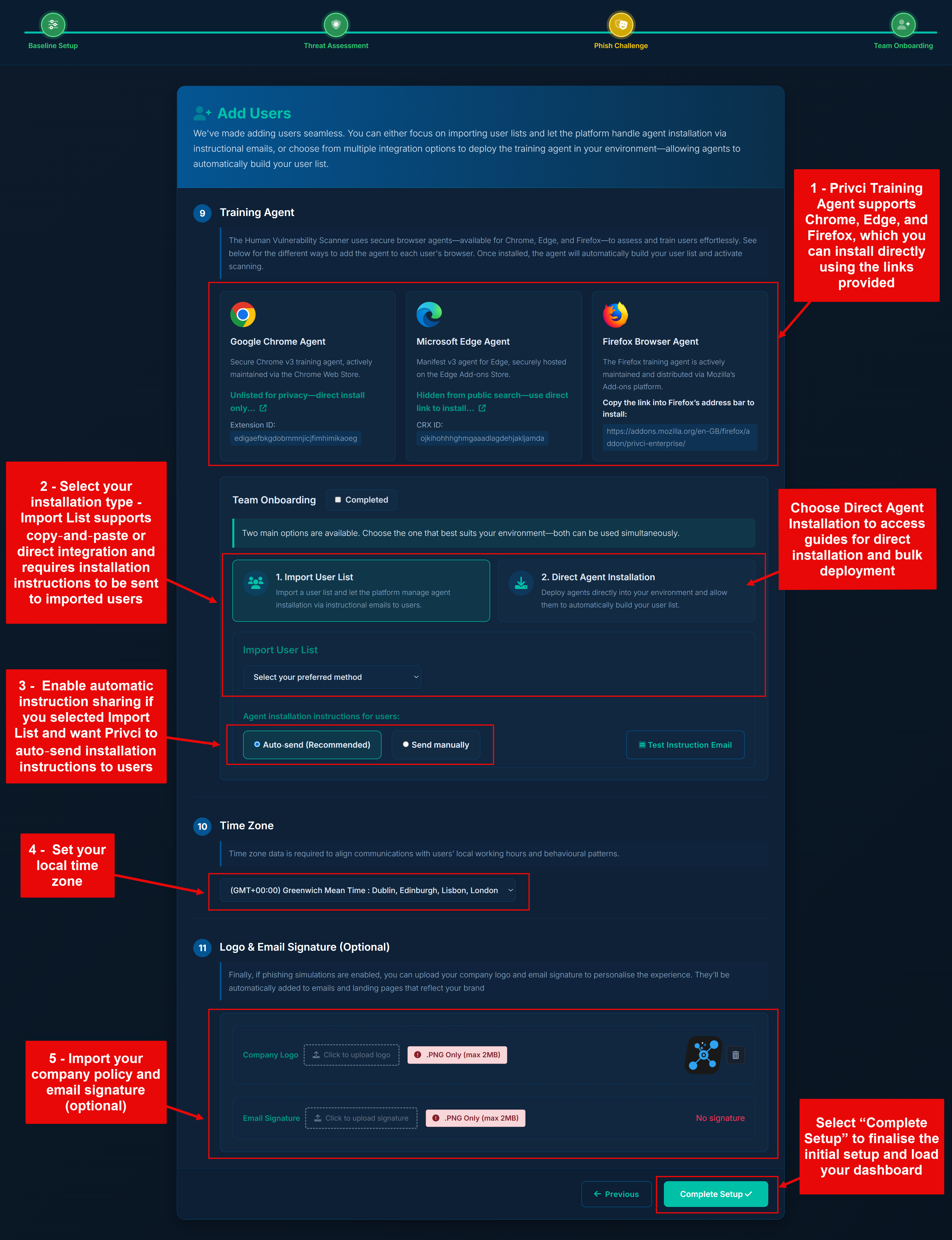
User onboarding and training agent installation

Note: All onboarding options, including detailed installation instructions for each browser, are available in the admin portal under Admin ToolsTraining AgentsAgent Installation.

2

Running Your First Scan

Once you have completed the Initial Setup & Configuration, your platform is fully prepared to run your first Human Vulnerability Scan. Privci automatically saves your most recent configuration and will reuse these settings for future scans unless you choose to update them.

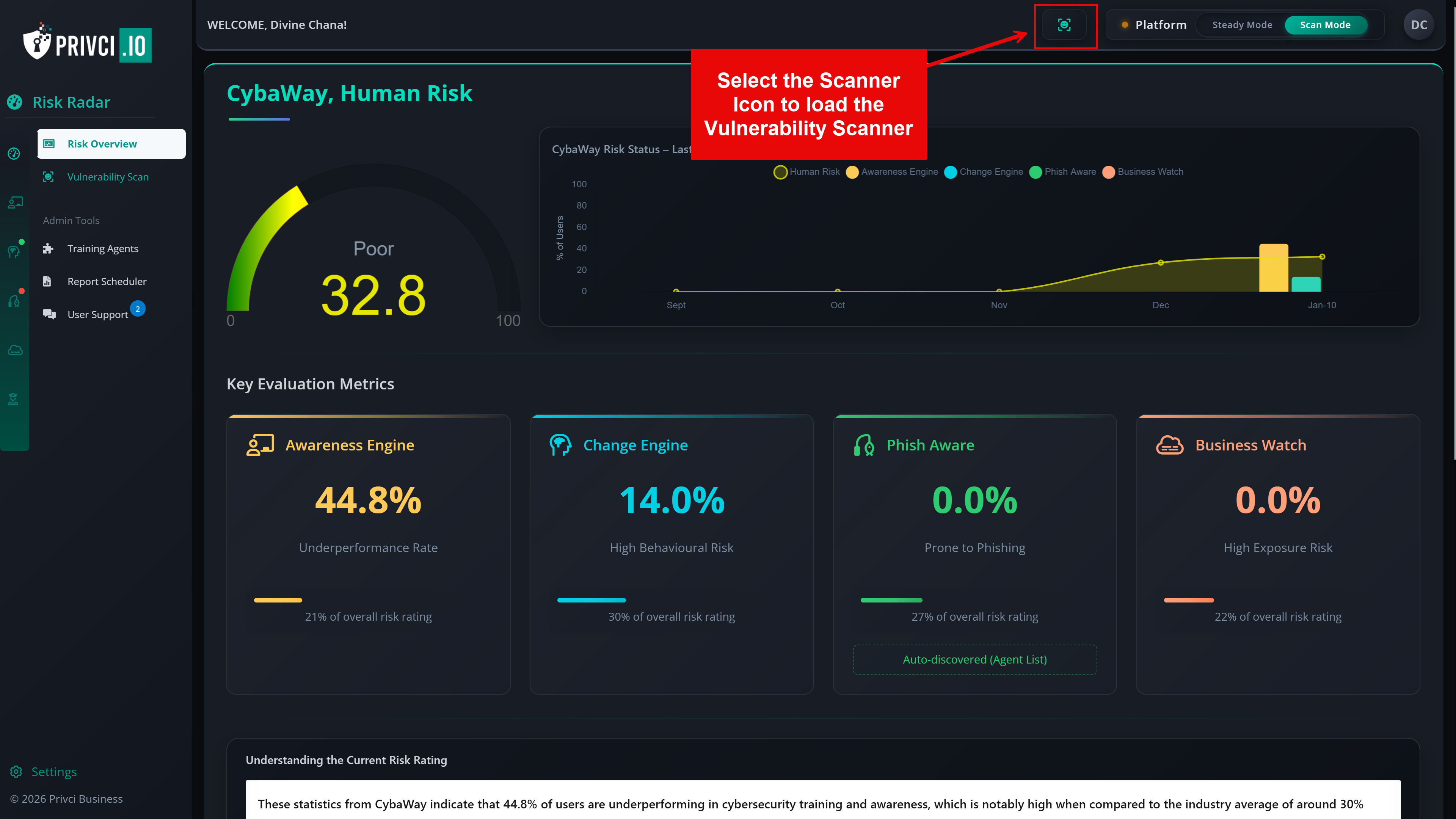
Running your first scan is straightforward. Click the Scanner Icon in the top menu bar to load the scanner. And follow the steps below.

Vulnerability Scan dashboard

The process of running your first scan includes four key steps:

1

Creating a New Scan

Your first step is to create a new scan from the Vulnerability Scan dashboard. This defines the scope, target group, and duration of your assessment.

  1. From the “Vulnerability Scan” page, click “Start a New Scan”.
  2. Select the targeted group you want to include in the scan. Only users within this group will be assessed.
  3. Enter a unique scan name. Each scan must have a distinct name to avoid confusion in reporting.
  4. Set the scan duration. We recommend a minimum of 30 days for meaningful behavioural insights.
  5. Click “Create Scan” to generate your new scan profile.

Note: Creating a scan does not start it automatically. You can still edit all details before launching.

2

Reviewing & Editing Scan Settings

Before launching your scan, you can review and adjust key configuration details — the targeted group, scan name, scan duration, and whether you’d like to include Phish Test simulations.

  1. After creating the scan, click the “Edit” button to review the settings.
  2. Confirm the targeted group, reference name, and scan duration.
  3. If Phishing Tests is disabled, you may enable it to add it to your scan scope. Phish Tests require whitelisting before use.

Note: Baseline Training, Phish Challenge, Event Monitoring, and Use Case Monitoring are mandatory during scanning. In scan mode, these features will be automatically disabled once the scan concludes.

3

Starting the Scan

Once you are satisfied with your configuration, you can launch the scan. Privci will verify all required components and ensure your environment is ready for behavioural assessment.

  1. Click “Start Scan” to begin the launch process.
  2. Privci will automatically verify all required features and services.
  3. Review the summary of enabled features. If everything looks correct, click “Run Scan”.
  4. If you want to adjust anything, click “Cancel” and update your settings before restarting.

Note: New users or training agents added within the first 7 days of the scan start date will automatically be included if they belong to the targeted group.

4

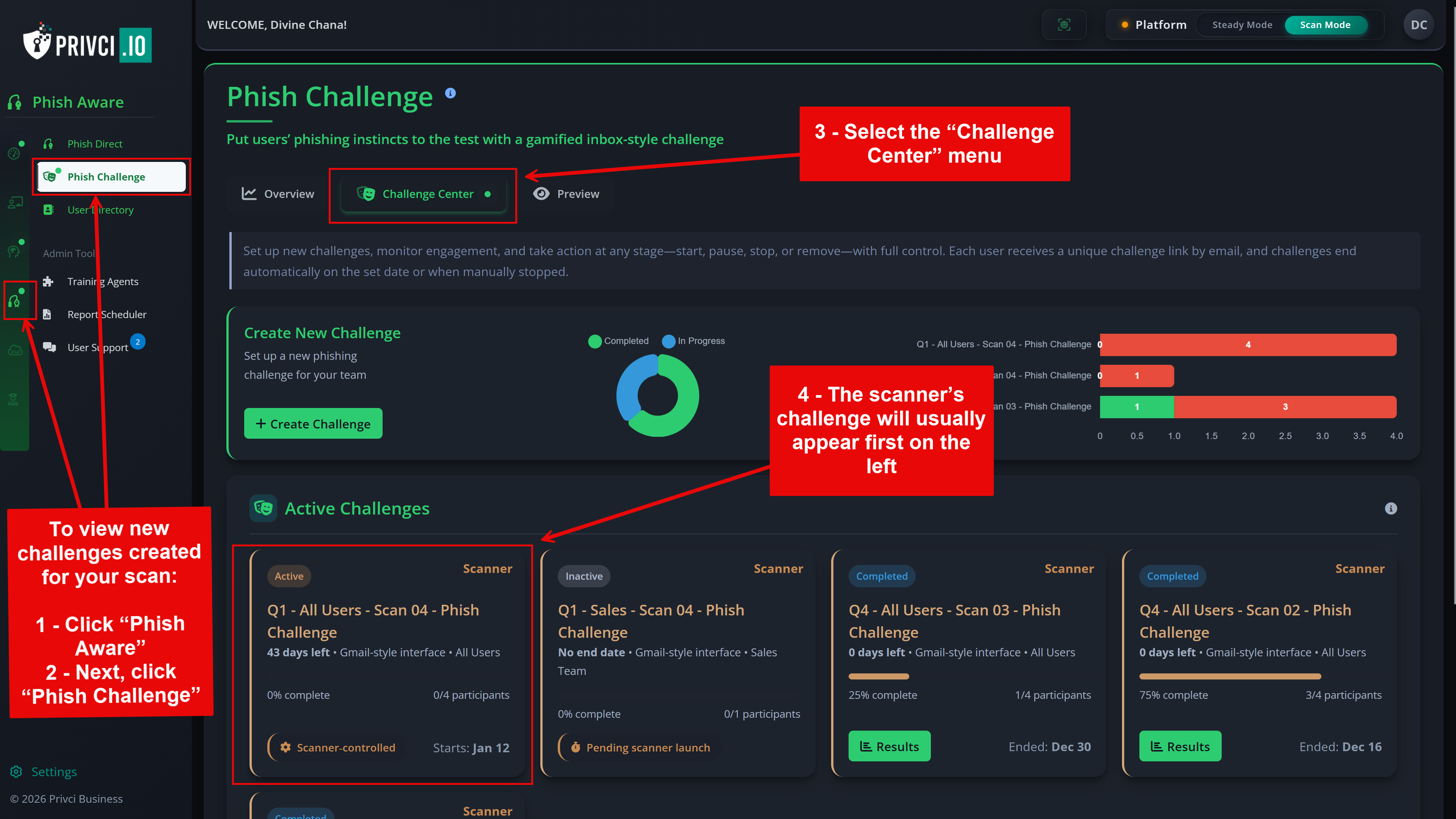
Automatic Phish Challenge Creation

Every time you start a scan, Privci automatically creates a new Phish Challenge to assess users’ phishing awareness and response behaviour during the scan period.

  1. When you click “Start Scan”, a new Phish Challenge is automatically generated.
  2. The challenge name will match your Scan Reference for easy tracking.
  3. The challenge runs automatically during the scan and contributes to each user’s behavioural assessment.
  4. You can view the challenge from: Phish Aware → Phish Challenge → Challenge Center.
 Understanding Phish Challenge automation

Note: All launched scans automatically conclude on or after the final day of the scan period. Reports are generated immediately after completion.

3

Understanding Scan Results

Once a scan is completed, Privci automatically generates three different types of reports. Each report provides a unique perspective on your organisation’s behavioural risk, helping you understand trends, identify high‑risk users, and communicate results effectively across your business.

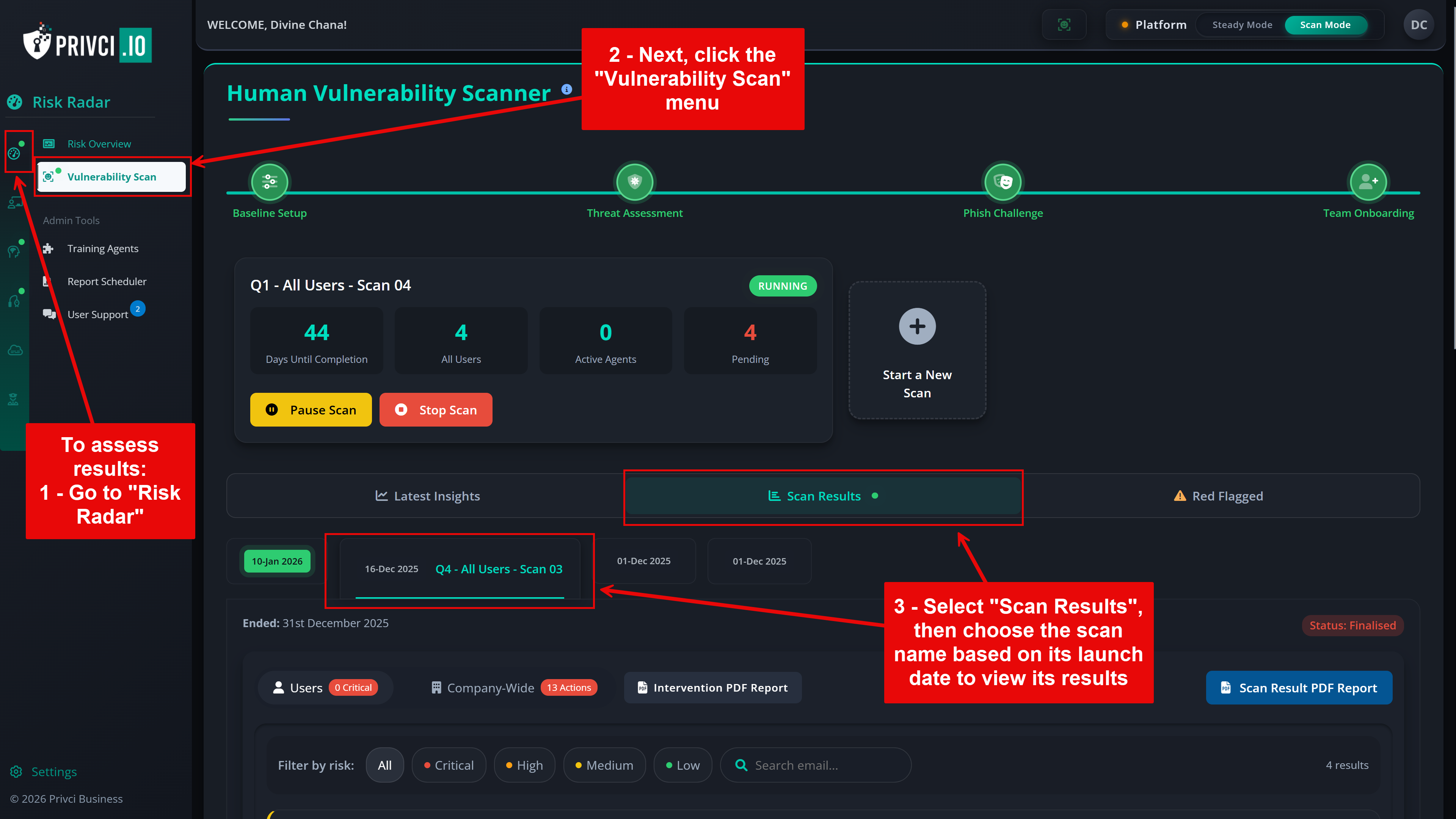
These reports are accessible from the “Risk Radar”“Vulnerability Scan” page and are designed to give you both high‑level insights and detailed, actionable intelligence.

Goto Scan Results

Privci generates three types of reports after every scan:

1

Trends Report (Latest Insights)

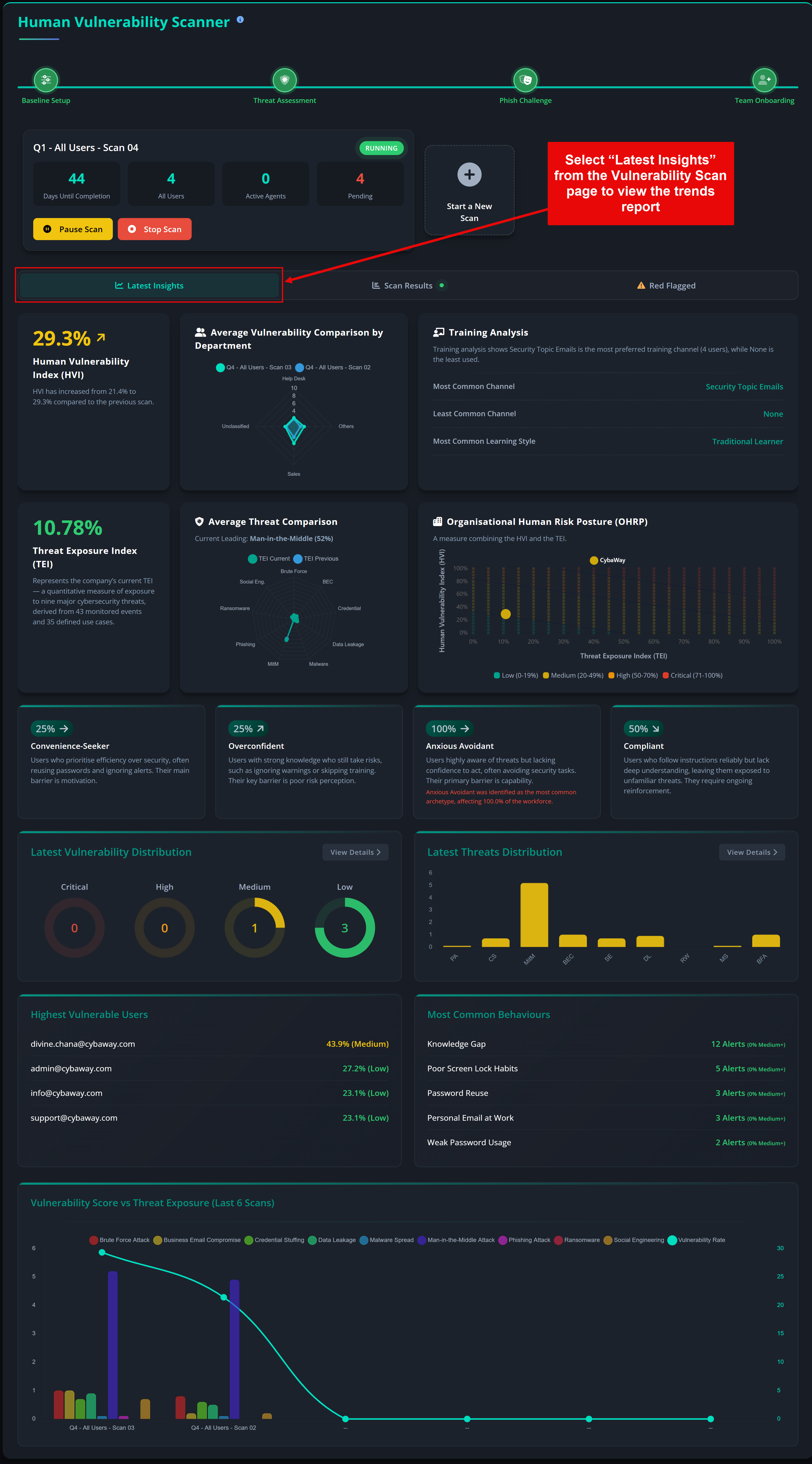
The Trends Report provides a high‑level comparison between your most recent scan and previous scans. It highlights changes in key behavioural KPIs, helping you understand whether your organisation’s human‑risk posture is improving or declining over time.

This report is ideal for leadership reviews, quarterly updates, and tracking long‑term behavioural change.

  1. From the Vulnerability Scan page, select Latest Insights.
  2. Review the Trends Dashboard, which compares your latest scan results with previous scans.
  3. Analyse changes in key KPIs such as:
    • Human Vulnerability Index (HVI)
    • Threat Exposure Index (TEI)
    • Organisational Human Risk Posture (OHRP)
    • Behavioural Archetype
    • Training Analysis
    • Vulnerability Distribution
    • Threats Distribution
    • Departmental Comparison
  4. Use these insights to identify long‑term patterns and areas requiring additional interventions.
Screenshot of the Latest Insights Trends Dashboard

Note: The Trends Report updates automatically after each completed scan and always reflects your most recent behavioural data.

2

Interactive Scan Dashboard

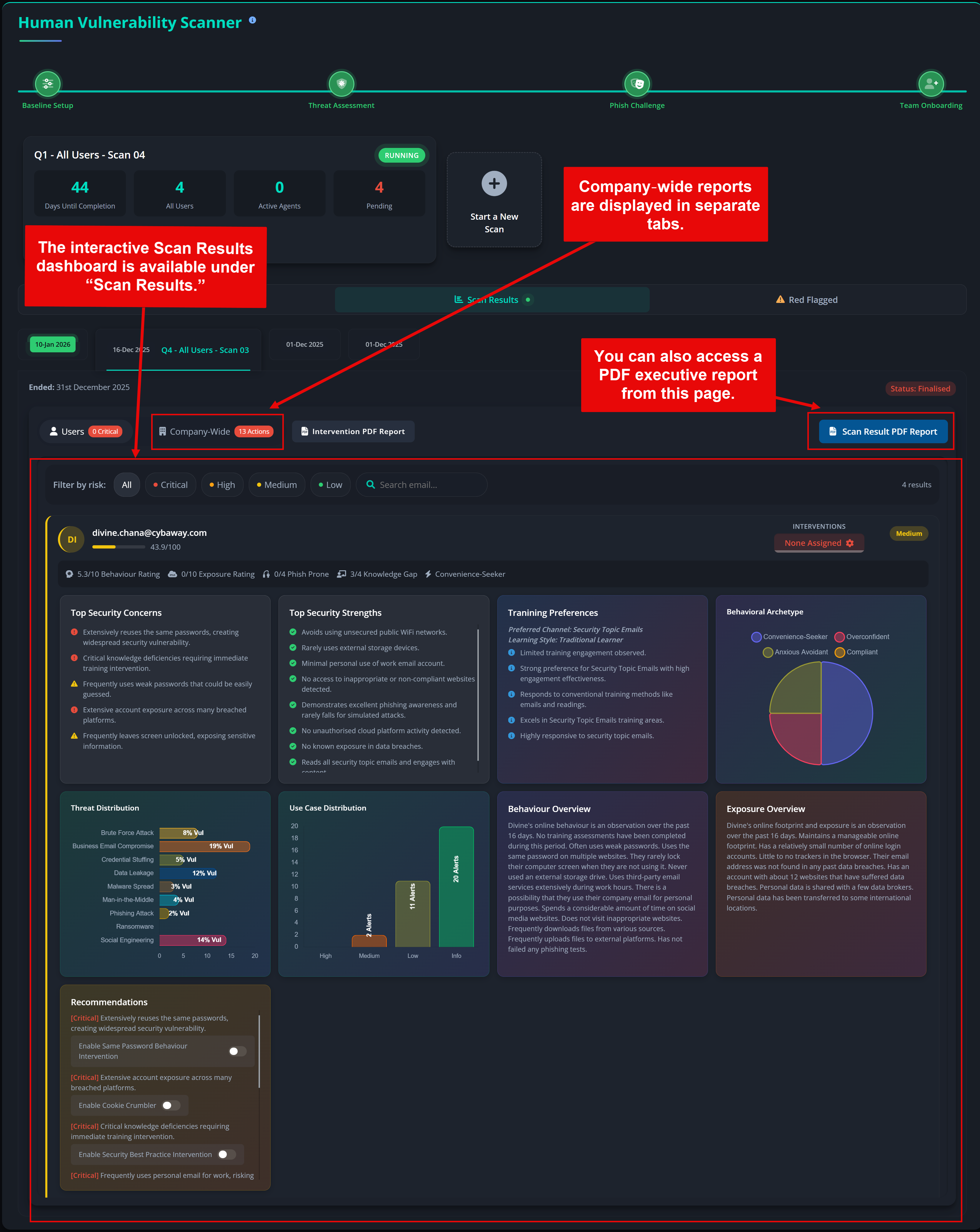
The Interactive Scan Dashboard provides a detailed, near real‑time view of your scan results. It includes both individual user reports and company‑wide behavioural insights, allowing admins to explore data, assign interventions, and drill into specific risk areas.

This dashboard is the most comprehensive view of your scan and is designed for operational teams, security analysts, and administrators.

  1. From the Vulnerability Scan page, select Scan Results.
  2. Select the scan you want to review from the menu labelled with the Scan Start Date / Scan Reference.
  3. Explore the two report categories:
    • Individual User Reports — detailed behavioural profiles, risk scores, and recommended interventions.
    • Company‑Wide Reports — aggregated insights, risk distribution, and behavioural patterns.
  4. You can assign interventions directly from each of these dashboards to address specific behavioural risks.
Screenshot of the Interactive Scan Dashboard

Note: Only the last six scans are displayed in the Scan Results menu. Older scans are archived but can be retrieved by contacting support.

3

Executive PDF Report

The Executive PDF Report is a polished, shareable summary designed for leadership teams, board members, and non‑technical stakeholders. It provides a clear overview of your scan results, definitions of key terms, and explanations of all KPIs.

This report is ideal for internal presentations, compliance documentation, and organisational reporting.

  1. From the Vulnerability Scan page, select Scan Results.
  2. Locate the “Scan Result PDF Report” button and click to access and download the executive‑style summary.
  3. Download, review, and share the report internally with leadership, HR, compliance, or security teams as needed.

Executive PDF Report (Sample)

Download Sample PDF

Note: A summary report is also emailed automatically to the admin when the scan concludes, providing a quick overview of key results.

4

Applying Behavioural Interventions

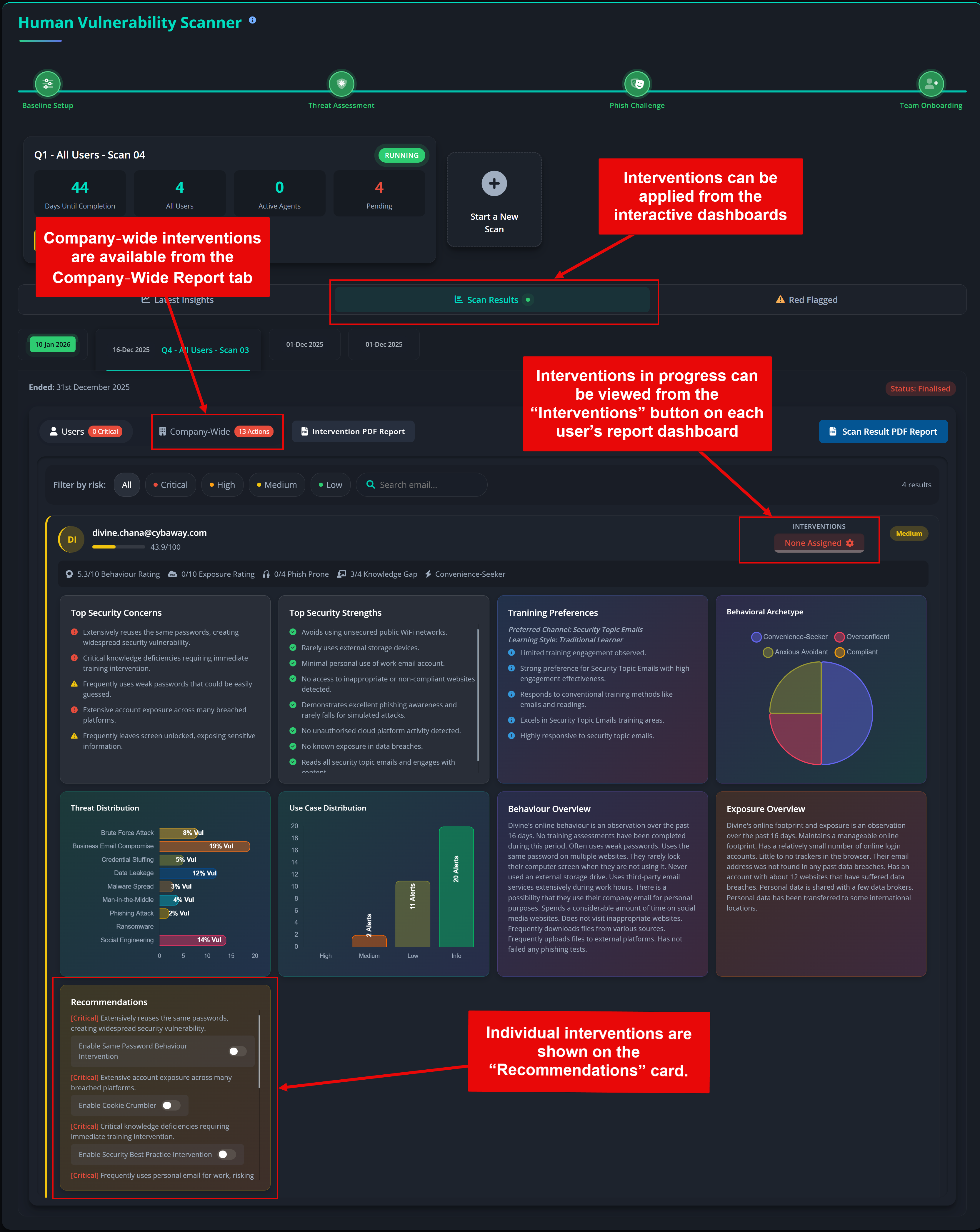
Privci makes it easy to take action on scan findings by enabling targeted behavioural interventions. These interventions help address specific behaviours identified during the scan—whether at the individual user level or across the entire organisation.

Interventions can be enabled directly from the scan results dashboard and are designed to influence unwanted user behaviours through corrective actions that improve their behavioural risk profile over time.

Interventions are available from the interactive reports under Risk Radar → Vulnerability Scan → Scan Results.

Overview of intervention options within the Scan Results dashboard

Interventions can be applied at both the individual and company-wide level:

1

Applying individual interventions

Individual interventions allow you to address specific behavioural risks identified for a particular user. These interventions are personalised and help guide the user through corrective actions that improve their security posture over time.

  1. From the Scan Results tab, locate the user whose results you want to review.
  2. Open the user’s result card to view their detailed scan findings.
  3. Locate the Recommendations card and enable the suggested intervention(s) you want to apply.
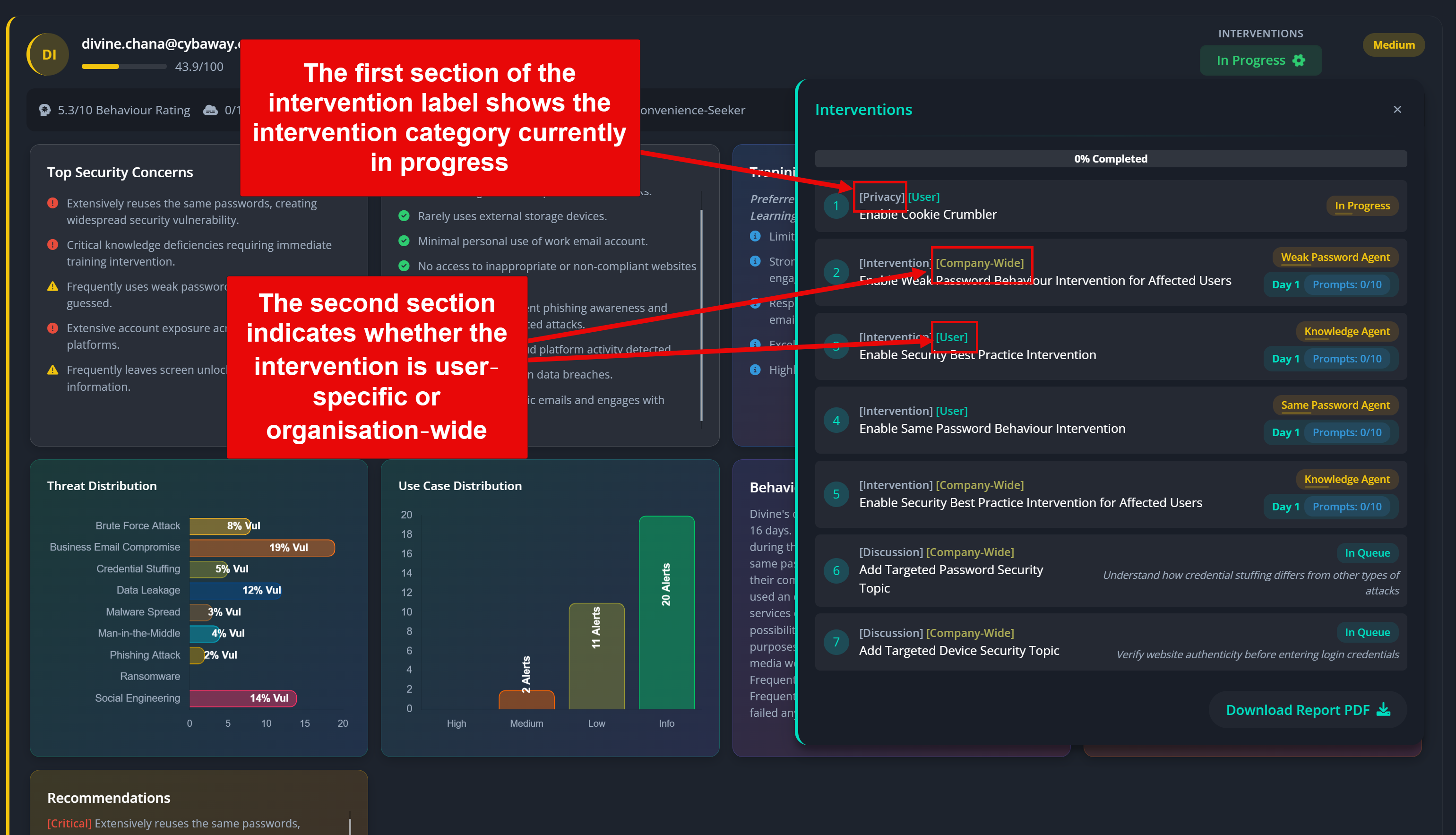
  4. Once enabled, the user’s Interventions button will display progress throughout the remediation period.

Note: Only the latest scan report for a user will display their current intervention progress.

2

Applying company-wide interventions

Company-wide interventions address behavioural risks that affect the entire organisation. These interventions are ideal for systemic issues such as policy misalignment, widespread phishing vulnerability, or consistently low knowledge scores across teams.

  1. From the Scan Results, select the scan you want to review.
  2. Click the Company-Wide tab to access the organisation-level report.
  3. Review the list of recommended actions displayed on each card, and enable the interventions you want to apply for affected users.
  4. Privci will automatically update and assign interventions to affected users and trigger the intervention process.
  5. Progress can be viewed from each user’s individual scan result or from the Intervention PDF Report button.

Note: Starting a new scan that includes a user will terminate any ongoing interventions for that user.

3

Monitoring intervention progress and reporting

Privci provides built‑in tools to help you track intervention progress and generate reports for internal review. These reports help demonstrate improvement, accountability, and behavioural change across your organisation.

  1. To view progress for an individual user, locate their report in Scan Results and click the Interventions button at the top left of their report.
  2. To view progress across all users, from the Scan Results tab click the Intervention PDF Report button.
  3. The Intervention PDF Report includes, for each user:
    • Total number of interventions
    • Intervention progress and status
    • Detailed categories, descriptions, and outcomes
  4. Share this report with leadership, HR, or compliance teams as needed to evidence behavioural risk reduction and ongoing remediation.

Intervention PDF Report (Sample)

Download Sample PDF

Note: The Intervention PDF Report provides a complete overview of all interventions currently in progress and is updated automatically after each scan and intervention update.

5

Intervention Categories

Privci provides a powerful remediation framework designed to address the behavioural risks identified during a scan. These remediations—called Interventions—guide users toward safer habits, reinforce policy alignment, and reduce organisational vulnerability.

Interventions fall into seven major categories, each targeting a different aspect of user behaviour. Understanding these categories helps you select the most effective remediation strategy for your organisation.

Overview of intervention categories within the Scan Results dashboard

Interventions are grouped into seven categories:

1

Challenges

Challenges invite users to complete structured behavioural tasks designed to strengthen specific skills. When enabled, these challenges become mandatory and must be completed as part of the user’s remediation journey.

  1. Can be enabled for individual users or from the Company‑Wide report.
  2. The user must complete the challenge within the specified timeframe.
  3. Challenge completion contributes to the user’s behavioural improvement score.
2

Discussion (Topic of the Week)

Discussion interventions use the Topic of the Week feature to deliver targeted micro‑learning content. These topics address specific behavioural weaknesses identified during the scan. Once enabled, a relevant topic is added to the top of the user’s Topic Queue.

  1. Can be enabled from the Company‑Wide report.
  2. Privci automatically selects a topic aligned with the behaviour being addressed.
  3. Topics added by the scanner are labelled “Scanner” and prioritised in the queue.
3

Direct Intervention (Behaviour Agents)

Direct Interventions use Privci’s specialised Intervention Agents to address targeted behaviours. These agents apply the COM‑B behaviour change model to drive measurable improvement. Each agent focuses on a specific behavioural domain and continues working with the user until improvement is detected.

  1. Can be enabled for individual users or from the Company‑Wide report.
  2. Privci assigns the appropriate Intervention Agent based on the behaviour identified.
  3. In Scan Mode, each intervention runs for 10 cycles.
  4. In Steady Mode, interventions continue until the behaviour falls below the risk threshold.
  5. Intervention content is auto‑generated, but can also be triggered manually.
  6. Agents use internal company policies to increase effectiveness.

Note: For best results, ensure your company policies are uploaded in the Baseline Setup and Policy Hub.

4

Report

Report interventions generate a personalised behavioural report and send it directly to the user via email. These reports raise awareness by showing the user their vulnerability level and how it impacts both them and the organisation.

  1. Can be enabled for individual users or from the Company‑Wide report.
  2. The user receives a detailed behavioural report via email.
  3. The report highlights risk areas and recommended corrective actions.
5

Reminder

Reminder interventions send a short follow‑up message prompting the user to take recommended actions. These are especially useful when a user has not yet acted on a previous alert or when a risk requires urgent attention.

  1. Can be enabled for individual users or from the Company‑Wide report.
  2. Privci sends a mini‑report with a clear call‑to‑action.
  3. Examples include reminders to change passwords or complete a required task.
6

Phishing

The Phishing intervention automatically creates a new mandatory Phish Challenge and adds affected users to the challenge scope. This is ideal for addressing phishing‑related vulnerabilities identified during the scan.

  1. Can be enabled from the Company‑Wide report.
  2. Privci automatically generates a new Phish Challenge.
  3. All affected users are added to the challenge scope.
7

Privacy

Privacy interventions protect a user’s digital footprint by clearing cookies, browser history, and other stored data. These are especially useful for users who frequently work on public Wi‑Fi or shared devices.

  1. Can be enabled for individual users or from the Company‑Wide report.
  2. Privci applies privacy safeguards to the user’s browser.
  3. If enabled from Scan Results, it applies only to that user. If enabled from Data Safeguards, it applies to all users.

Platform Settings Overview

1

Awareness Engine

Privci’s Awareness Engine delivers a multi‑layered, adaptive training experience designed to meet the diverse needs, preferences, and behavioural patterns of modern workforces. Instead of relying on one‑size‑fits‑all annual training, Privci provides continuous, contextual, and personalised learning across three core training streams.

These streams work together to reinforce secure behaviour, strengthen long‑term knowledge, and ensure organisation‑wide policy alignment.

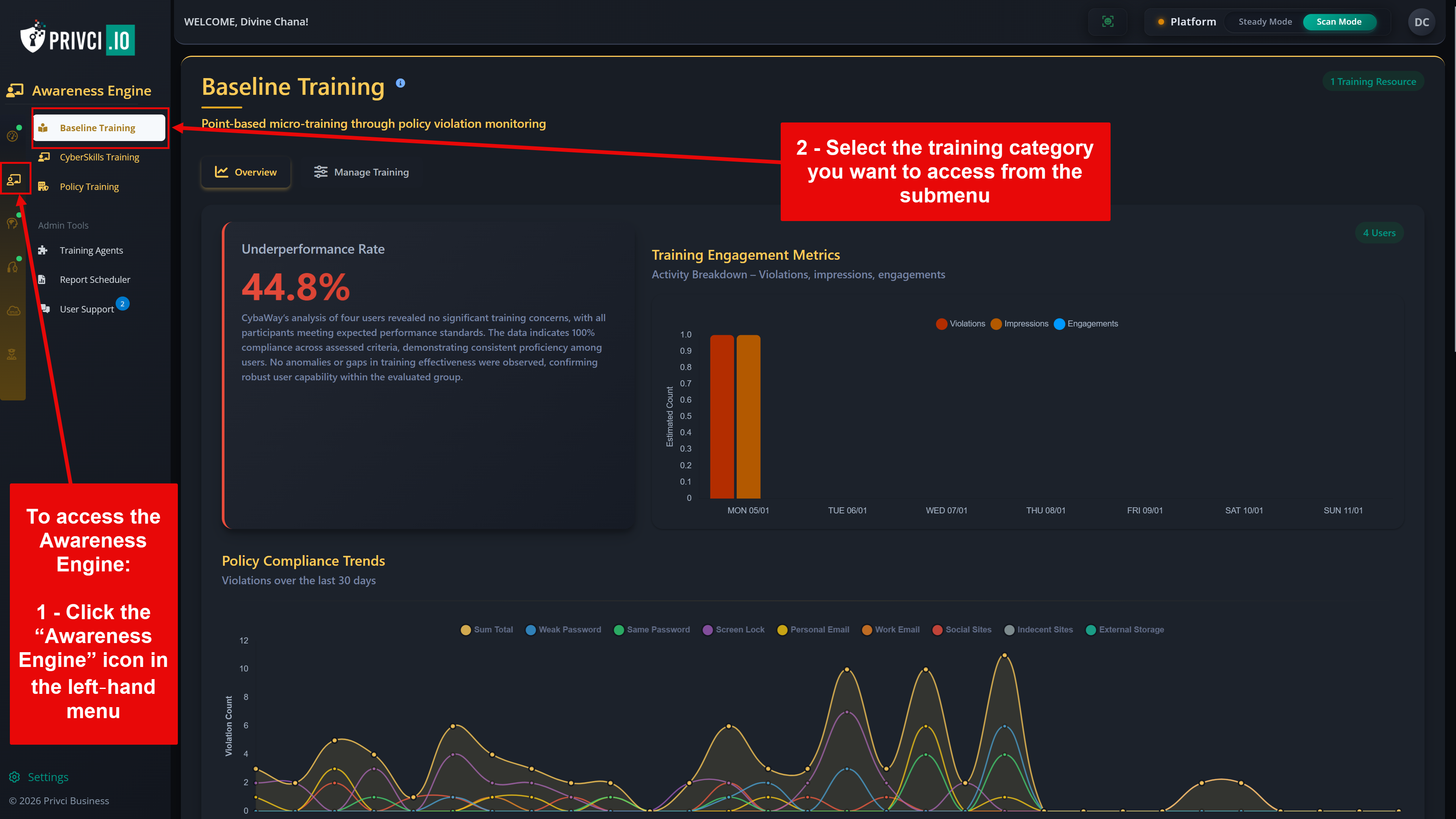
The Awareness Engine can be accessed from the Awareness Engine icon in the left‑hand menu.

Overview of the Awareness Engine training streams

The Awareness Engine consists of three core training streams:

1

Baseline Training

Baseline Training forms the continuous foundation of your organisation’s security culture. It delivers short, gamified, point‑based prompts at the exact moment a policy violation occurs. This real‑time reinforcement corrects habits as they happen and feeds essential behavioural data into the Human Vulnerability Scanner and Change Engine.

Baseline Training can be configured from:
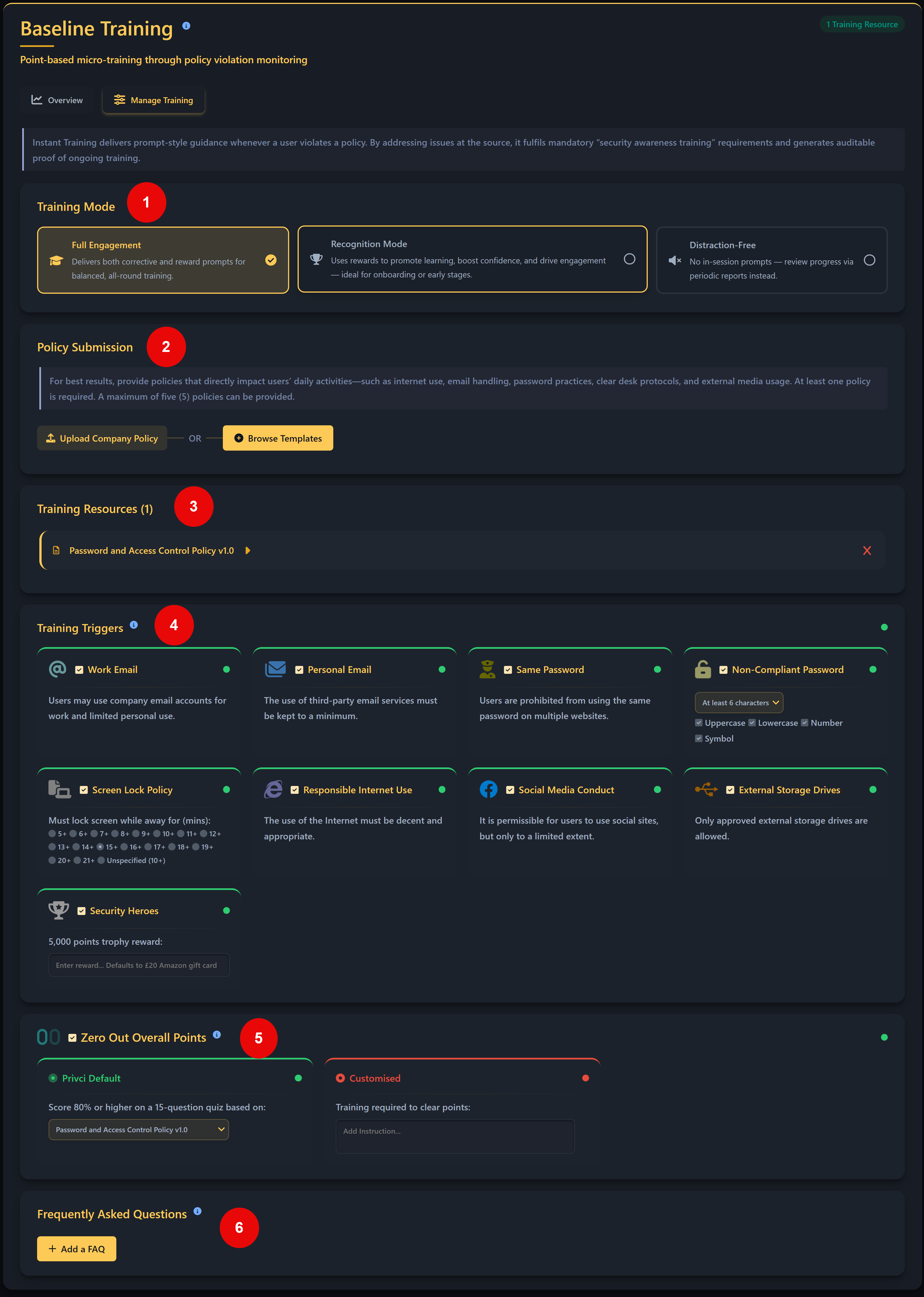
Awareness Engine → Baseline Training → Manage Training.

  1. Training Mode
    Controls how baseline training is delivered:
    • Full Engagement Mode
      Delivers both corrective and reward prompts for balanced, continuous training.
      Recommended mode — automatically enabled and used by the scanner within 7 days of the scan start date.
    • Recognition Mode
      Focuses on rewards to promote learning, build confidence, and encourage early adoption.
    • Distraction‑Free Mode
      No in‑session prompts. Users receive periodic reports instead.
      Recommended when using monthly personalised emails from the Report Scheduler.
  2. Policy Submission
    Upload internal policies for use in Baseline Training. Privci also provides customisable templates for organisations without established policies.
    Submitted policies are automatically added to the Policy Keeper, enabling user queries and optional acknowledgement tracking.
  3. Training Resources
    Processed policies appear here. You may add up to 5 policies for direct Baseline Training use.
    At least one active policy is required for Baseline Training to function.
  4. Training Triggers
    Privci extracts monitorable statements from uploaded policies. These define violation triggers for both the platform and the scanner.
    If a user violates a trigger, they are notified and lose 2 points.
    Admins may manually enable disabled triggers for best‑practice monitoring.
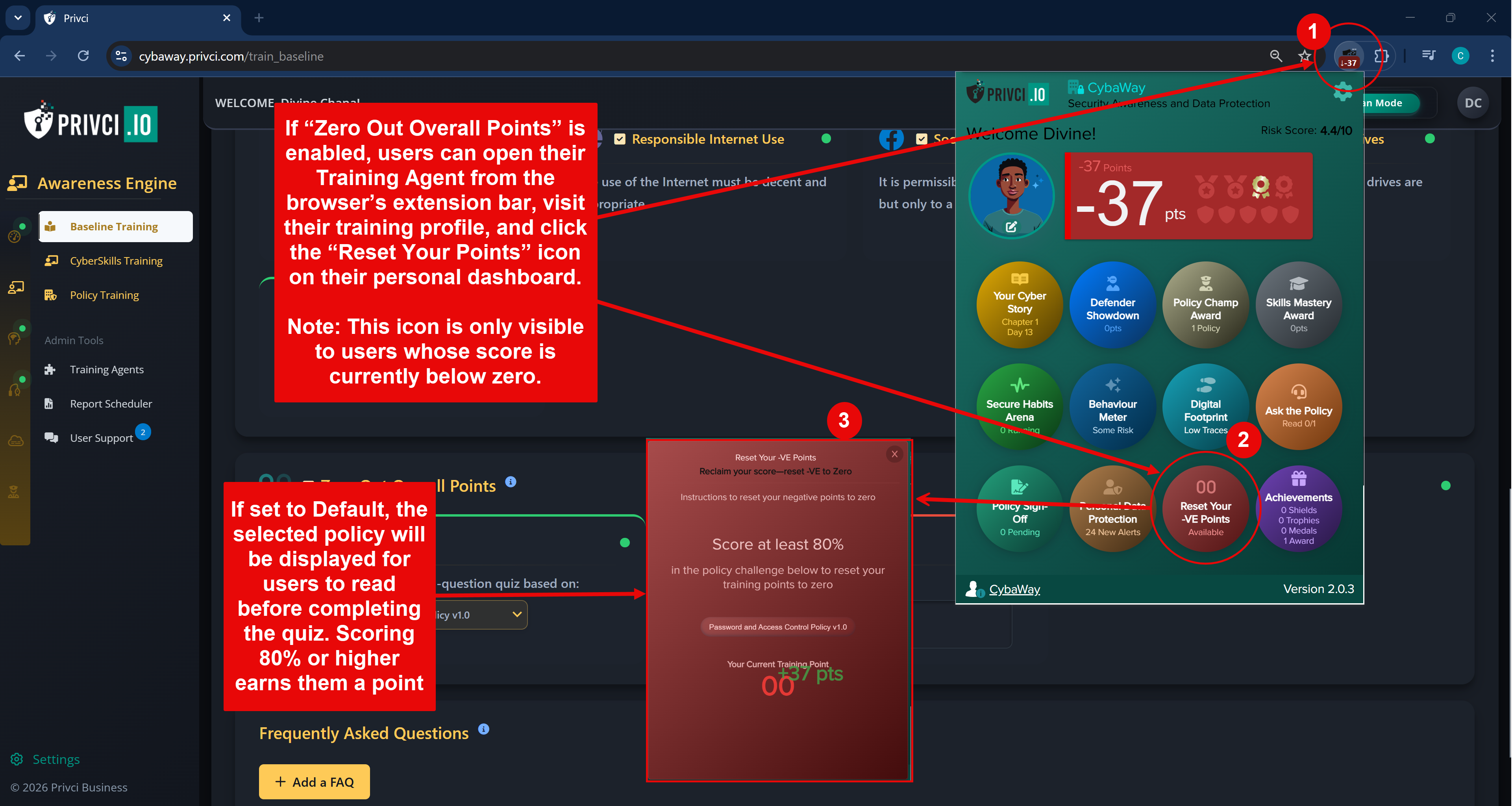
  5. Zero Out Overall Points
    If a user’s score drops below zero, enabling this feature allows them to reset their negative score back to zero.
  6. Frequently Asked Questions
    Add up to 5 FAQs. These are made available to users through the Training Agent.
Baseline Training configuration panel
Training Agent Zero Points feature
2

CyberSkills Training

CyberSkills Training builds on the Baseline layer with a structured, trophy‑driven curriculum designed to deepen user knowledge. It covers compliance‑aligned modules and advanced threat‑resilience topics. While Baseline Training corrects behaviour in real time, CyberSkills strengthens long‑term understanding and helps employees develop into a resilient human firewall.

CyberSkills Training can be configured from:
Awareness Engine → CyberSkills Training → Manage Training.

  1. Training Mode
    Controls how CyberSkills Training is delivered:
    • Challenge Mode
      Privci manages and enforces the full training process. Users receive invitations, reminders, and progression prompts.
      Designed to award trophies for completing skill sets.
    • Voluntary Mode
      Users complete training at their own pace. No invitations or reminders are sent.
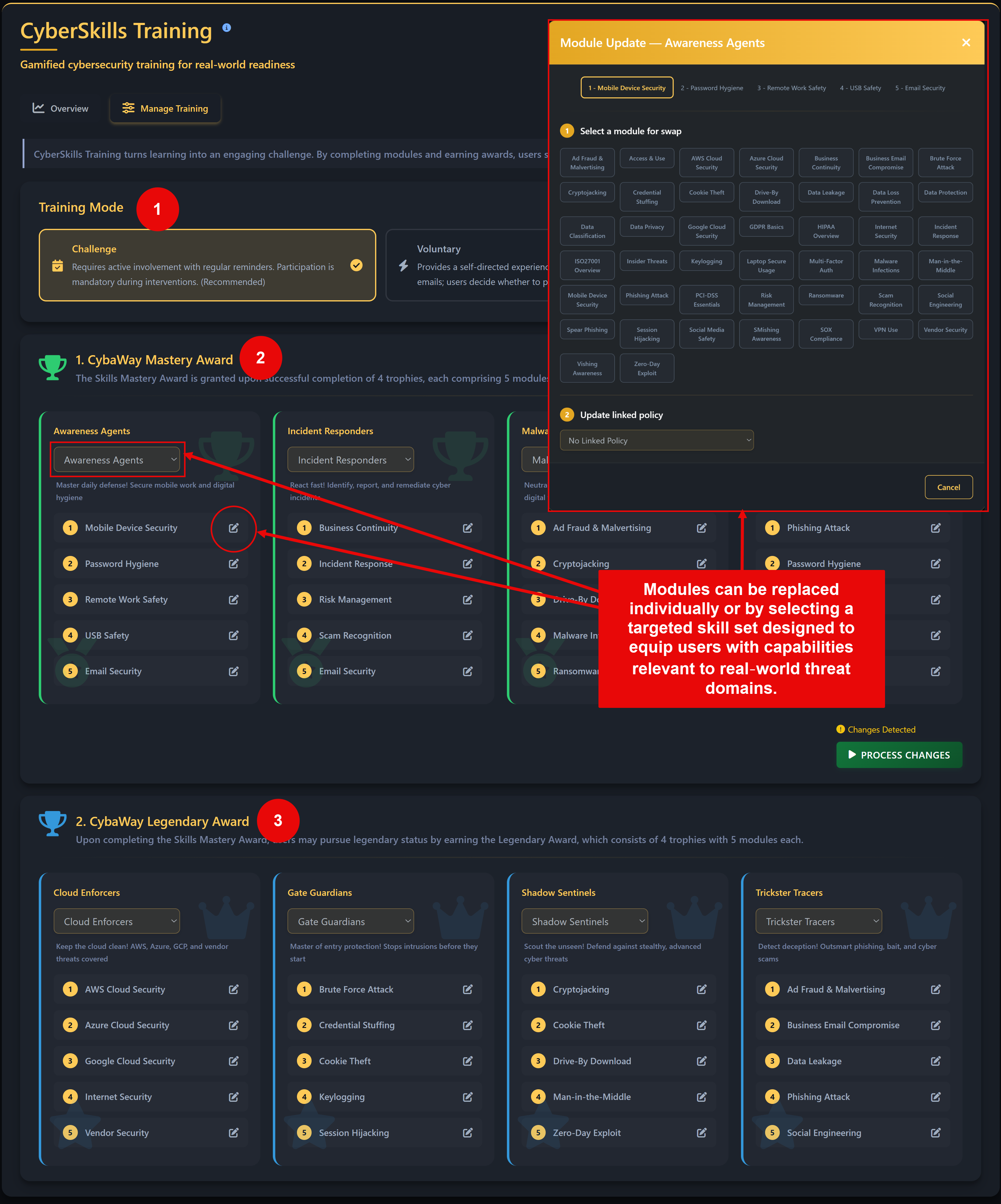
  2. Skills Mastery
    The Skills Mastery Award is earned by completing 4 trophies, each containing 5 modules focused on building distinct security skill sets.
    Modules can be replaced individually or by selecting a targeted skill set designed to equip users with capabilities relevant to real‑world threat domains.
  3. Legendary Award
    After achieving the Mastery Award, users may progress toward Legendary status. The Legendary Award consists of 4 advanced trophies, each containing 5 additional modules.
  4. Module Structure
    CyberSkills includes 44 modules across 8 skill sets.
    Admins may assign up to 5 modules per skill set (40 total) for users to reach Legendary status.
    Module content is generated in alignment with relevant company policies, referencing the specific policies linked to each module. All content is personalised and shaped by the organisation’s defined rules and environment.
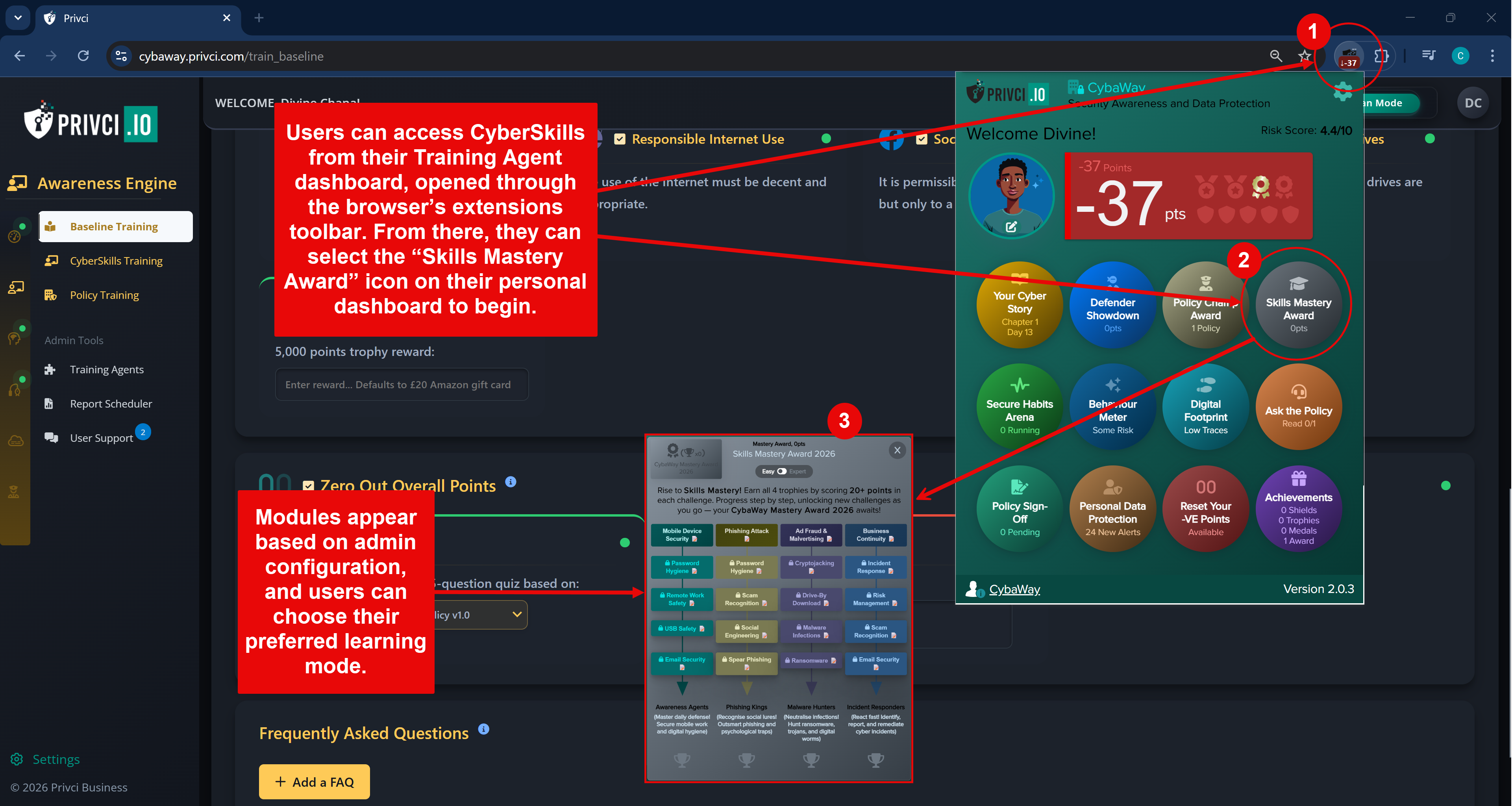
  5. CyberSkills Training (Users)
    When enabled, users see the CyberSkills icon on their Training Agent. Modules appear based on admin configuration, and users may choose their preferred learning mode:
    • Easy Mode
      Users review the training content before taking the quiz.
    • Expert Mode
      Users skip the content and proceed directly to the assessment.
    • Trophies & Awards
      Completing a skill set unlocks a trophy and title. Completing all assigned modules earns the Mastery Award.
    • Real‑Time Tracking
      Admin dashboards update instantly under:
      CyberSkills Training → Overview → User Progress.
CyberSkills Training management interface
CyberSkills Training Agent
3

Policy Training

Policy Training focuses exclusively on strengthening company policy awareness through a structured, gamified learning experience centred on the Policy Champion Award. It transforms your uploaded policies into an engaging training journey that can be run annually or as a one‑off event.

Policy Training can be configured from:
Awareness Engine → Policy Training → Manage Training.

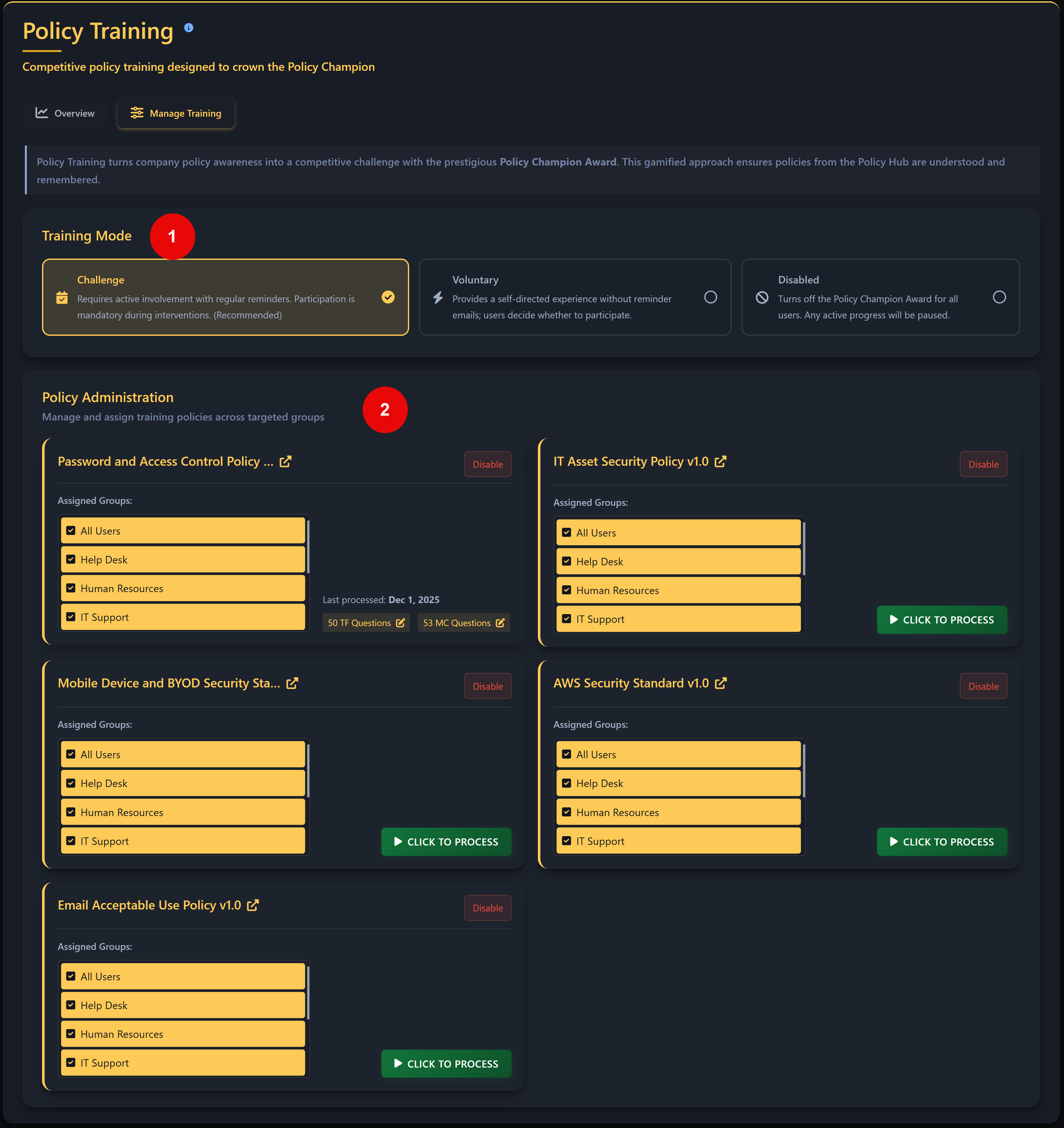
  1. Training Mode
    Controls how Policy Training is delivered:
    • Challenge Mode
      Privci manages and enforces the full training process. Users receive invitations, reminders, and progression prompts.
      Top performers earn the Policy Champion Award.
    • Voluntary Mode
      Users participate at their own pace. No invitations or reminders are sent.
  2. Policy Administration
    Admins can manage all aspects of policy‑based training, including:
    • Editing and assigning policies
    • Enabling or disabling policies for training
    • Editing quizzes linked to each policy
    • Assigning policies to specific user groups
  3. Policy Source
    All policies used in Policy Training are pulled from:
    Policy Keeper → Policy Hub.
  4. Policy Training (Users)
    When enabled, users see the Policy Champion icon on their Training Agent. Participation depends on the selected training mode, and the top 10% of performers earn the Policy Champion Award.
    • Users complete policy‑based challenges assigned by admins.
    • Scores determine leaderboard ranking.
    • Users may lose their position if others outperform them, encouraging continuous improvement.
    • Admin dashboards update in real time under:
      Policy Training → Overview → Detailed Performance.
Policy Training management interface
Policy Training Agent
2

Change Engine

The Change Engine is the core of Privci’s behaviour‑change capability. Powered by research‑driven behavioural science and multiple intervention agents, it continuously analyses user behaviour and delivers personalised interventions designed to reshape habits, reduce risk, and strengthen long‑term security culture.

The Change Engine draws on data from the Awareness Engine, Phish Aware, Business Watch, Policy Keeper, and key event‑monitoring sources to generate high‑quality, context‑aware behaviour‑change resources.

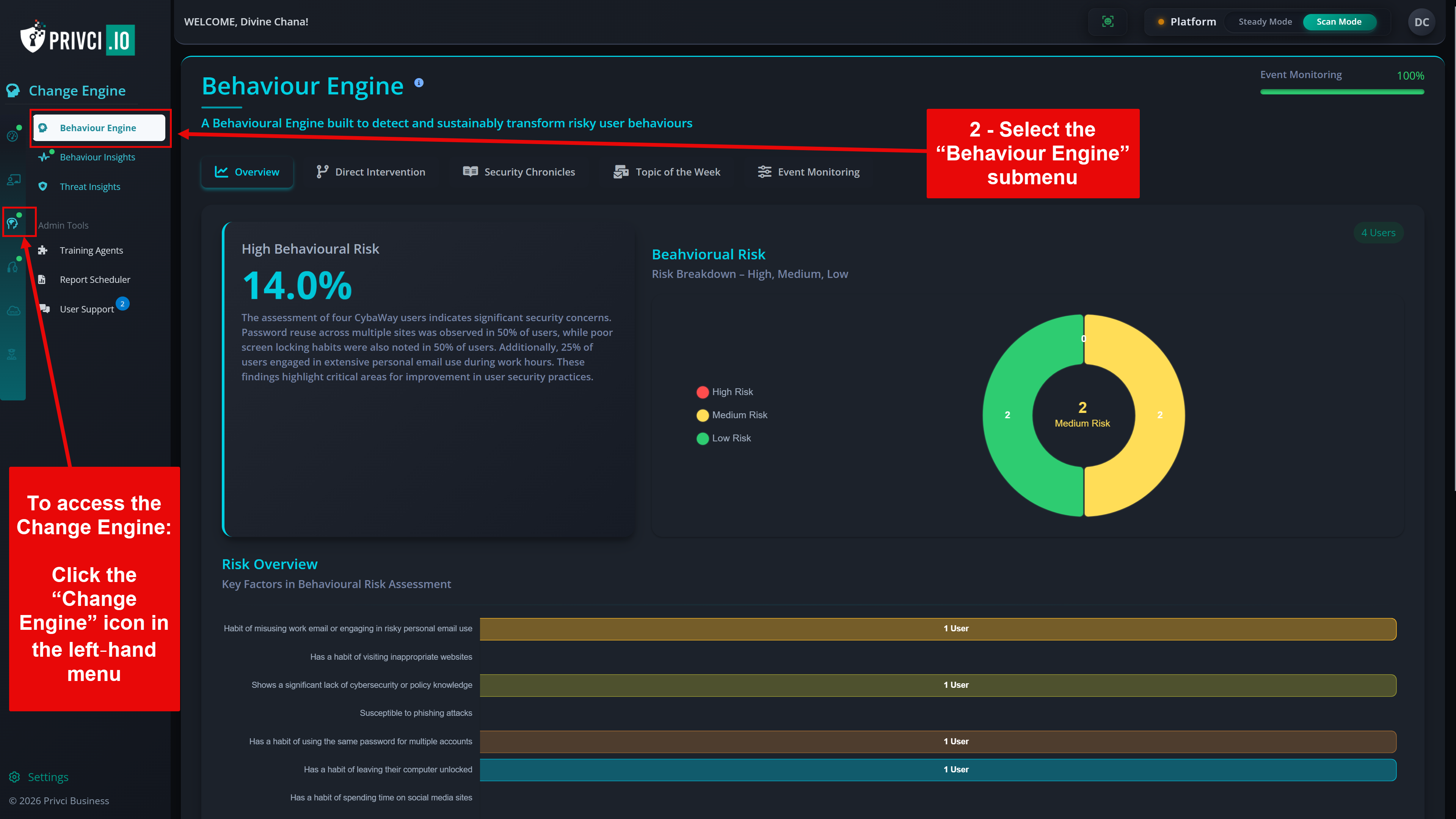
The Change Engine can be accessed from the Change Engine icon in the left‑hand menu.

Overview of the Change Engine and its behaviour‑driven components

The Change Engine drives behaviour change through its dedicated Behaviour Engine:

Behaviour Engine

The Behaviour Engine applies four integrated tools to shape and reinforce secure habits.

1

Direct Intervention

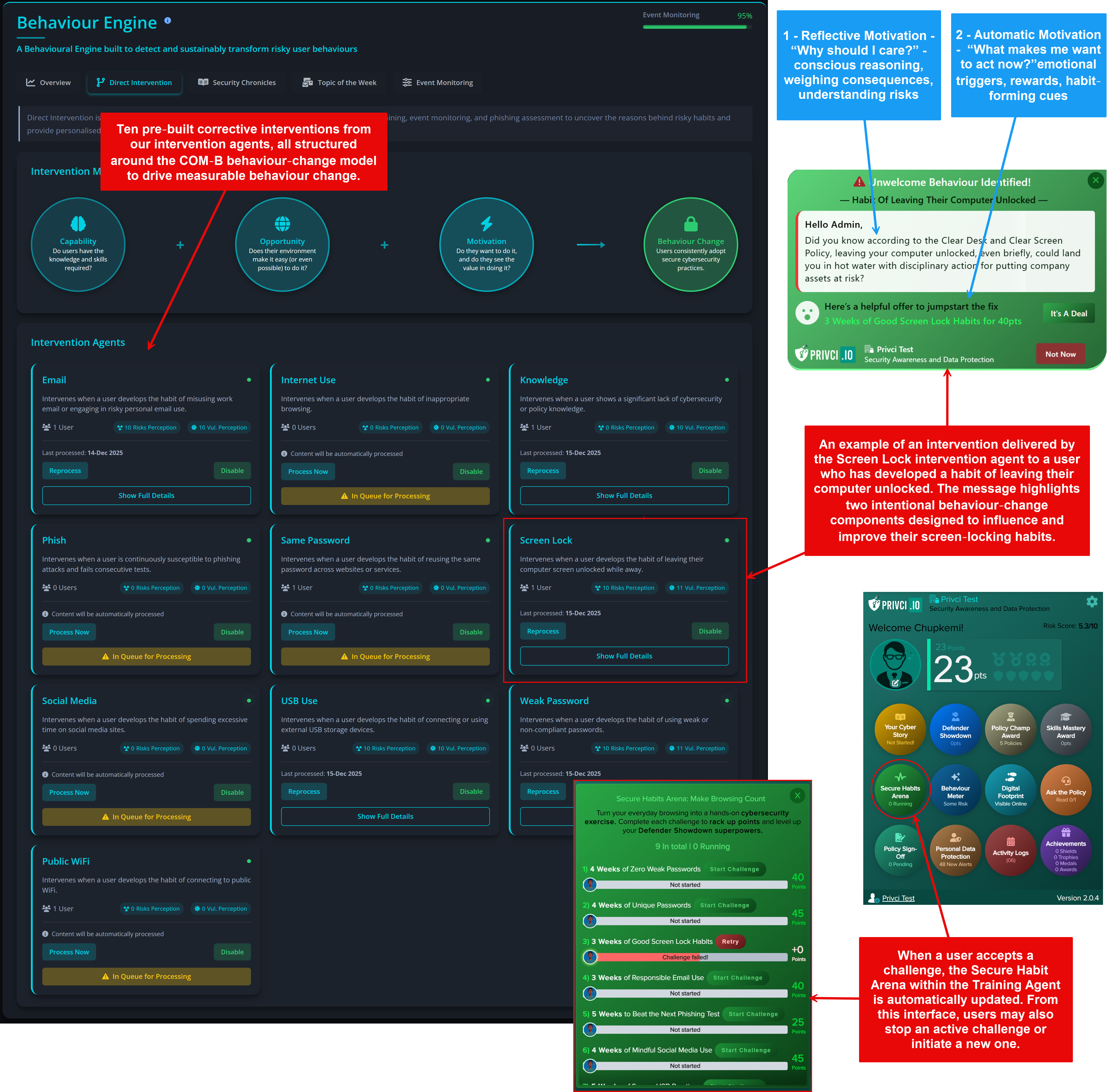
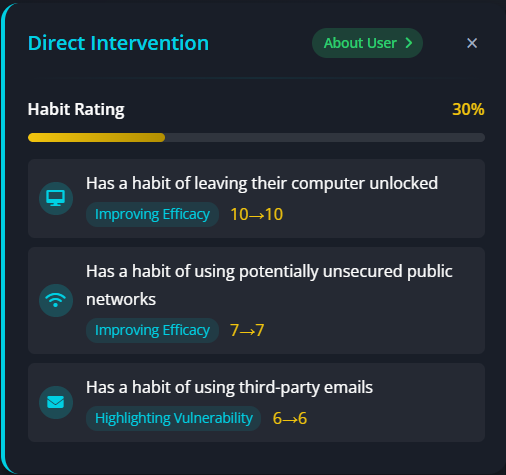
Direct Intervention consists of ten specialised behavioural agents designed to target specific risky habits. Each agent delivers personalised, corrective interventions using the COM‑B behaviour‑change model, ensuring that users receive the right type of support at the right time.

Access via:
Change Engine → Behaviour Engine → Direct Intervention.

  1. Direct Intervention agents operate automatically — no manual configuration is required.
  2. Content is auto‑generated and refreshed periodically, including when new policies are uploaded.
  3. Each agent targets a specific behavioural weakness (for example, password hygiene, risky browsing, or email misuse).
  4. Active interventions can be viewed under:
    Change Engine → Behaviour Insights.
  5. When a user accepts a challenge, their Secure Habit Arena is updated and a countdown begins.
  6. If the user violates the behaviour during a challenge, the challenge ends and a new proposal is issued.
  7. Agents continue working until the behaviour falls below the acceptable risk threshold.
Direct Intervention dashboard showing active behavioural agents

Note: Disabling an intervention agent will immediately interrupt any intervention in progress. In Scan Mode, agents only run after scan results are available. In Steady Mode, they continue operating until the behaviour is corrected.

2

Security Chronicles

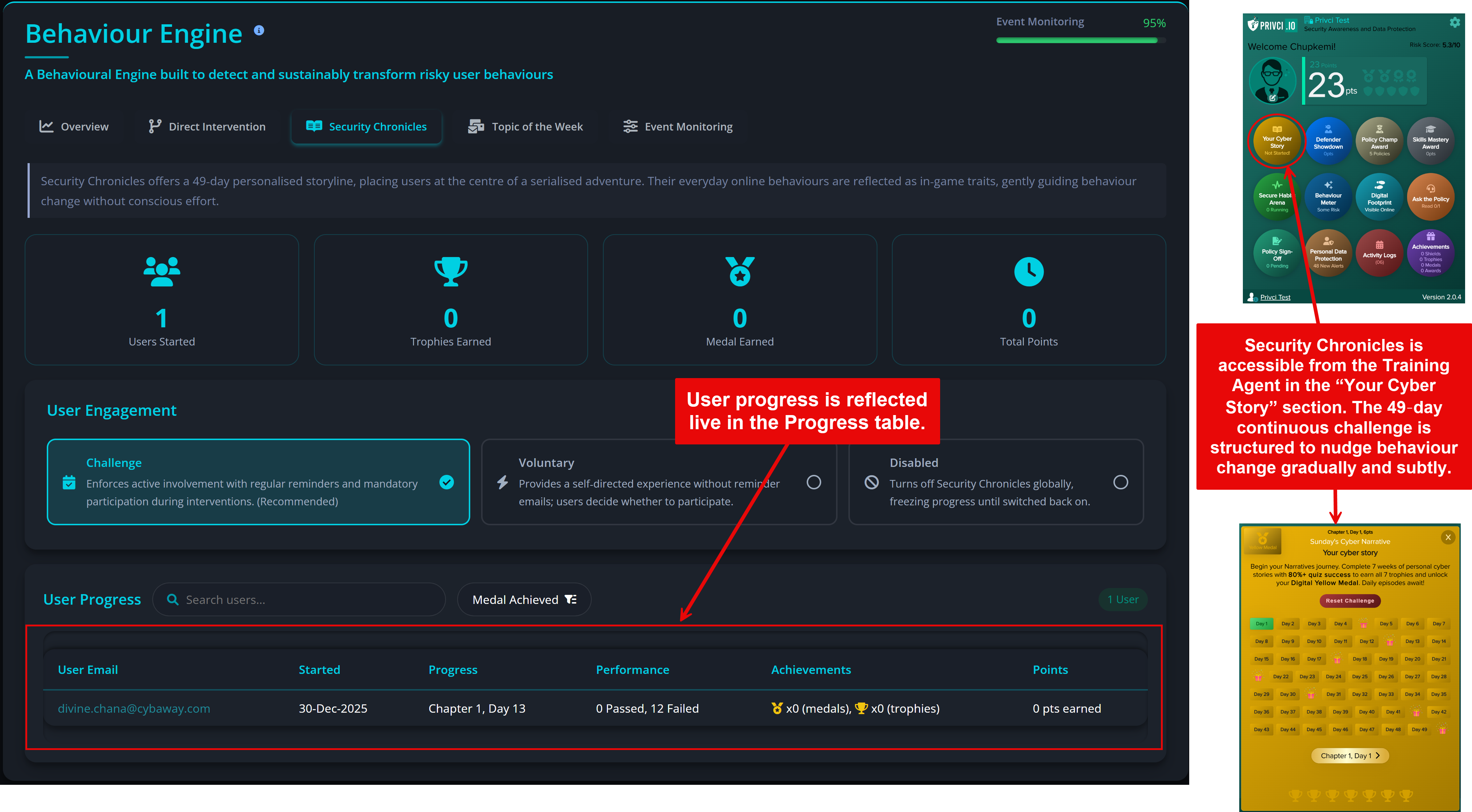
Security Chronicles is a 49‑day personalised behavioural challenge that places users at the centre of a serialised security adventure. Their real‑world behaviours appear as in‑story traits, gently guiding behaviour change without triggering conscious resistance.

Access via:
Change Engine → Behaviour Engine → Security Chronicles.

  1. Enable Security Chronicles in Challenge Mode to allow the system to manage invitations and reminders automatically.
  2. Users unlock trophies as they complete each chapter of the 49‑day journey.
  3. Unlocking at least 6 out of 7 trophies earns the user a Digital Yellow Medal.
  4. Missing a day may cause the user to continue or restart the challenge, depending on their current progress.
  5. The experience is fully gamified and designed to reinforce behaviour change through narrative immersion and repetition.
Security Chronicles adventure interface
3

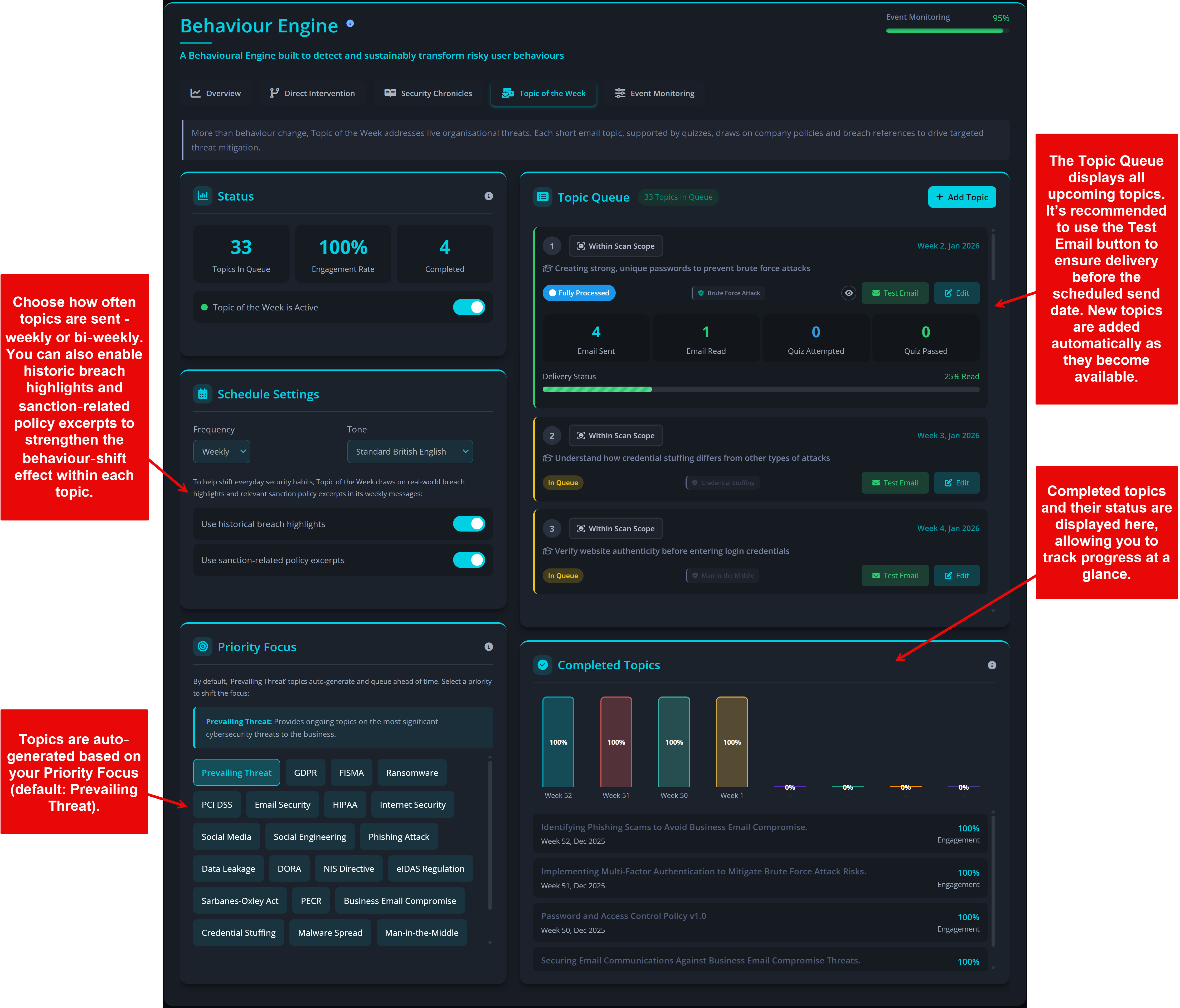
Topic of the Week

Topic of the Week delivers weekly or bi‑weekly micro‑lessons focused on the most relevant threats facing your organisation. Each topic includes quizzes, policy excerpts, and real‑world breach examples to drive targeted behaviour change and reinforce policy awareness.

Access via:
Change Engine → Behaviour Engine → Topic of the Week.

  1. Topics are auto‑generated based on your Priority Focus (default: Prevailing Threat).
  2. New topics are added automatically to the Topic Queue as they become available.
  3. Delivery content is auto‑generated before dispatch, or can be manually generated if preferred.
  4. Always send a test email before topics move into progress to confirm successful inbox delivery.
  5. Topic of the Week supports both proactive training and focused threat remediation.
Topic Queue showing upcoming and active micro‑lessons
4

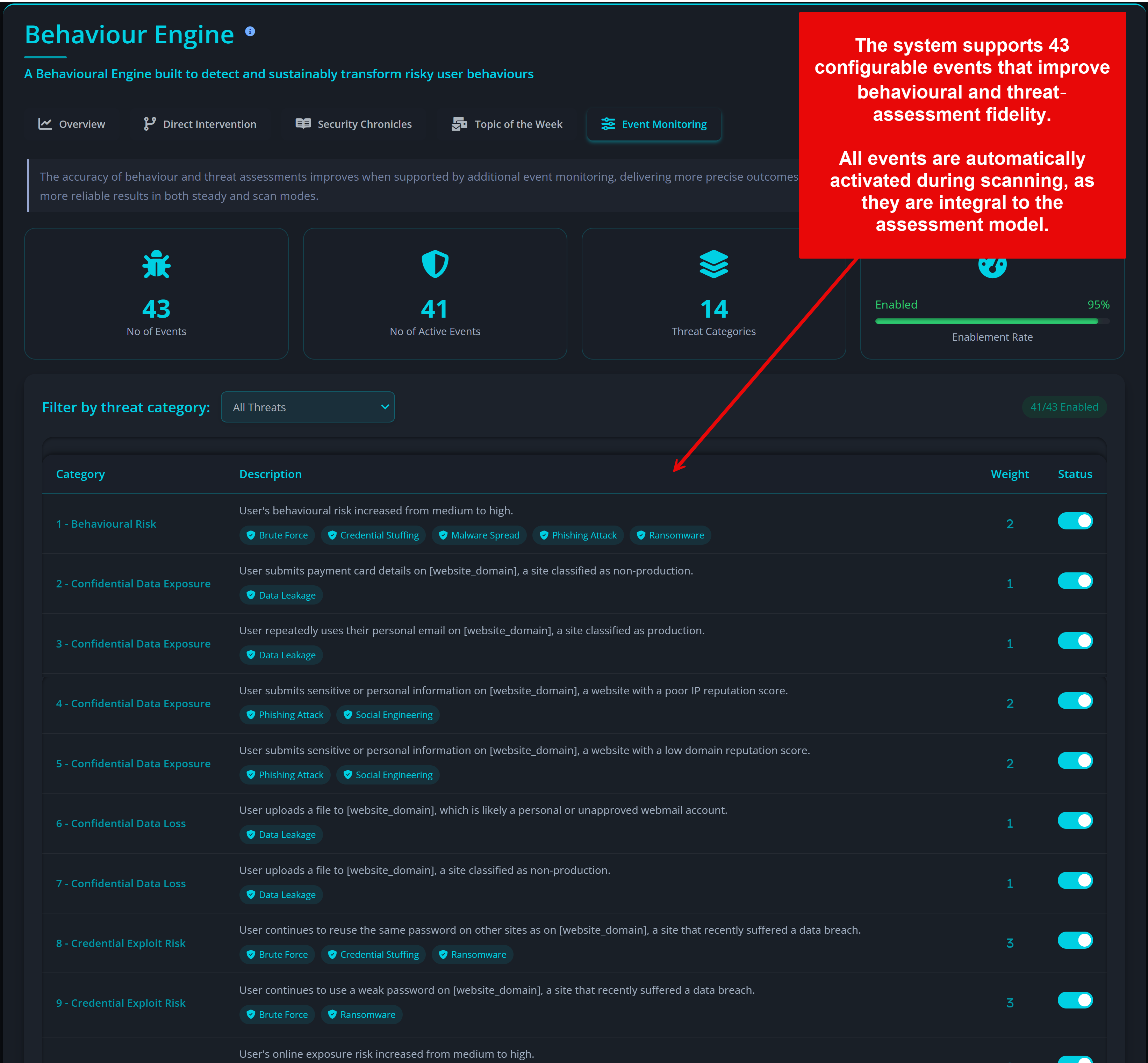
Event Monitoring

Event Monitoring enhances the accuracy of behavioural and threat assessments by tracking key user actions across the environment. Privci includes 43 monitoring events that are automatically enabled during scanning.

Access via:
Change Engine → Behaviour Engine → Event Monitoring.

  1. All 43 events are auto‑enabled during scans.
  2. We strongly recommend keeping all events enabled at all times for maximum assessment accuracy.
  3. Disabling events may reduce the precision of behaviour and threat assessments.
  4. Event data improves outcomes in both Scan Mode and Steady Mode.
Event Monitoring panel showing enabled behavioural events

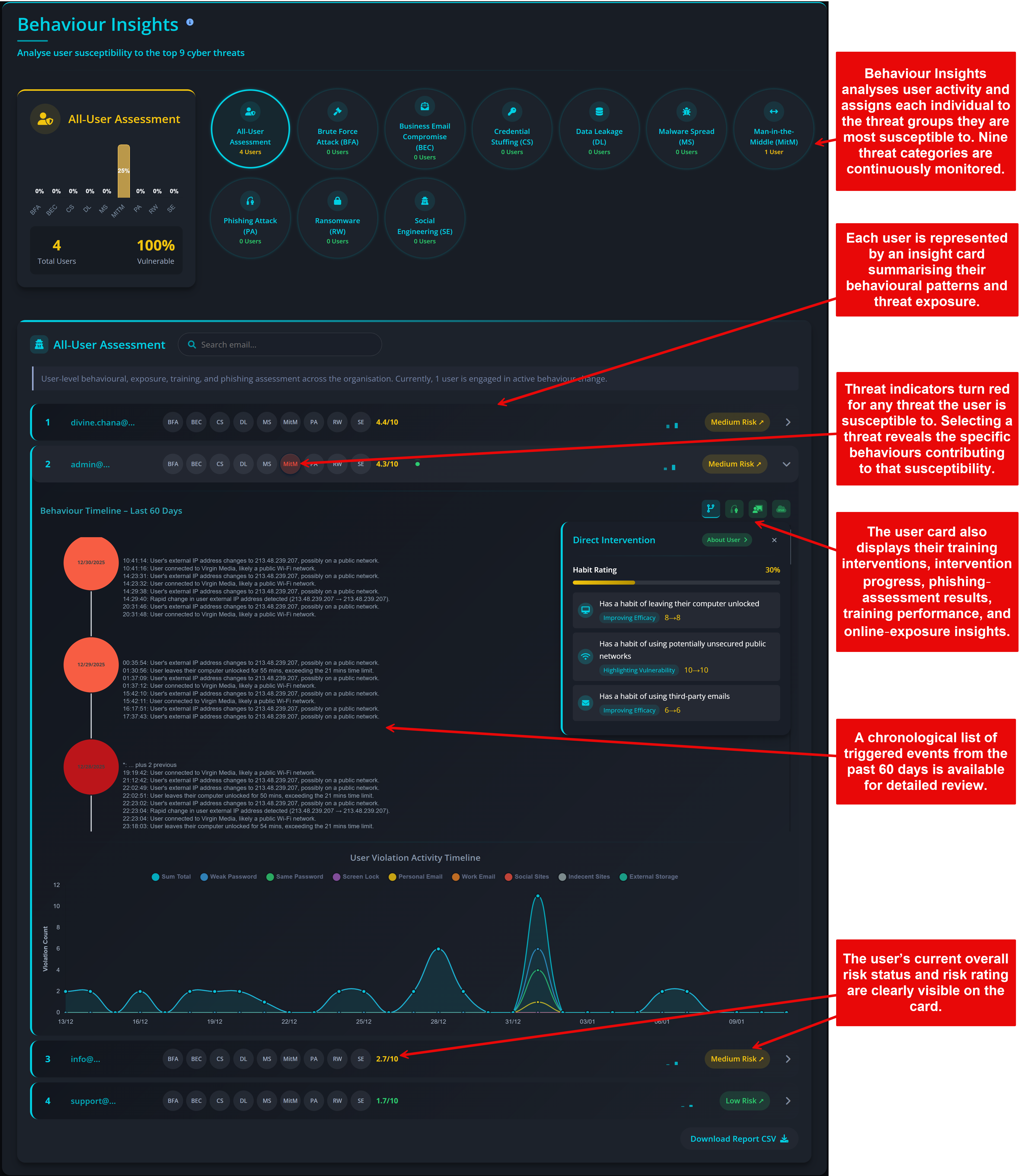
Behaviour Insights

Behaviour Insights provides a threat‑focused dashboard that analyses each user’s susceptibility to the nine most common end‑user threats — from Business Email Compromise to Ransomware.

Powered by data from the Behaviour Engine, Business Watch, and Phish Aware, Behaviour Insights highlights which threats are most prevalent and which users require immediate intervention.

Access via:
Change Engine → Behaviour Insights.

  1. View each user’s risk score and risk rating.
  2. Analyse risk trends over time to see whether risk is increasing or improving.
  3. Review the user’s behaviour timeline to understand key events and changes.
  4. See active interventions currently in progress for that user.
  5. Use the About User button for a natural‑language summary of their strengths and weaknesses.
  6. Review:
    • Phishing performance (Phish Aware)
    • Training performance (Awareness Engine)
    • Exposure status (Business Watch)
  7. Threat icons on user cards explain why the user belongs to a specific threat group and which behaviours contributed to that classification.
Behaviour Insights dashboard showing threat distribution and user risk profiles

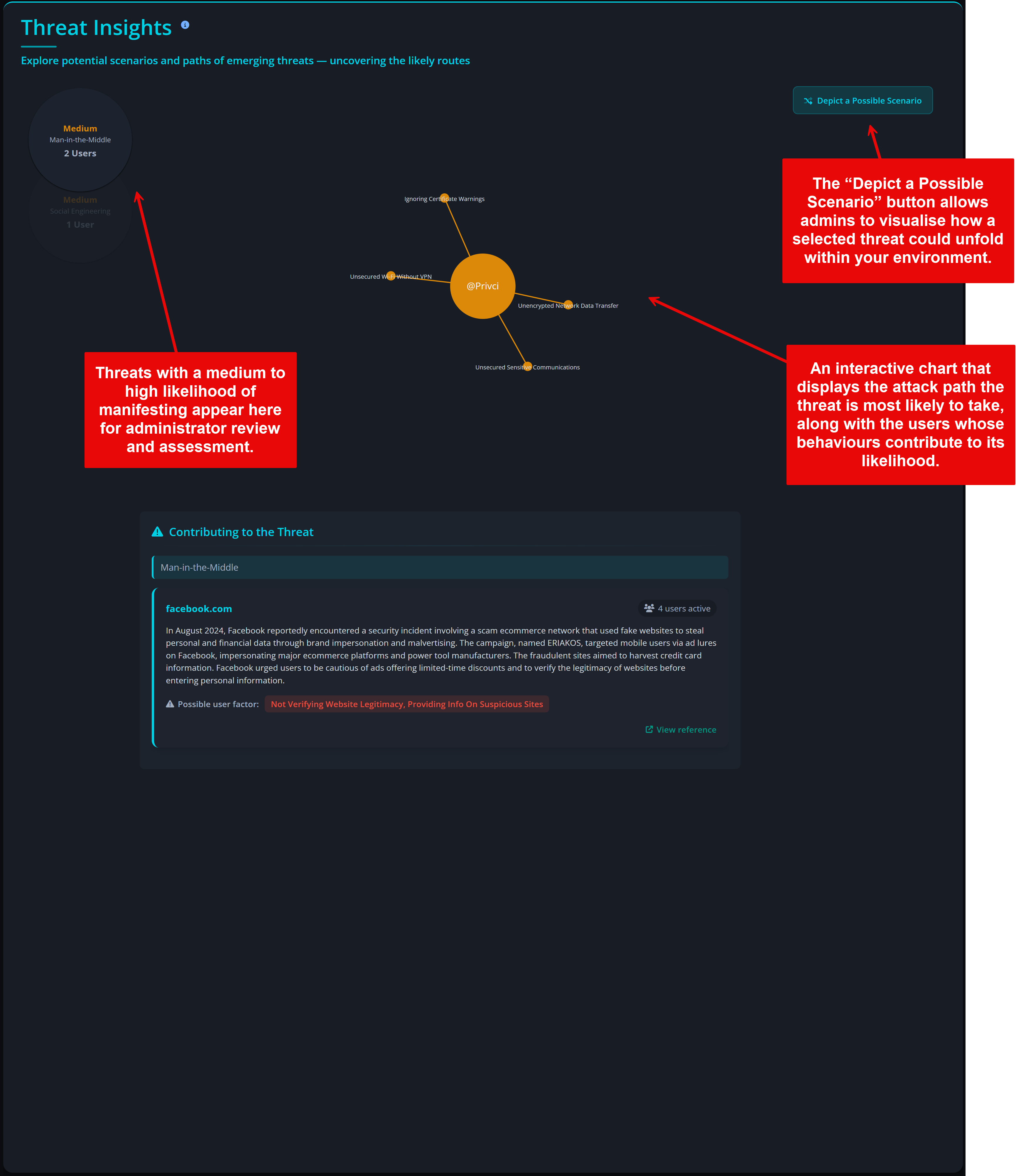
Threat Insights

Threat Insights builds on Behaviour Insights by visualising potential attack scenarios. It reveals how attackers might exploit user behaviour, system weaknesses, or environmental factors to progress through an attack path.

Access via:
Change Engine → Threat Insights.

  1. Use the Depict a Possible Scenario button to visualise how a selected threat could unfold within your environment.
  2. Review the metadata and context involved in the scenario.
  3. Understand the likely attack paths or routes an adversary might take, including behaviours and conditions that make exploitation more probable.
  4. Use these insights to inform:
    • Behaviour Engine interventions
    • Training focus areas
    • Proactive defence and control planning
Threat Insights scenario visualisation panel

Note: Threats appear in Threat Insights only when there is a medium to high likelihood of exploitation detected.

3

Phish Aware

Phish Aware is Privci’s dedicated phishing‑resilience module. It goes beyond traditional phishing campaigns by combining standard Phish Tests with the more advanced Phish Challenge, delivering a deeper and more accurate view of user strengths and weaknesses.

Rather than simply measuring whether users can spot phishing emails, Phish Aware uncovers why they succeed or fail — and which specific behavioural patterns drive their susceptibility. These insights feed directly into the Behaviour Engine and Behaviour Insights, where they are used to shape targeted interventions and training.

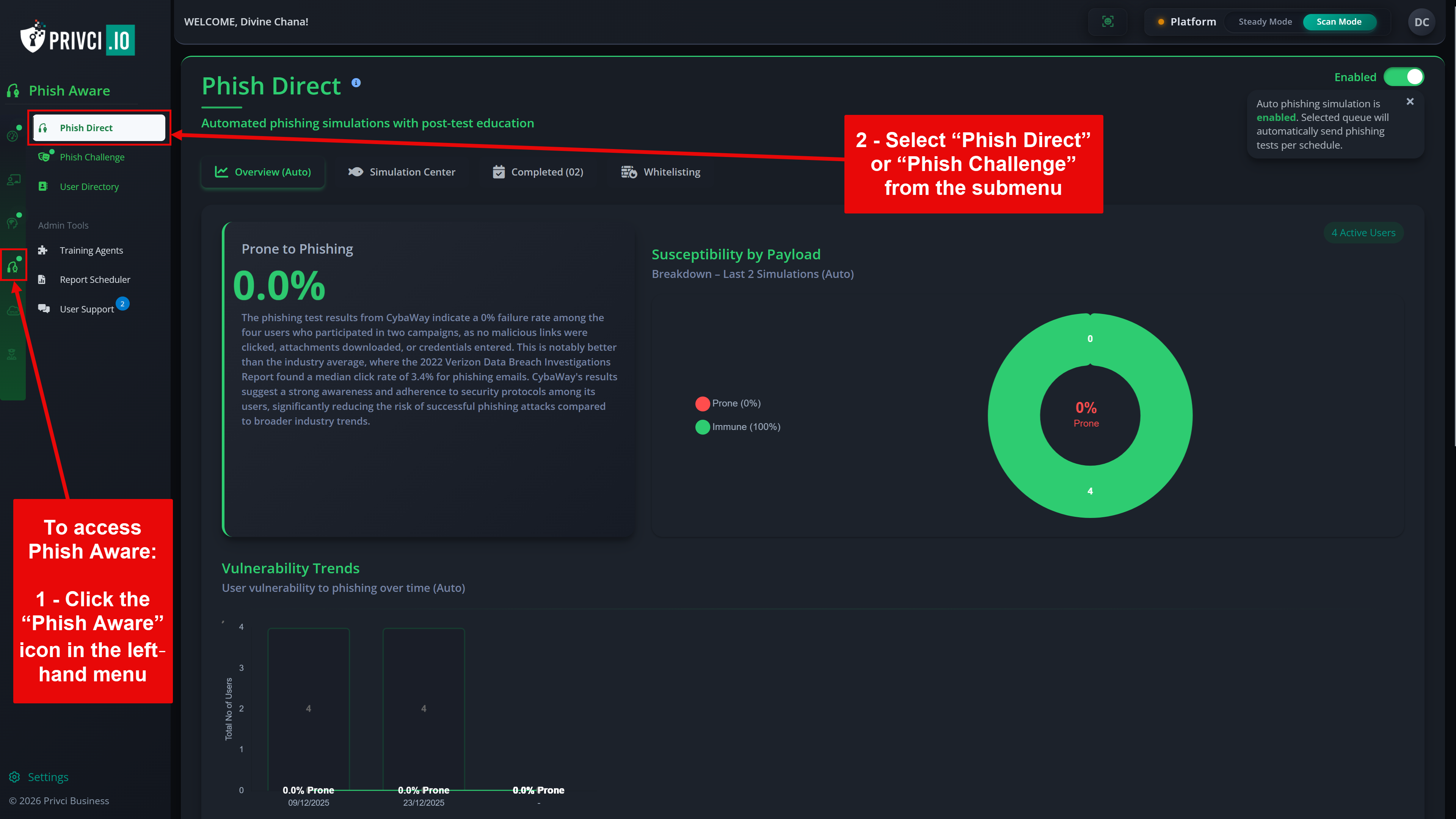
Phish Aware can be accessed from the Phish Aware icon in the left‑hand menu.

Overview of the Phish Aware phishing‑resilience module

Phish Aware consists of three major components:

1

Phish Direct

Phish Direct delivers automated phishing simulations designed to test, train, and benchmark users in realistic conditions. Each simulation generates detailed insights into click rates, reporting behaviour, and susceptibility patterns. These results inform organisational reporting, guide training priorities, and feed directly into the Behaviour Engine for personalised interventions.

Access via:
Phish Aware → Phish Direct.

The module includes:

  • A library of 800+ phishing templates
  • Custom Mode for tailored templates
  • Live Template Suggestions based on real breach reports
  • Support for Microsoft Direct Email Injection
  • Integration with Google Workspace and Azure AD

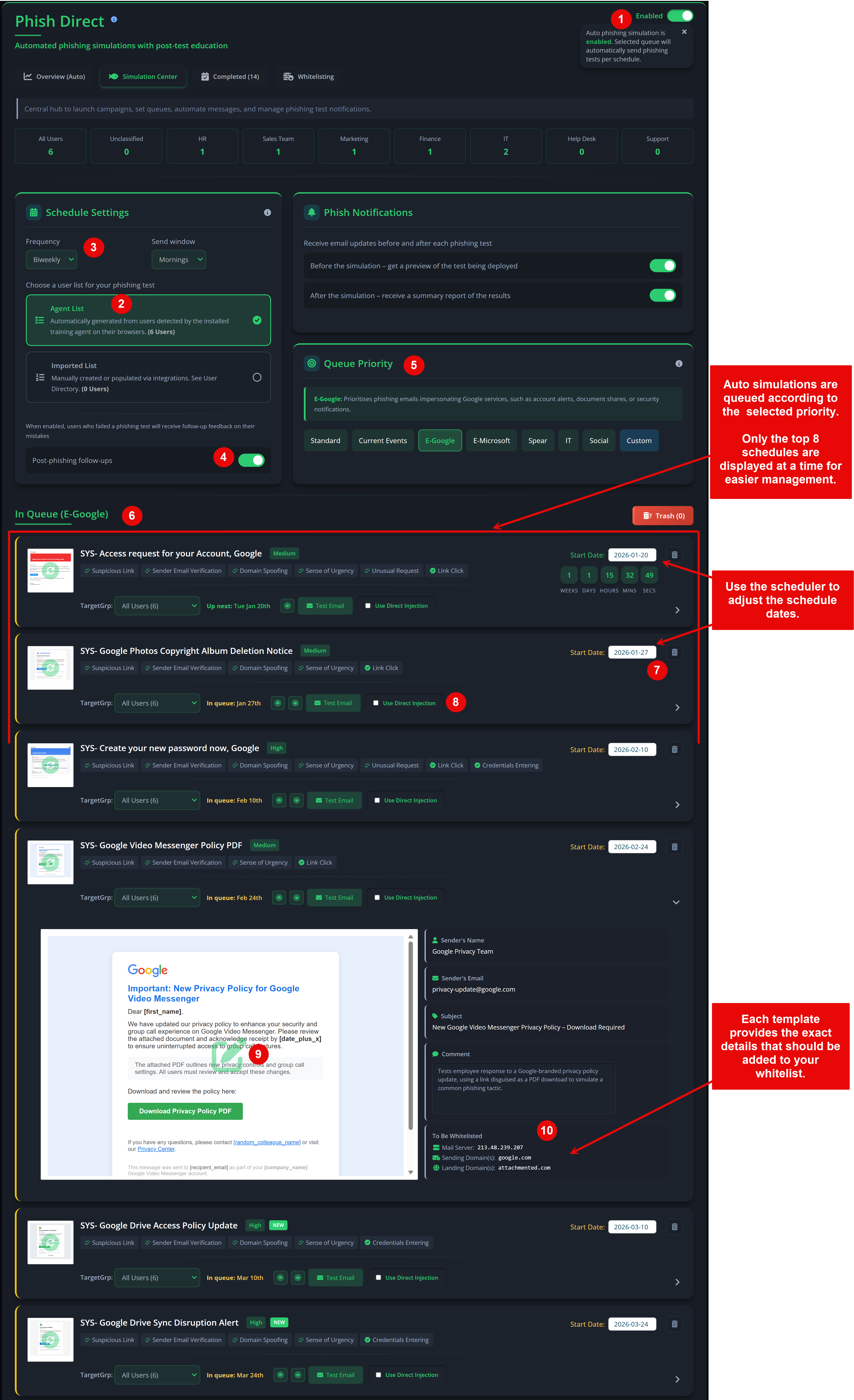
Setting up auto phishing tests

Auto Phishing Tests allow Privci to automatically schedule and deliver phishing simulations based on your preferred frequency, target user lists, and delivery windows.

Access via:
Phish Aware → Phish Direct → Simulation Center.

  1. Enable Auto Phishing Simulation as the first step in setting up automated simulations.
  2. Under Schedule Settings, select your target user list:
    • Agent List — users with training agents installed (recommended default)
    • Imported List — manually uploaded lists from the User Directory
  3. Configure:
    • Frequency — how often campaigns run (for example, weekly or monthly)
    • Send Window — the time range during which campaigns may be delivered
  4. Enable Post‑phishing follow‑ups to send educational emails to users who fail simulations.
  5. Under Queue Priority, choose a priority mode that fits your environment, for example:
    • Standard — randomised delivery
    • Custom — admin‑defined order
  6. Your auto simulations will be queued according to your selected priority.
    Note: Only the top 8 schedules are displayed at a time for easier management.
  7. If you want to adjust a schedule date, update it directly on the scheduled campaign. You can also delete a schedule and move it to the trash to make room for new templates.
  8. If you have Microsoft Direct Injection configured, select the option for campaigns where you want to use it.
    Note: To use Microsoft Direct Injection, the sender address must be a valid Microsoft tenant email within your organisation. If delivery cannot be completed, the platform may attempt delivery again using a random company email address.
  9. Templates in your queue are usually ready to send. If you want to make changes, click a template to open it and use the edit icon to access the detailed editor.
  10. Each template also provides the exact details that should be added to your whitelist.
Simulation Center showing auto‑phishing configuration

Note: Campaigns will continue to run according to your configured schedule, with new templates added based on your queue priority, as long as Auto Phishing Simulation is enabled and whitelisting is properly configured.

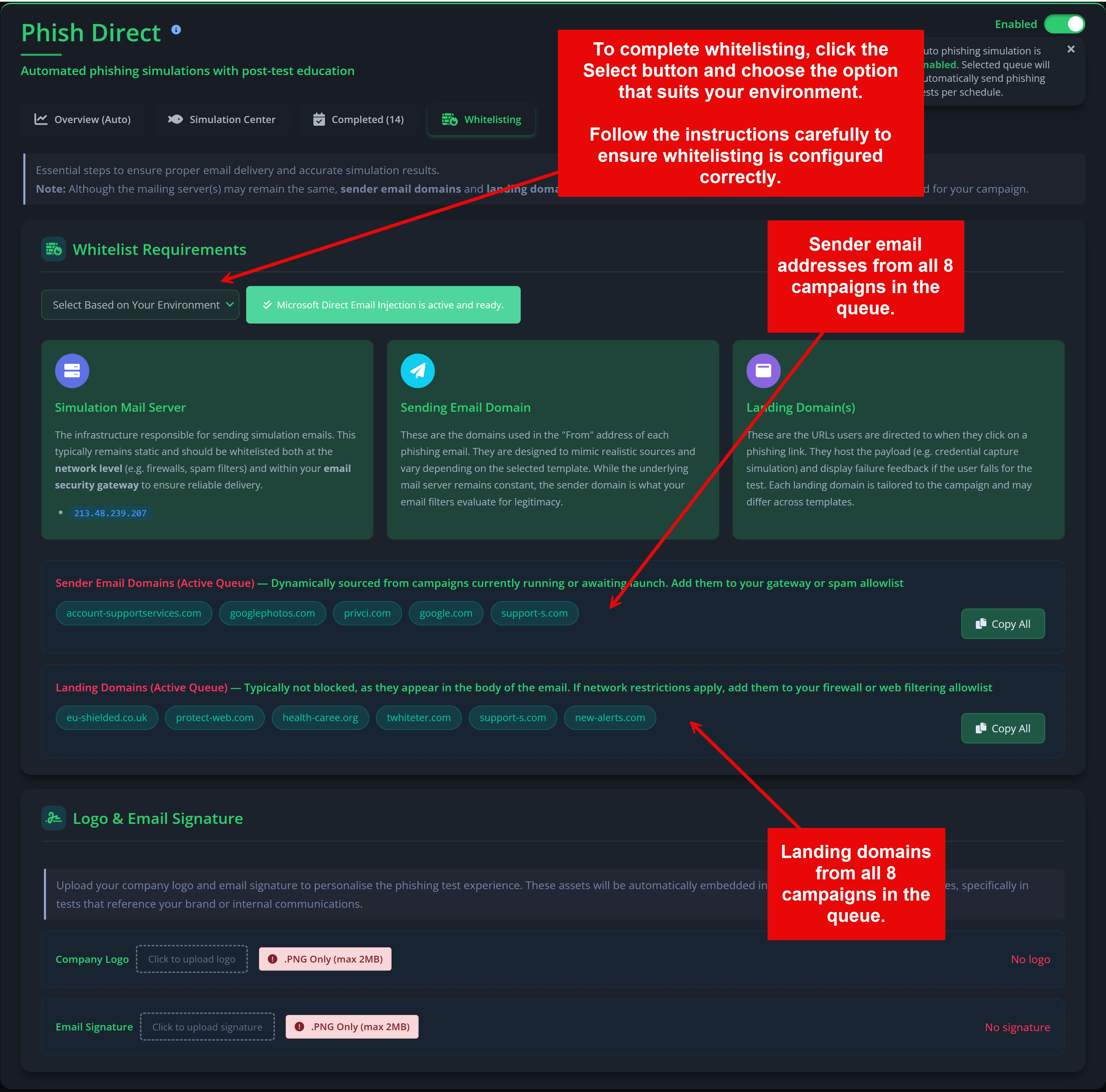
Whitelisting

Privci provides clear guides to make whitelisting as seamless as possible. While the mailing server(s) may remain the same, sender email domains and landing domains are dynamically generated based on the phishing templates selected for your campaign.

Access via:
Phish Aware → Phish Direct → Whitelisting.

  1. In the Whitelisting section, follow the instructions to whitelist specific campaigns or groups of campaigns. There are three key sources to focus on:
    • Simulation Mail Server — responsible for sending simulation emails
    • Sending Email Domain — the “From” address domain for each phishing email
    • Landing Domain(s) — URLs users are directed to when they click on a phishing link
  2. To complete whitelisting:
    • Select the whitelisting option that best fits your environment.
    • Follow the instructions carefully to ensure whitelisting is set up correctly.
    • Once whitelisting is complete, visit the Simulation Center and use the Test Email button to verify that whitelisting is working.
    • The Test Email will send the campaign directly to your login email address for confirmation.
Simulation Center showing auto‑phishing configuration

Note: Always use the Test Email button to confirm inbox delivery before a campaign goes live.

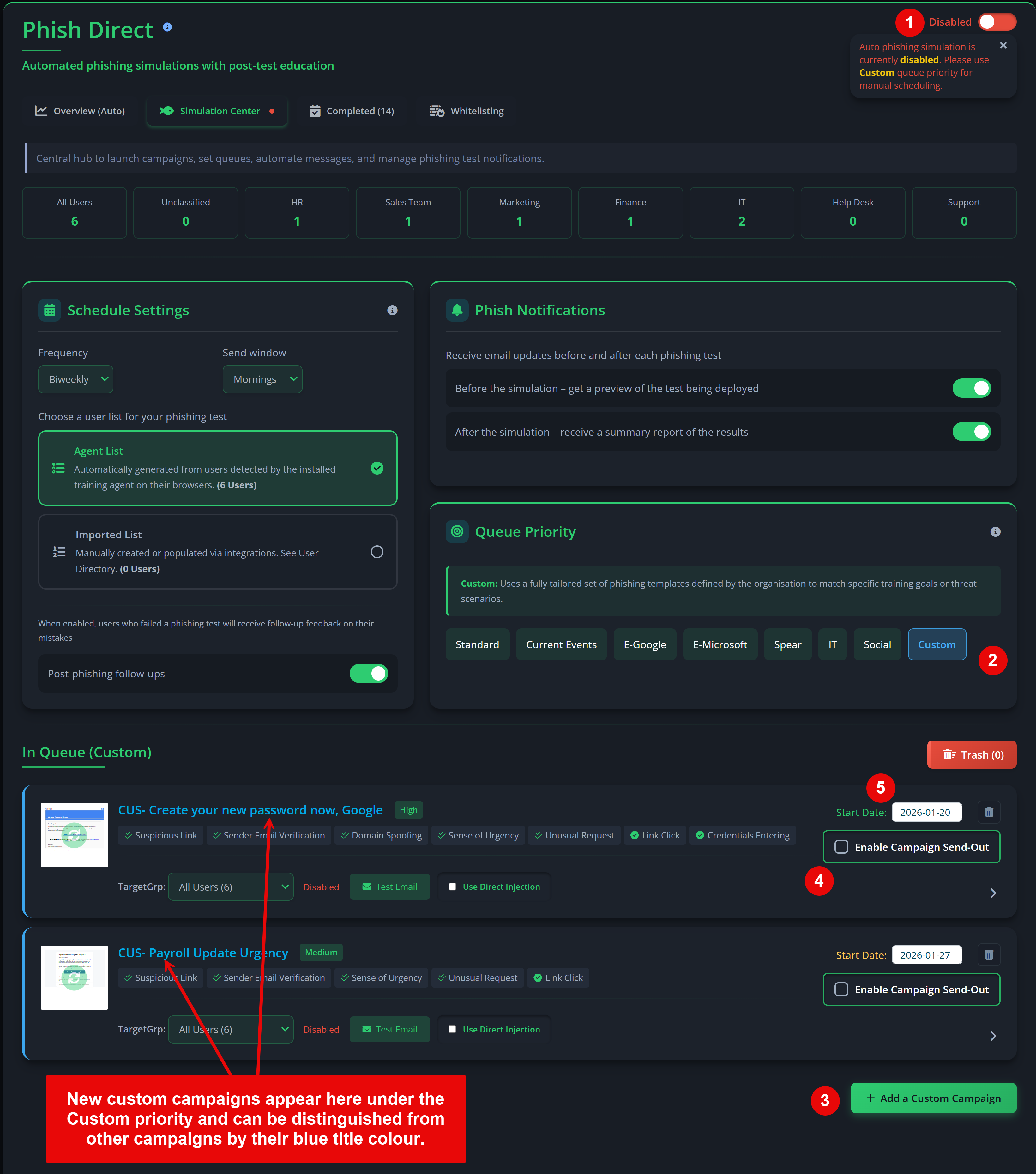
Running manual phishing tests

Manual tests give administrators full control over campaign timing, template selection, and delivery order.

Access via:
Phish Aware → Phish Direct → Simulation Center → Queue Priority.

  1. To run simulations manually, first disable Auto Phishing Simulation.
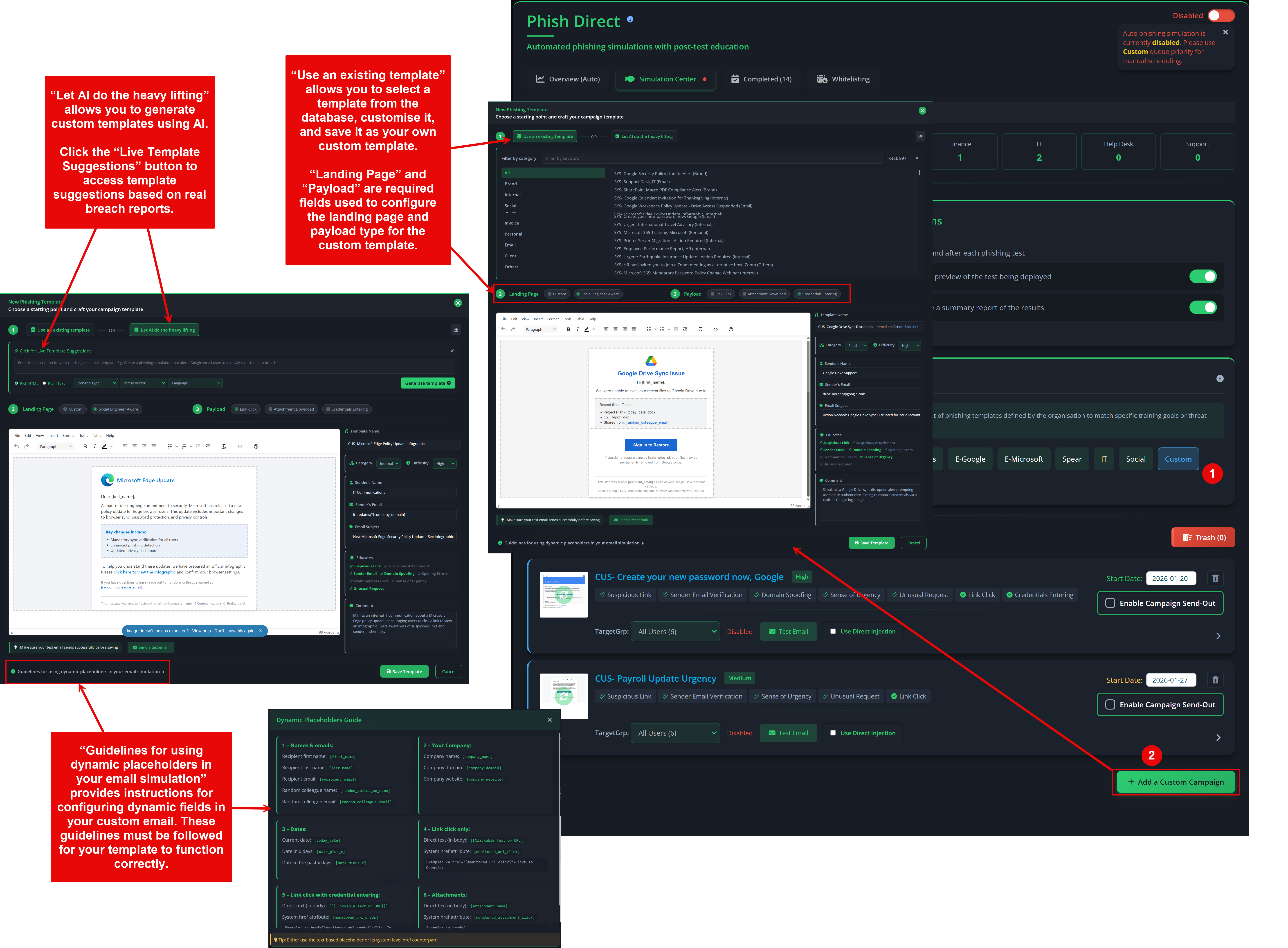
  2. From Simulation Center → Queue Priority, select Custom.
  3. Click Add a Custom Campaign to create a new custom template.
  4. Save the template to add it to your campaign queue.
  5. Enable Campaign Send‑Out for campaigns you want to deliver.
  6. Set a Start Date — campaigns typically run for 4 days.
  7. Edit, reorder, or replace queued campaigns as needed to align with your testing strategy.
Custom campaign queue for manual phishing tests

Note: Always use Test Email to verify successful delivery before the scheduled start date.

Adding a custom phishing campaign

Custom campaigns allow administrators to design tailored phishing simulations using existing templates, AI‑generated content, or fully custom HTML.

Access via:
Phish Aware → Phish Direct → Simulation Center → Queue Priority.

  1. Set your Queue Priority to Custom in order to add a custom campaign.
  2. Scroll to the In Queue section and click Add a Custom Campaign.
  3. Choose an existing template, generate one using AI, or create your own from scratch.
  4. You can also use Live Template Suggestions from real breach reports.
    Click the Live Template Suggestions button and select a live template suggestion.
    These templates are continuously updated to reflect real‑world phishing attacks that resulted in successful breaches.
    This allows you to test your users against similar attack patterns and assess your readiness.
  5. Edit the template and select an appropriate Landing Page.
  6. Select a Payload based on what you want to test (for example, credential harvesting or attachment opening).
  7. Complete the sender details, including Sender Name, Sender Email, and Subject.
  8. Configure the Educates section to send educational follow‑up messages to users who fail the simulation.
  9. Send a Test Email to validate deliverability before saving and activating the campaign.
Custom campaign editor with AI‑assisted template generation

Note: Use the Dynamic Placeholder Guidelines button to ensure payloads and dynamic fields are configured correctly.

Completed campaigns

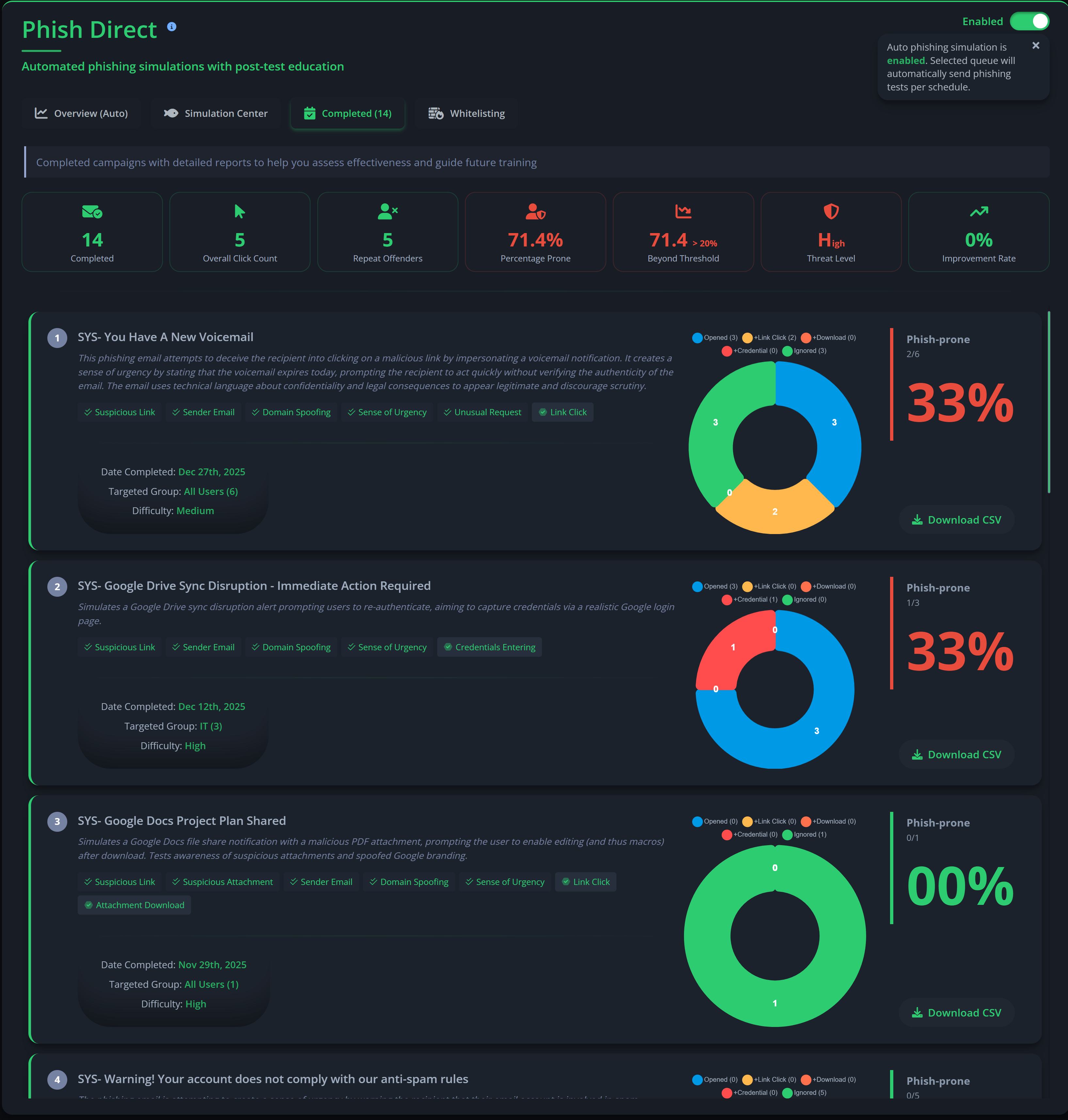
The Completed Campaigns section lists all previously delivered phishing simulations. Administrators can review results, download reports, and analyse performance trends over time.

Access via:
Phish Aware → Phish Direct → Completed.

  • All completed phishing campaigns appear in this section.
  • Available metrics include:
    • Overall click count across all past campaigns
    • Number of repeat offenders
    • Prone percentage, threat level, and improvement rate across all completed campaigns (different from the Overview metrics, which focus on the last eight campaigns to keep the dashboard current)
    • CSV download for each completed campaign
Completed campaigns dashboard
2

Phish Challenge

Phish Challenge is a gamified, inbox‑style simulation that provides a hands‑on phishing skills test. It complements Phish Direct by offering a focused environment where users review and classify realistic email scenarios. Each challenge assesses a user’s ability to identify indicators such as:

  • Sender anomalies
  • Suspicious or unusual requests
  • Domain spoofing and look‑alike domains
  • Grammar and tone inconsistencies
  • Suspicious or misleading links
  • Urgency and pressure cues
  • Suspicious attachments

Creating a new challenge

Challenges are created and managed from the Challenge Center.

Access via:
Phish Aware → Phish Challenge → Challenge Center.

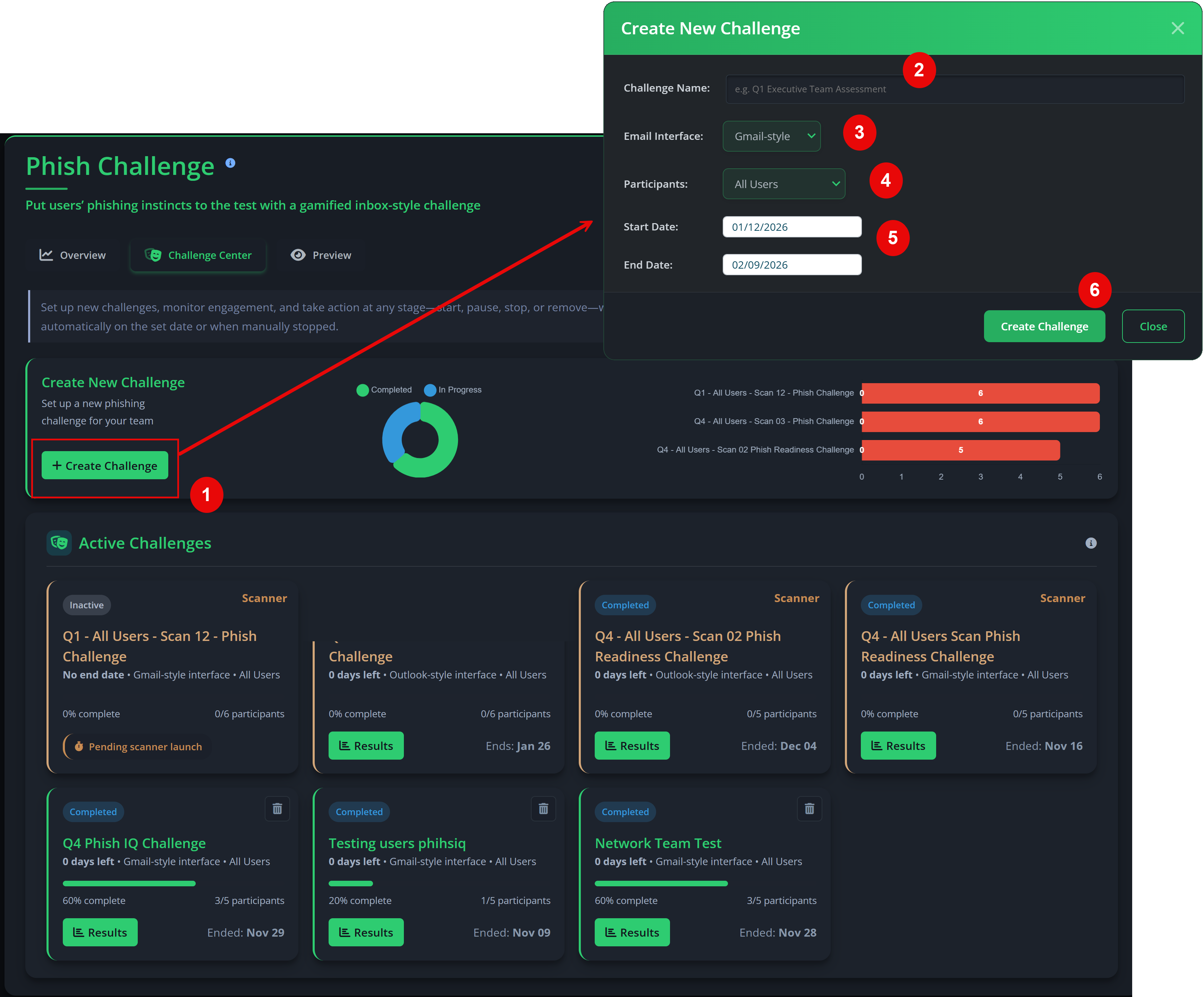
  1. In the Challenge Center, click Create Challenge under the Create New Challenge section.
  2. Give your challenge a clear, unique name.
  3. Select the Email Interface (Gmail‑style or Outlook‑style) that best matches your users’ environment.
  4. Select the target group or user segment for the challenge.
  5. Set a start and end date (a minimum of 7 days is recommended).
  6. Finally, click "Create Challenge" to create a new challenge.
Challenge Center showing active and upcoming challenges

Note: Users are automatically invited and receive reminder emails throughout the challenge period. At the end of a challenge, users receive their individual results and achievement messages. Administrators receive an overall performance report for the campaign.

Challenge leaderboard

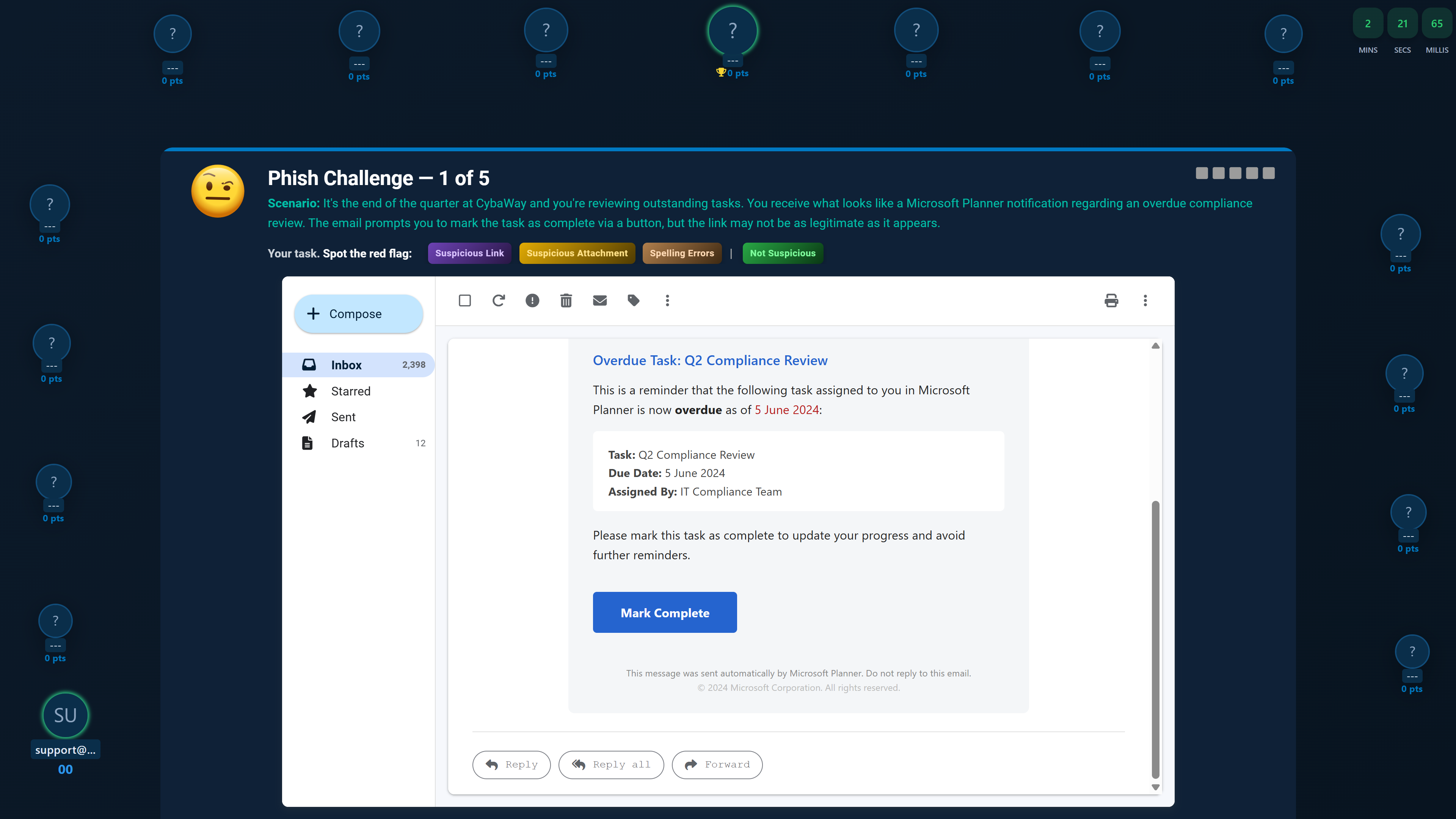
The Phish Challenge leaderboard is designed to introduce healthy competition and increase engagement. Each participant receives a unique login URL to access the challenge, with a leaderboard that highlights top performers.

Users are encouraged to:

  • Compete for recognition with titles such as Fastest Detector, Zero Misses, Perfect Score, and Phish Master.
  • Climb the leaderboard and make their profile visible to colleagues.
  • Benefit from:
    • Increased motivation to practise phishing detection skills
    • Positive social proof that reinforces secure behaviour
    • Greater participation rates across departments
    • Friendly competition that keeps security awareness top of mind
Challenge leaderboard with participant rankings
3

User Directory

The User Directory supports manual user list import and management. It is particularly useful for running phishing simulations outside your default agent‑based user list, or for onboarding users in phases.

Access via:
Phish Aware → User Directory.

Adding new users

Privci supports separate user lists for phishing campaigns. You can add users who are only included in phishing tests (no training agent required), or users who both receive training and participate in phishing simulations (recommended).

Access via:
Phish Aware → User Directory → Directory Management.

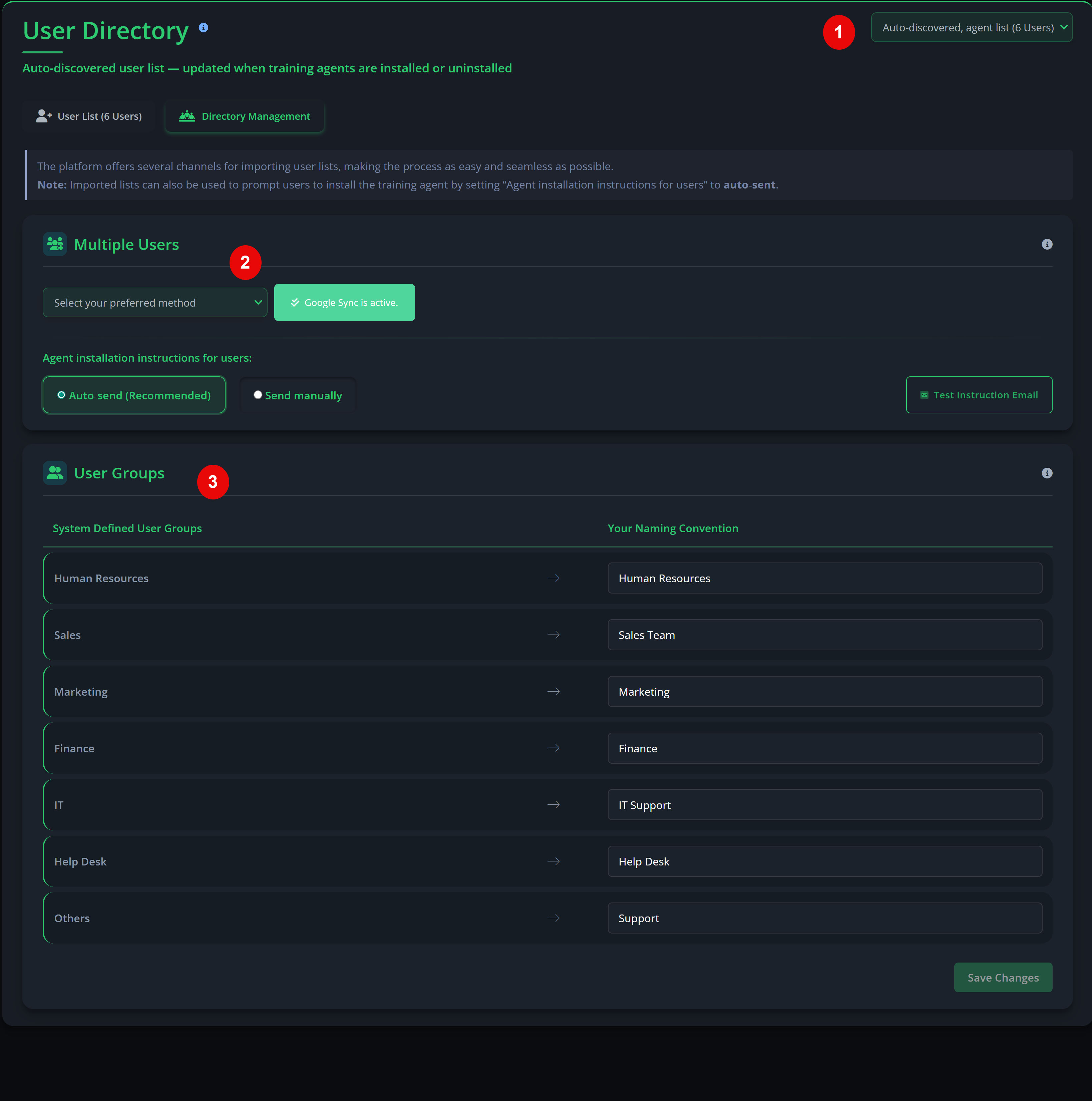
  1. To add new users, use the top‑right selector to switch between user lists for editing:
    Auto‑discovered, Agent List — users with training agents installed.
    Imported User List — manually imported users (with or without the training agent installed).
  2. Select your preferred method and follow the on‑screen instructions.
    • Onboarding for smaller teams
      You can:
      • Paste user email addresses (comma‑separated), or
      • Use the Import User List template.
      • If you want users to receive the training agent, select Auto‑send so Privci can send installation invitations and instructions directly to users.
    • Scalable onboarding for larger organisations
      Use:
      • Google Workspace Sync
      • Azure AD Integration
      • For agent installation at scale, use Direct Agent Installation for deployment guides aligned with your environment (for example, GPO, MDM).
  3. The User Group section allows administrators to update system‑defined user groups to match their organisation’s naming conventions, departments, or internal structures.
    • From User Directory → Directory Management.
    • Scroll to the User Group section.
    • Edit group names to align with your organisational structure (for example, departments, regions, or business units).
    • Save changes to update group references across Phish Aware.
User onboarding and training agent installation

Note: Users who exist only on an Imported User List typically do not contribute to overall organisational risk scoring, as their assessment is limited to phishing tests. Only users on the Auto‑discovered, Agent List are considered for full organisation‑wide risk assessment.

4

Business Watch

Business Watch focuses on each user’s digital footprint and online exposure. It provides a critical assessment layer that feeds into both the Behaviour Change Engine and the Human Vulnerability Scanner, helping organisations understand where their people — and their data — are most exposed.

Business Watch operates through three core capabilities: Exposure Scan, Data Guard, and Dark Web Search.

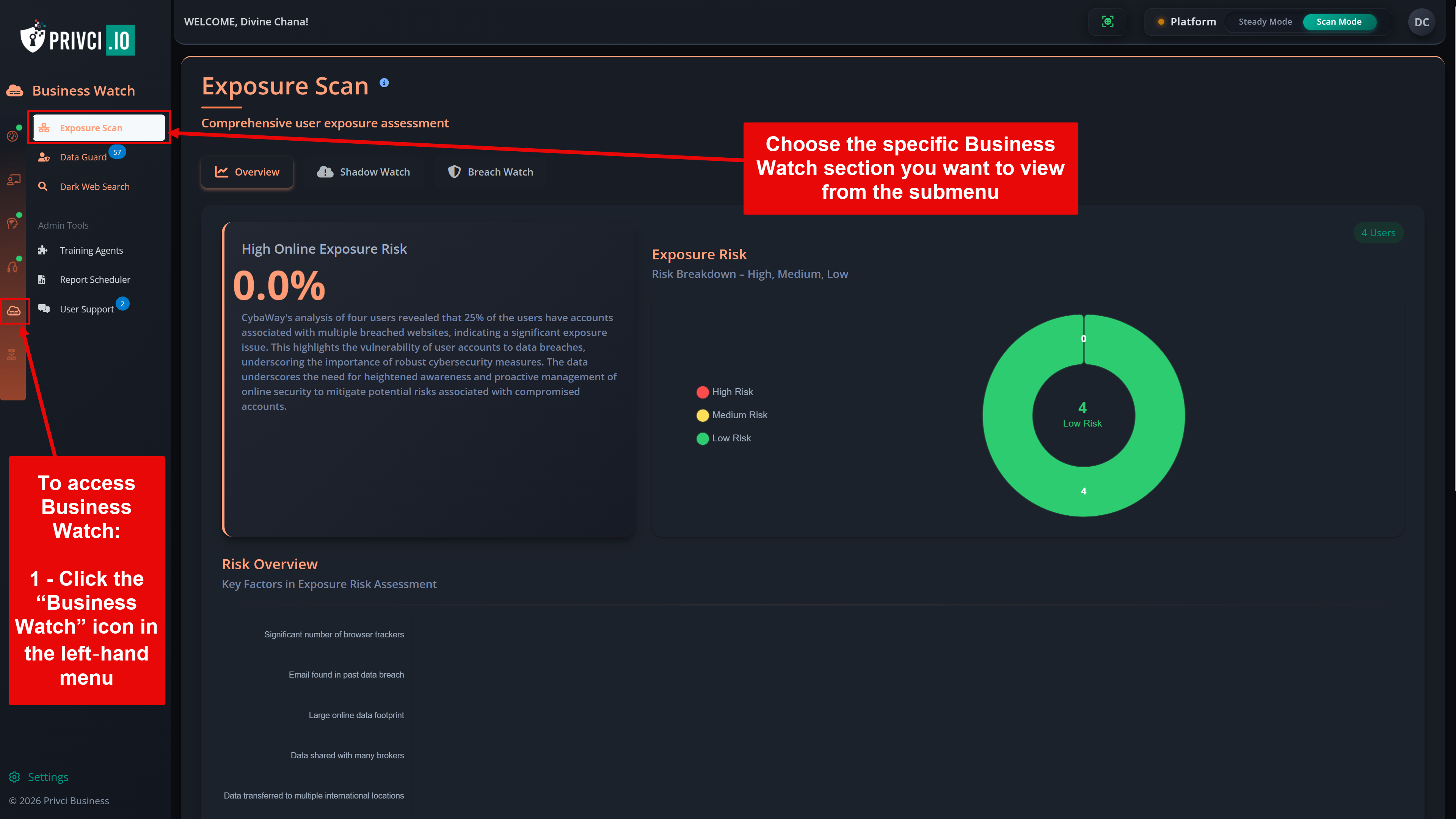
Business Watch can be accessed from the Business Watch icon in the left navigation menu on the login page.

Overview of Business Watch exposure and protection tools

Business Watch consists of three major components:

1

Exposure Scan

Exposure Scan evaluates how and where users may be exposed online. It identifies Shadow IT risks, monitors breach‑affected services, and highlights areas where user behaviour may increase organisational exposure.

Access via:
Business Watch → Exposure Scan.

Exposure Scan includes two major components:

  1. Shadow Watch — detects unsanctioned cloud services, SaaS tools, and third‑party platforms used without approval.
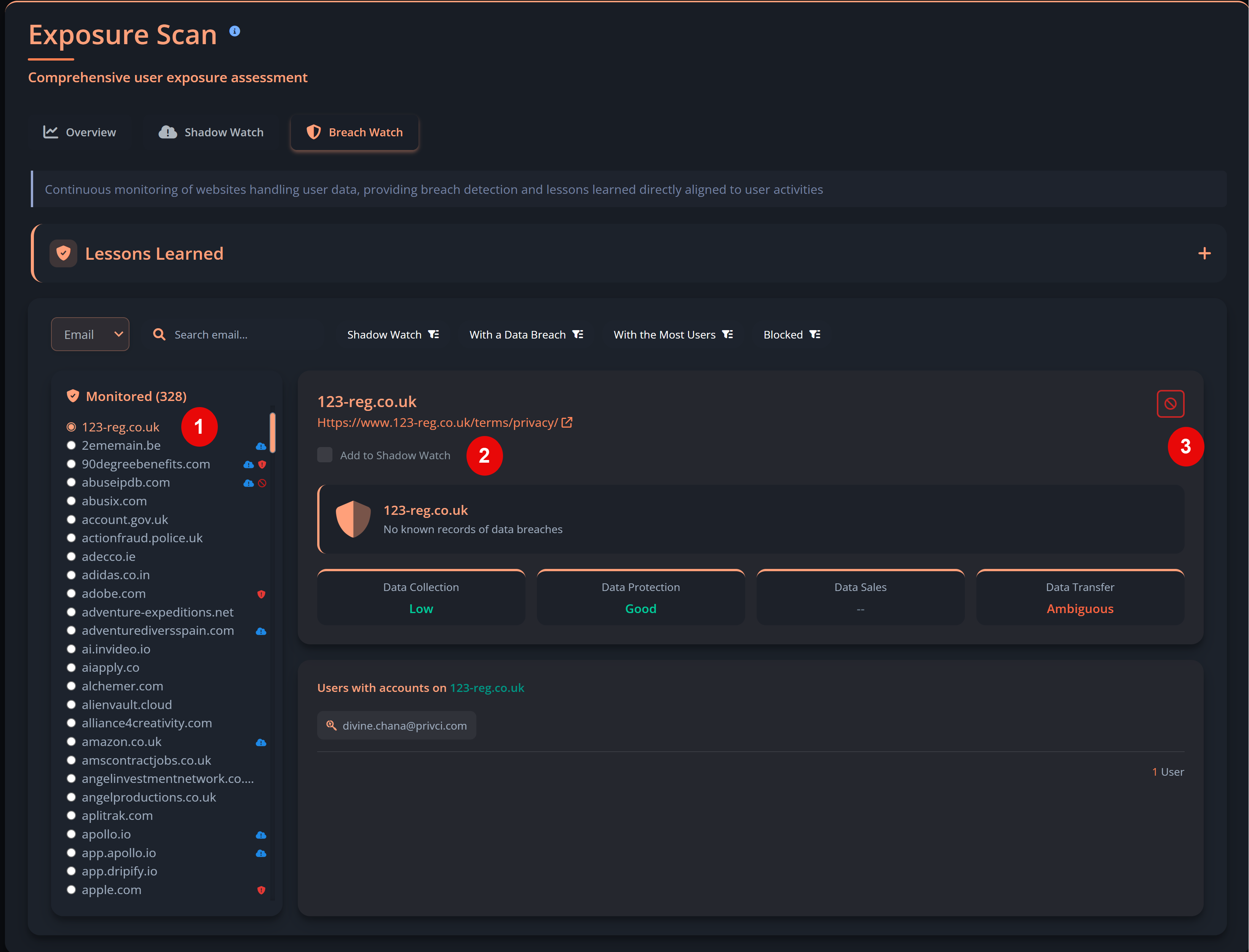
  2. Breach Watch — monitors websites and services that users interact with and alerts the organisation when those services suffer a data breach.

1 - Shadow Watch (Shadow IT)

Shadow Watch helps organisations regain visibility and control over unsanctioned services. Services are automatically added based on user activity such as uploads, form submissions, and site categories.

Access via:
Business Watch → Exposure Scan → Shadow Watch.

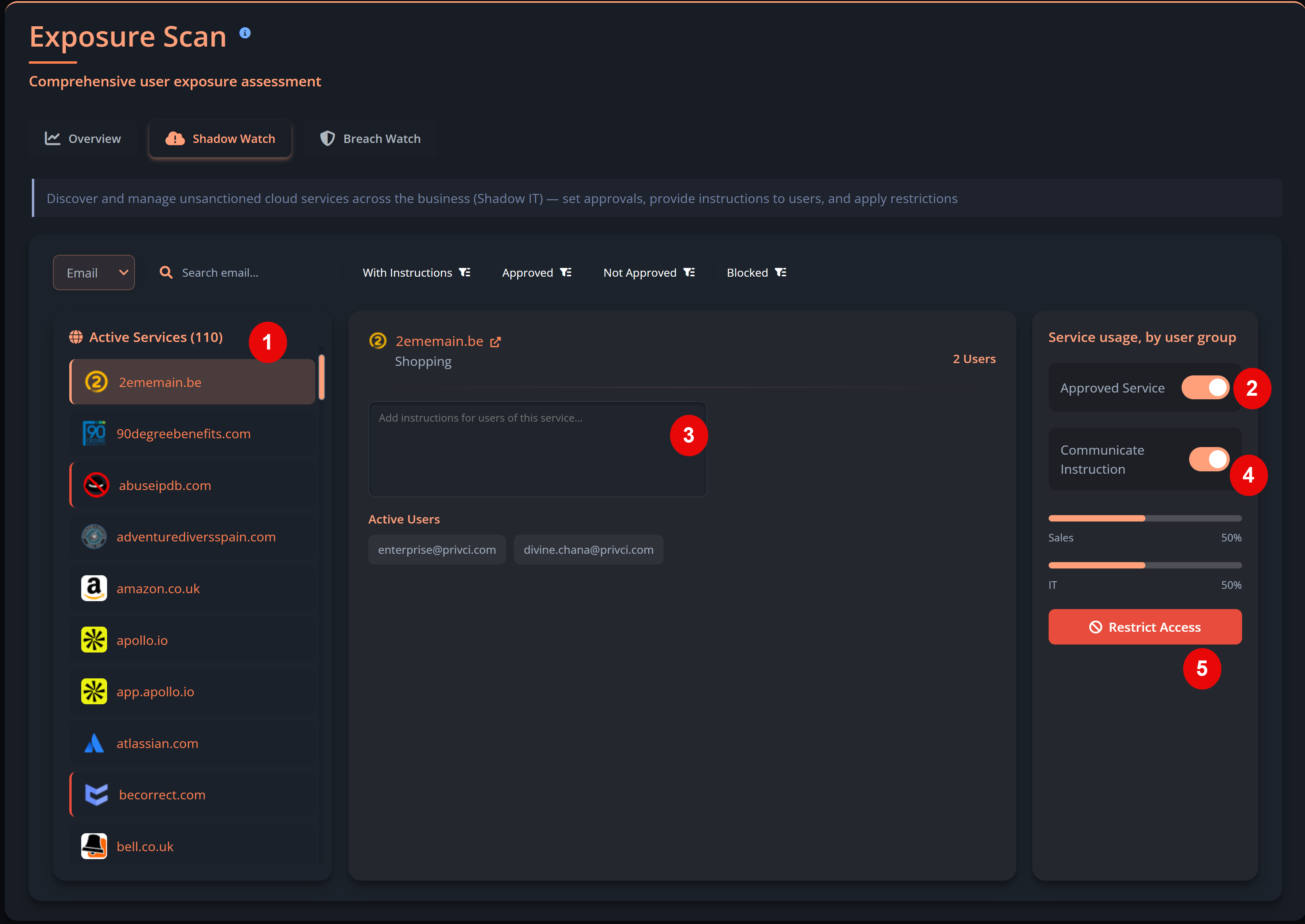
Set communication for users

By default, services added to Shadow Watch are marked as approved. You can remove the approval status and configure user‑facing communications for any service. To do this:

  1. Select an active service from the left panel to view its details.
  2. In the right panel, select Unapprove to change the service’s approval status.
  3. Add a custom message that will be shown to users when they access the unapproved service.
  4. Enable Communicate Instruction to allow Privci to display this message to users.
  5. Optional: use Restrict Access to temporarily block access to the service.
Shadow Watch service details

2 - Breach Watch

Breach Watch monitors websites and services that employees frequently use and alerts the organisation when any of these services suffer a data breach. This ensures organisations stay informed about real‑world incidents that directly relate to their users’ online behaviour. It also provides:

  • Monthly “lessons learned” summaries
  • Insights into breach causes from similar organisations
  • Actionable recommendations to reduce exposure

Access via:
Business Watch → Exposure Scan → Breach Watch.

Manually adding services to Shadow Watch

You can manually add services from Breach Watch into Shadow Watch. Breach Watch tracks sites where users may have submitted data or spent significant time.

  1. Select a domain from Breach Watch.
  2. Select the Add to Shadow Watch option.
  3. Optional: block services directly within Breach Watch by clicking Restrict Access to temporarily block the service.
  4. The service will now appear in your Shadow Watch list.
Breach Watch domain panel
2

Data Guard

Data Guard is Privci’s real‑time data protection and alerting engine. It prevents risky actions before they escalate by enforcing data‑handling rules, blocking unsafe submissions, and alerting admins to suspicious activity. Data Guard includes:

  • 35 real‑time alert use cases
  • Data Geofence Protection
  • Browser‑based Data Loss Prevention (DLP)

Setting up and responding to alerts

Alerts are automatically enabled during scanning and disabled when the platform is in Scan Mode. In Steady Mode, alerts remain active.

Manually enabling alerts
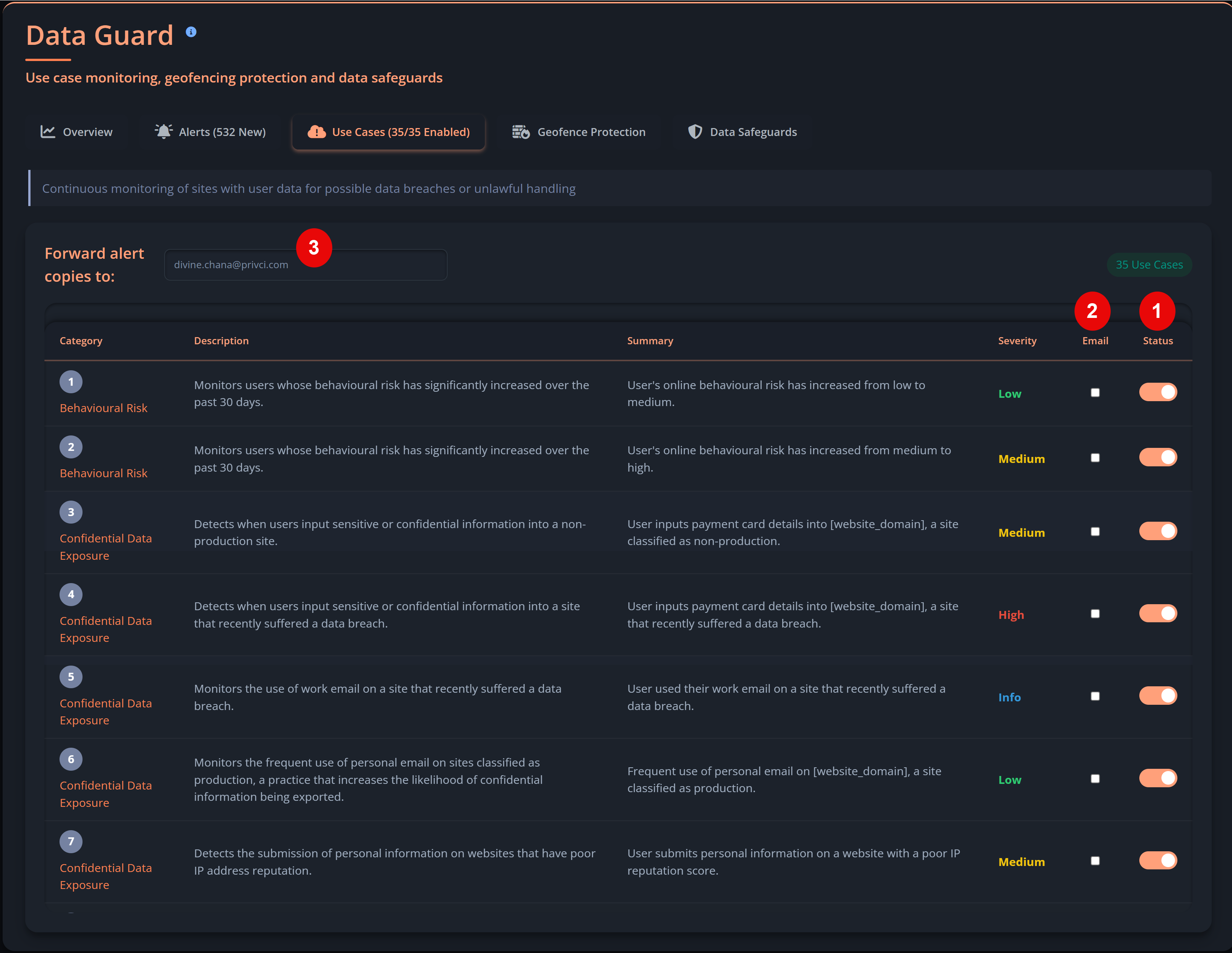
  1. Go to Business Watch → Data Guard → Use Cases.
  2. Enable or disable alerts using the Status column.
  3. Enable the Email column to receive email notifications.
  4. Add additional recipients under Forward alert copies to.
Responding to alerts
  1. Open Business Watch → Data Guard → Alert.
  2. Click an alert to view details, including category, summary, source, and user behaviour notes.
  3. Click Close to dismiss the alert.
Enable use cases in Data Guard
Example of a Data Guard alert

Note: Enterprise users can forward alerts to their SIEM for enhanced incident response.

Data Geofence Protection

Data Geofence Protection prevents corporate data from being submitted to or processed by websites outside approved regions. It acts as a dynamic data firewall, analysing transfer risk using five key data points — including the site’s privacy policy.

Access via:
Business Watch → Data Guard → Geofence Protection.

  1. In the Data Geofence section, select a Status to enable or disable:
    • Strict Block — fully blocks data submission.
    • Notify Only — allows submission but alerts the user.
    • Disabled — turns off geofence protection entirely.
  2. Configure the following options:
    • Strictness — based on transfer probability.
    • Block Type — Soft Mode (recommended) or Hard Mode.
    • Disable geofence protection on these sites — whitelist exceptions.
    • Confine data submissions to the following region — define approved regions.
  3. All geofence alerts appear under the Alert tab.
Geofence Protection configuration panel

Data Safeguards

Data Safeguards include browser‑based Data Loss Prevention (DLP) and Cookie Crumbler privacy protection. These tools prevent sensitive data leaks and enforce privacy rules directly in user browsers.

Enforcing web‑based DLP
  1. Go to Business Watch → Data Guard → Data Safeguards.
  2. Enable Web‑based DLP using the toggle.
  3. Enable built‑in RegEx patterns or add your own.
    All DLP alerts appear under the Alert tab.
Enforcing Cookie Crumbler
  1. Select an enforcement level:
    • Balanced — avoids sites where the user is logged in.
    • Strict — applies to all sites.
  2. Enable additional privacy options as needed.
Remote Users Protection
  1. Enable Remote Users Protection to enforce Cookie Crumbler when users are on public networks.
  2. Add trusted IP addresses to the whitelist.
Data Safeguards panel
3

Dark Web Search

Dark Web Search continuously scans the dark web for leaked corporate credentials, exposed emails, and compromised accounts. When a match is detected, organisations receive early warnings so they can trigger password resets before attackers can exploit the credentials.

Access via:
Business Watch → Dark Web Search.

Unlike most tools, Privci also returns results from breached sites that may not have leaked data to the dark web but are still relevant because users have accounts or have submitted personal data there.

  1. Use the search tool to check specific user emails or entire domains.
  2. Review exposure details and recommended actions.
  3. Trigger password resets or remediation workflows as needed.
  4. Monitor ongoing exposure trends from the dashboard.
Dark Web Search results

Note: Dark Web Search runs continuously in the background and updates automatically as new exposures are discovered.

5

Policy Keeper

Privci’s policy‑driven design is based on a simple principle: reduce cost, effort, and administrative overhead by making the most of your existing internal security policies.

Policy Keeper provides a centralised, intelligent policy management system that not only stores and distributes policies, but also integrates them into Privci’s Awareness and Change Engines to drive behaviour change, improve compliance, and strengthen organisational security culture.

Policy Keeper includes two major components: Policy Hub and Policy Templates, and can be accessed from the Policy Keeper icon in the left navigation menu on the login page.

Overview of Policy Keeper’s policy management and automation tools

Policy Keeper consists of two major features:

1

Policy Hub

Policy Hub provides a central location for uploading, managing, distributing, and tracking company policies. It solves a long‑standing compliance challenge: knowing which users have actually read and acknowledged your policies.

Policies uploaded here are also used by the Awareness Engine and Change Engine to generate personalised training content, interventions, and behavioural insights.

Access via:
Policy Keeper → Policy Hub.

Uploading and managing policies

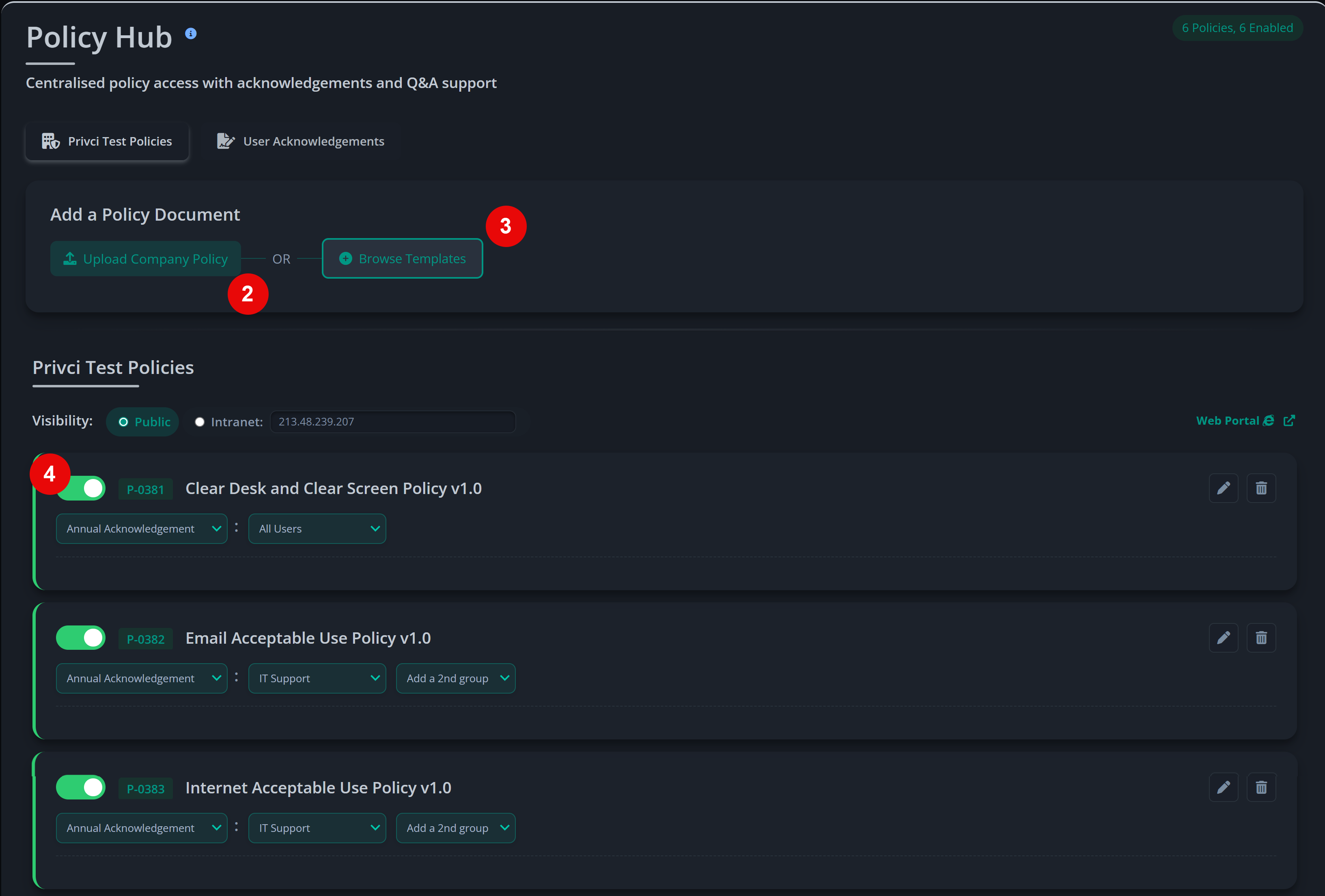
Admins can upload and host up to 35 company policies. Policies can be uploaded from your device or created from Privci’s library of templates.

Access via:
Policy Keeper → Policy Hub → <Company Name> Policies.

  1. Go to Add a Policy Document.
  2. Click Upload Company Policy to upload a policy from your device.
  3. Or click Browse Templates to select from 129 pre‑built templates.
  4. After uploading or creating a policy, click Enable to activate it.
  5. Edit, replace, or update policies at any time from the same panel.
Policy upload and management interface

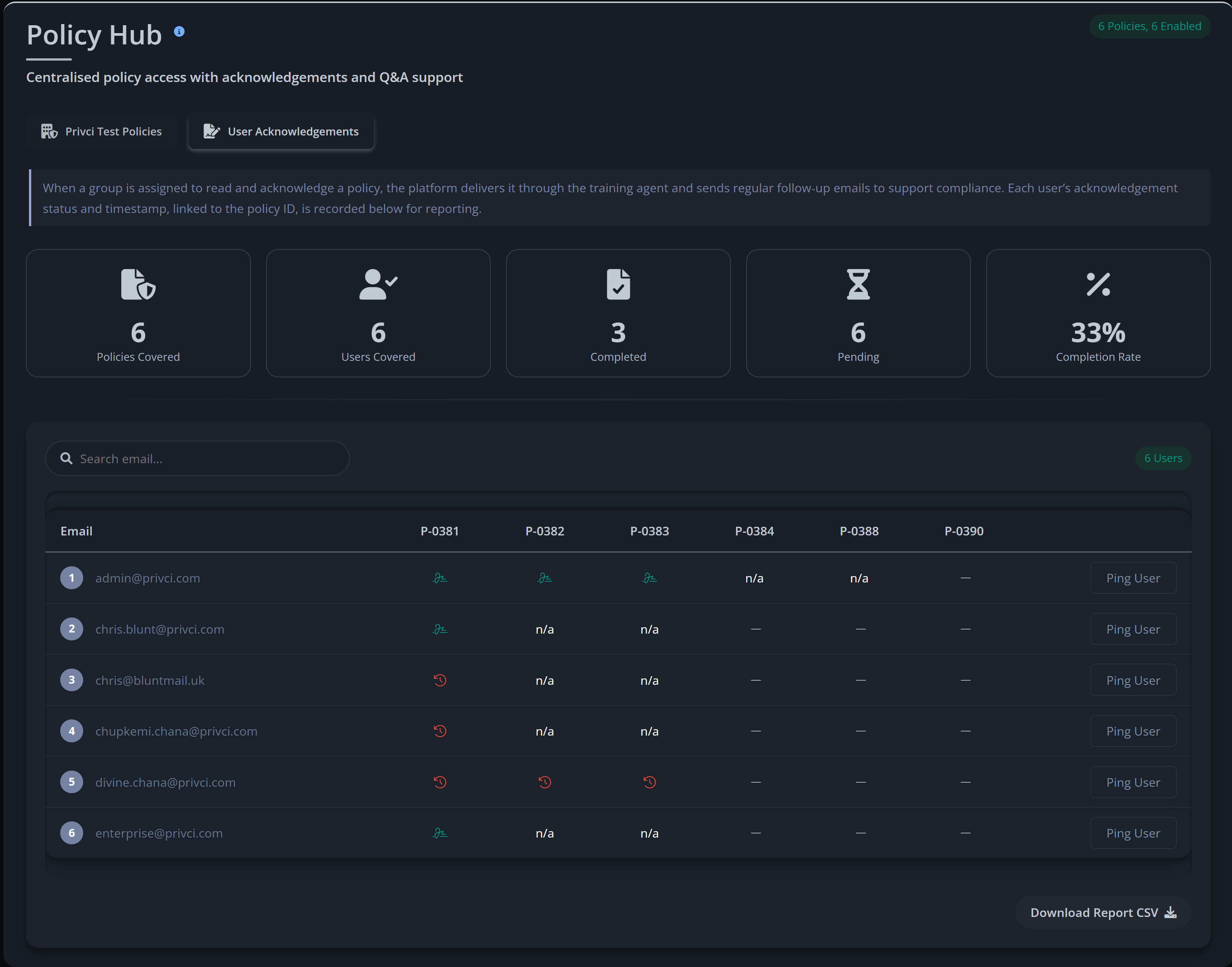
Policy acknowledgement

Policy acknowledgement allows admins to assign policies to specific user groups for mandatory “Read & Acknowledge” workflows. Privci automatically manages notifications, reminders, tracking, and reporting.

Access via:
Policy Keeper → Policy Hub → User Acknowledgement.

  1. Edit a policy and assign it to one or more user groups.
  2. Assigned policies automatically appear under the User Acknowledgement tab.
  3. Privci automatically:
    • Sends notifications to assigned users
    • Tracks reads and acknowledgements
    • Generates compliance reports
User acknowledgement dashboard

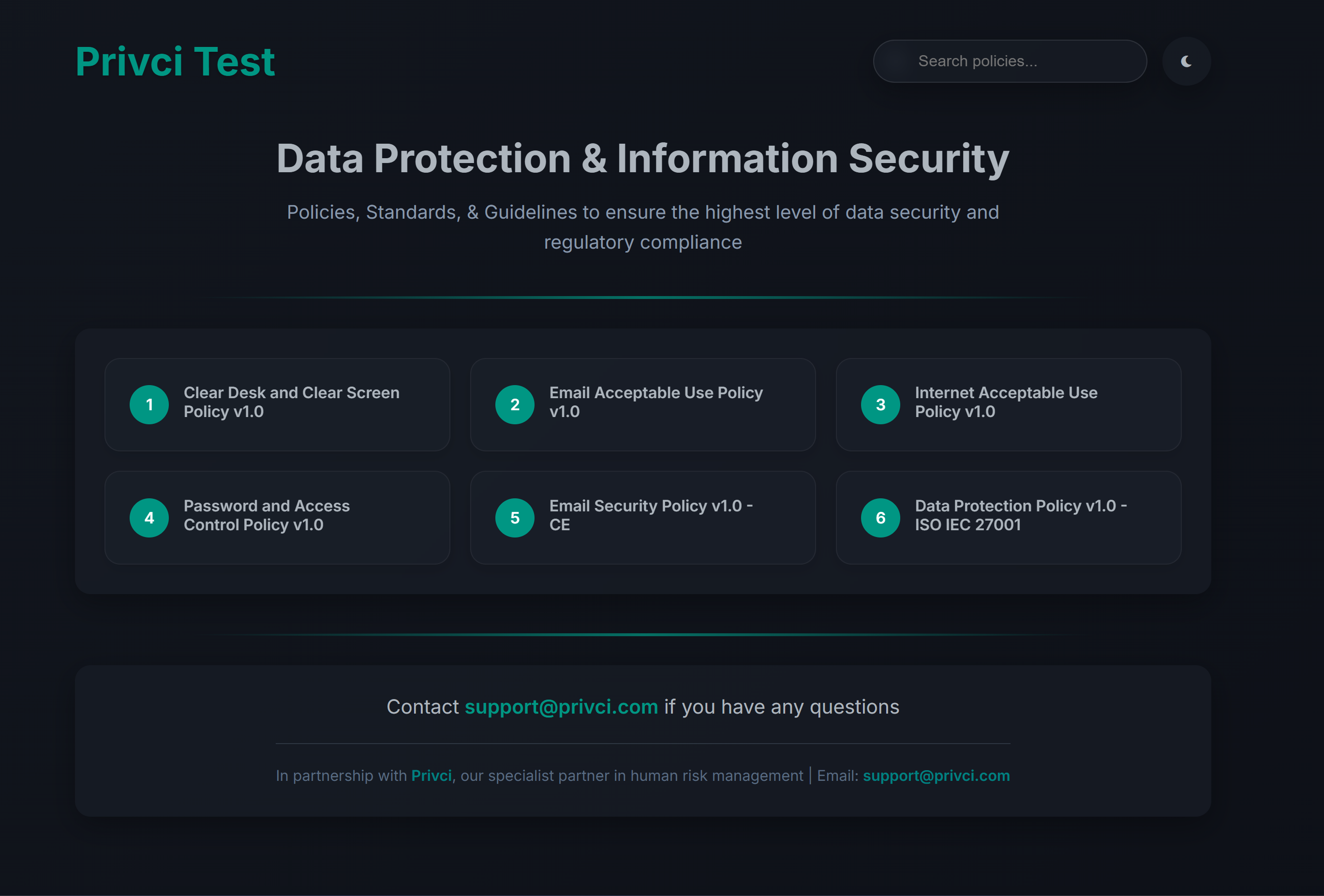
Policy web portal

Uploaded policies are hosted on a user‑friendly web portal where employees can view all policies that apply to them. Policies also appear inside the Training Agent for quick access in context.

  1. Users visit the Policy Portal to view all available company policies.
  2. Policies assigned by group, department, or role appear automatically.
  3. Users can read, acknowledge, and revisit policies at any time.
Policy web portal view
Policies Training Agent

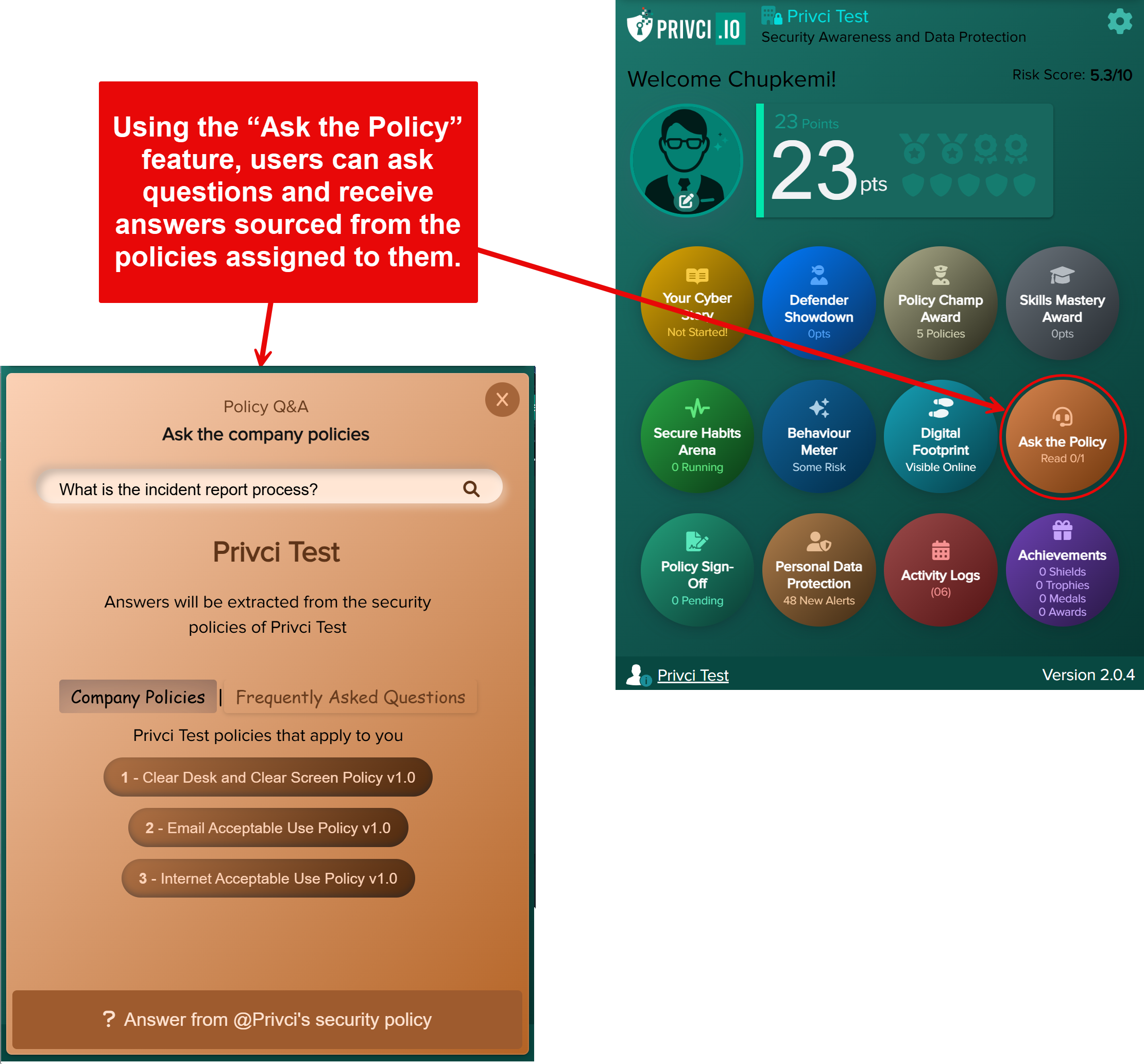
Policy querying with “Ask the Policy”

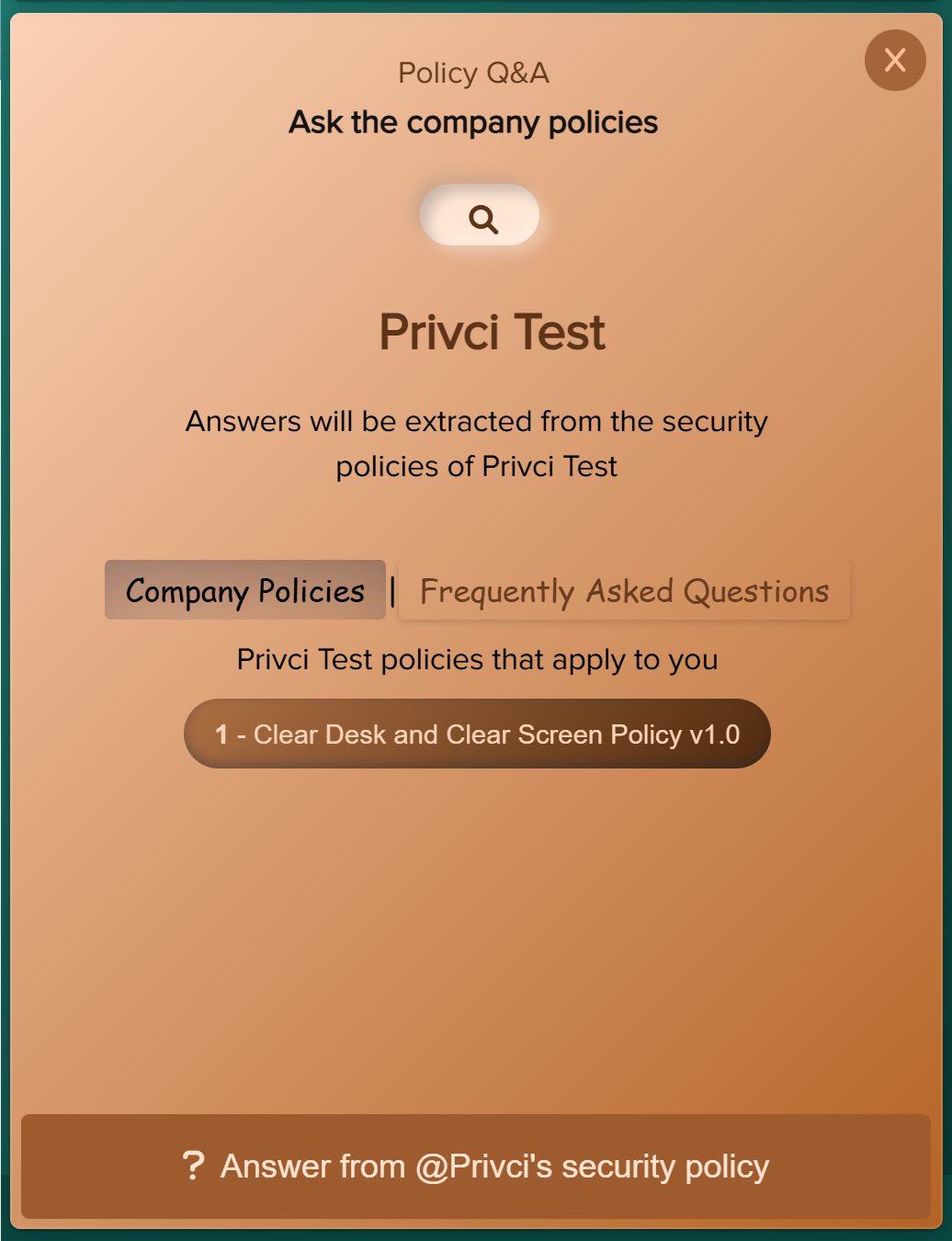
Policy querying allows users to ask natural‑language questions directly from the Training Agent. Answers are generated from the policies assigned to that user, helping them understand what is expected of them without needing to contact an admin.

  1. Open the Training Agent.
  2. Use the Ask the Policy feature to ask a question about how a policy applies in a specific situation.
  3. Privci returns an answer based on the policies assigned to that user’s account.
  4. Users can refine their questions to clarify scenarios, while admins can review common questions to improve policy wording and coverage.
Ask the Policy Q&A interface in the Training Agent
2

Policy Templates

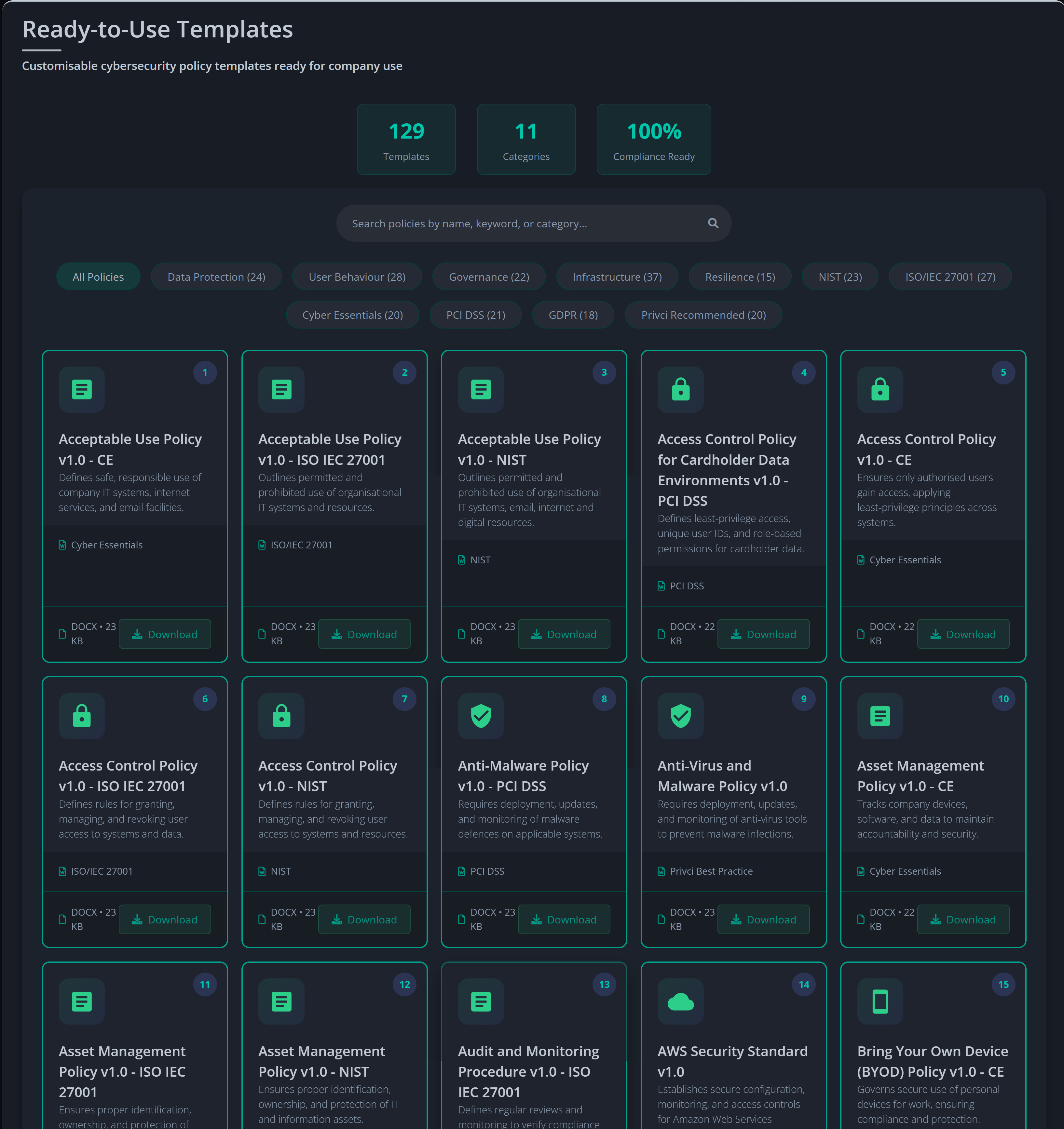
Privci provides 129 fully customisable cybersecurity policy templates for organisations that need to build, standardise, or expand their policy library. Templates can be adapted to your environment and deployed quickly.

Access via:
Policy Keeper → Policy Templates.

Templates are organised into 11 categories:

  • Data Protection (24)
  • User Behaviour (28)
  • Governance (22)
  • Infrastructure (37)
  • Resilience (15)
  • NIST (23)
  • ISO/IEC 27001 (27)
  • Cyber Essentials (20)
  • PCI DSS (21)
  • GDPR (18)
  • Privci Recommended (20)
  1. Open Policy Templates from the Policy Keeper menu.
  2. Select a category relevant to your organisation or compliance framework.
  3. Preview any template to check its structure and content.
  4. Customise the template to match your organisation’s language, processes, and controls.
  5. Save and deploy the policy to your Policy Hub.
Policy Templates library in Policy Keeper

Training Agents Management

1

Agent Installation

Privci uses lightweight, browser‑based Training Agents to deliver personalised training, behavioural nudges, and real‑time interventions directly to each user. These agents form the core of Privci’s behavioural intelligence system, enabling continuous assessment and adaptive learning.

Each user has their own Training Agent, which presents a personalised training and behaviour‑change profile based on their actions, risk patterns, and policy alignment.

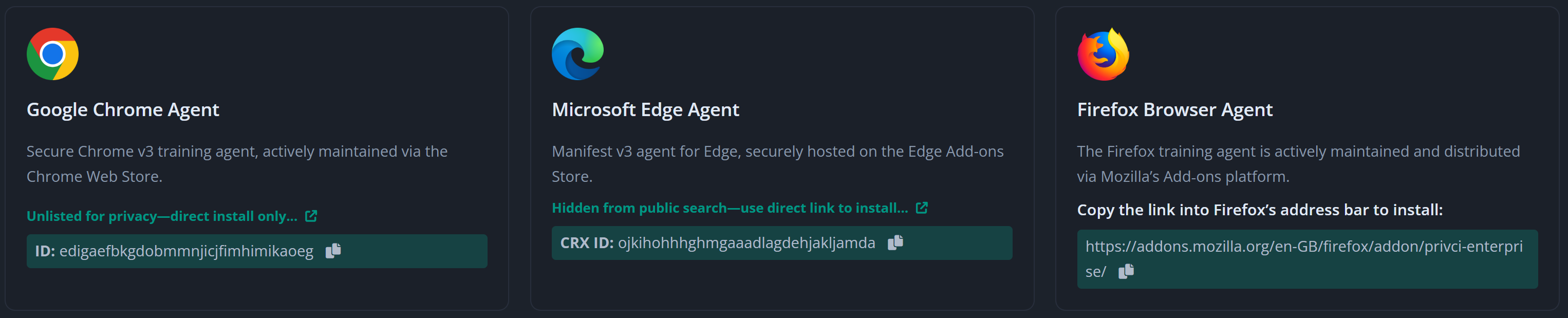
Privci currently supports three browsers: Google Chrome, Microsoft Edge, and Mozilla Firefox. Agents are hosted in the official browser extension stores after approval.

Overview of Privci’s browser‑based Training Agents

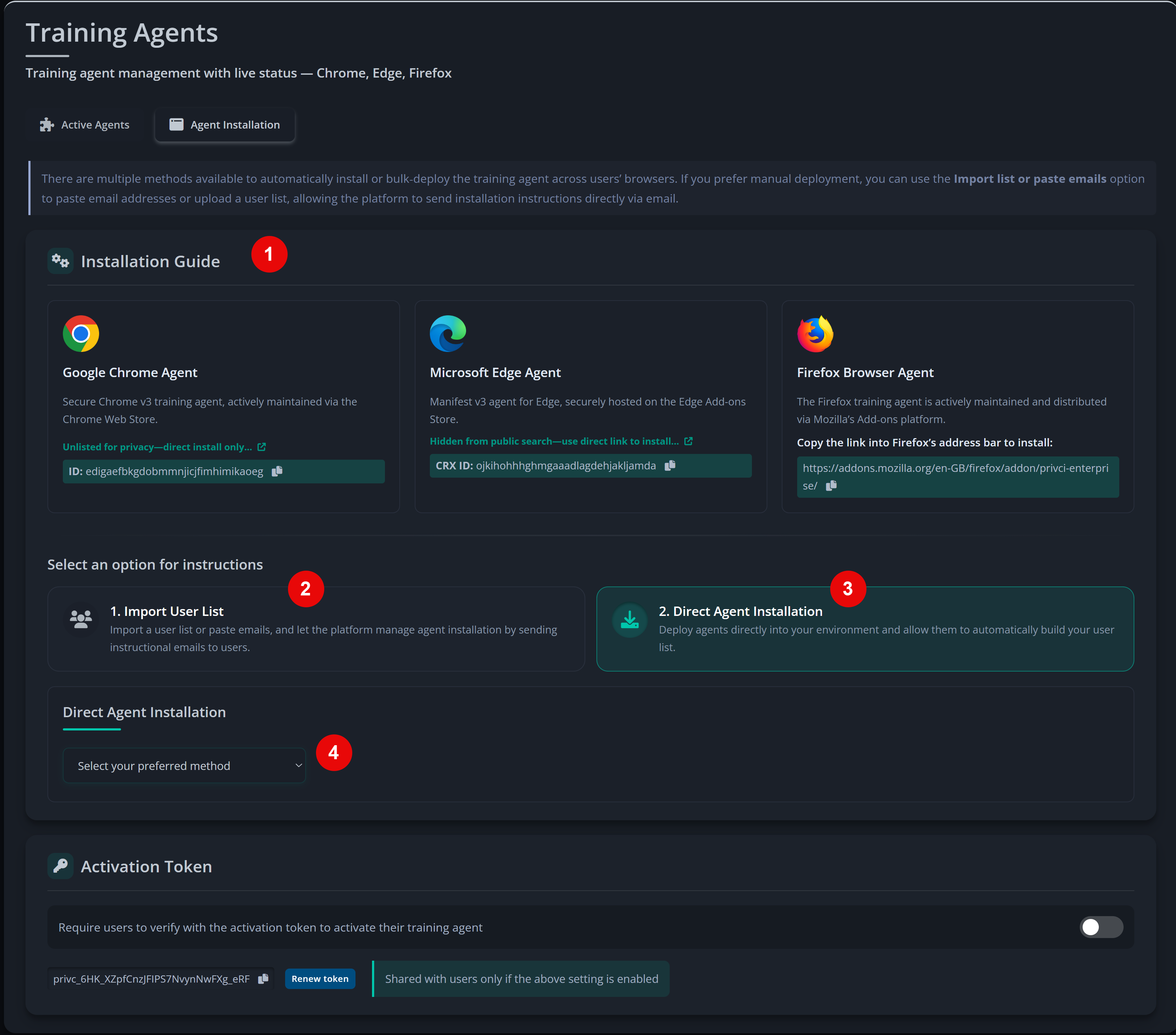
Installation instructions for small teams and large‑scale deployments are available under: Training Agents → Agent Installation → Installation Guide.

Installing the Training Agent

Privci’s Training Agents are distributed through the official browser extension stores. For enhanced security, Chrome and Edge agents are not publicly searchable — they can only be installed using the secure installation links provided inside your Privci dashboard.

Enterprise customers may also opt for self‑hosting and private distribution, managed by the Privci Support Team.

Access installation instructions via:
Training Agents → Agent Installation.
  1. Scroll to the Installation Guide section.
  2. Select Import User List for:
    • Manual installation options
    • Ideal for small teams and pilots
  3. Select Direct Agent Installation for:
    • Large‑scale and automated deployment options
    • Ideal for enterprises and large teams
  4. Follow the installation link provided for your chosen browser and deployment method.
Training Agent installation panel with browser options

Note: Firefox does not support private extension hosting, so its agent is publicly accessible on the Firefox Add‑ons Store.

Agent activation

Once installed, Training Agents must be activated by the user. Activation ensures that each agent is securely linked to the correct user profile and company environment.

Activation is simple and typically takes less than 30 seconds.

  1. The user clicks the Privci Training Agent icon in their browser.
  2. The user enters their company email address.
  3. Privci sends a One‑Time Password (OTP) to their company email.
  4. The user enters the OTP to complete activation.
  5. The agent loads the user’s personalised training dashboard.

Additional activation security

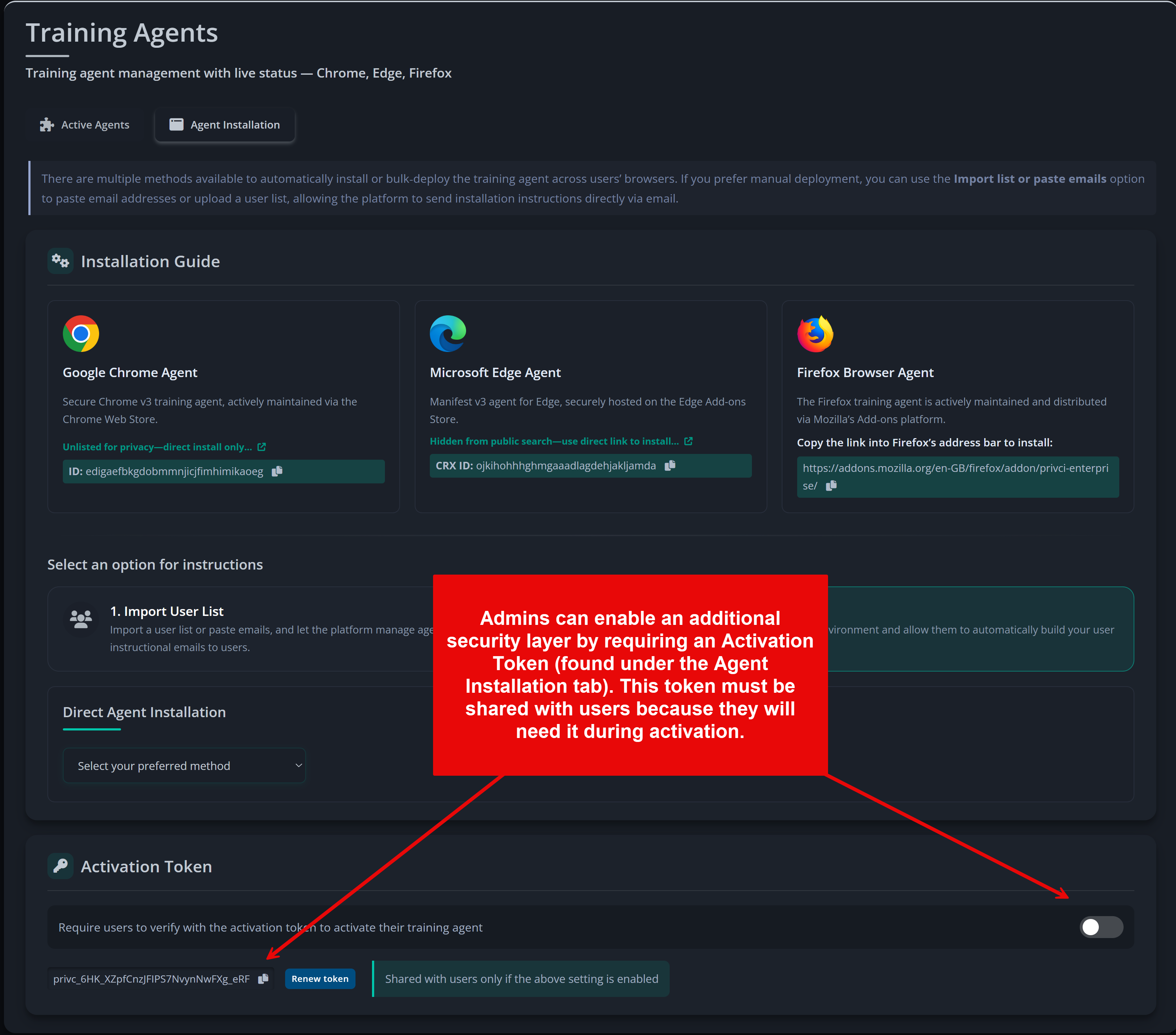
Admins can add an extra layer of protection by requiring users to enter an Activation Token in addition to their OTP. This ensures that only authorised users can activate the Training Agent.

Access via:
Training Agents → Agent Installation → Activation Token.

  1. Go to the Activation Token section.
  2. Enable Require users to verify with the activation token.
  3. Share the activation token with your users securely.
  4. Users must now enter:
    • Their company email
    • The OTP sent to their inbox
    • The Activation Token
  5. Once verified, the agent activates normally.
Activation Token configuration panel

Note: Activation Tokens are recommended for high‑security environments or organisations with strict onboarding controls.

2

Agent User Dashboard

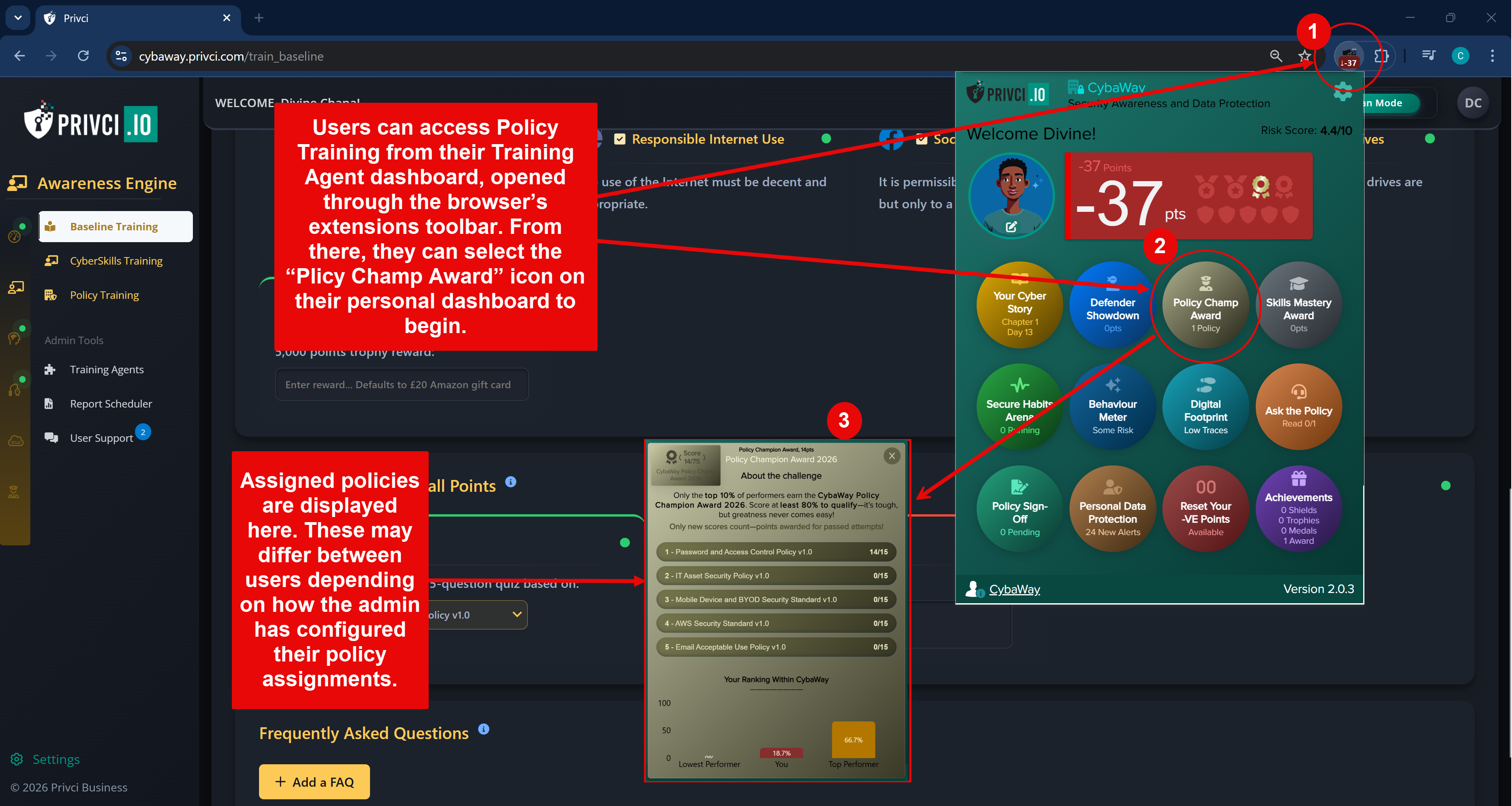
The Privci Training Agent serves as each user’s personal security profile — a behaviour‑shaping environment designed to reinforce secure habits, increase engagement, and protect corporate data where it matters most: the browser.

By focusing on the browser — the most‑used application and the leading attack surface in modern enterprises — Privci delivers real‑time training, behavioural nudges, and personalised insights that significantly enhance organisational security.

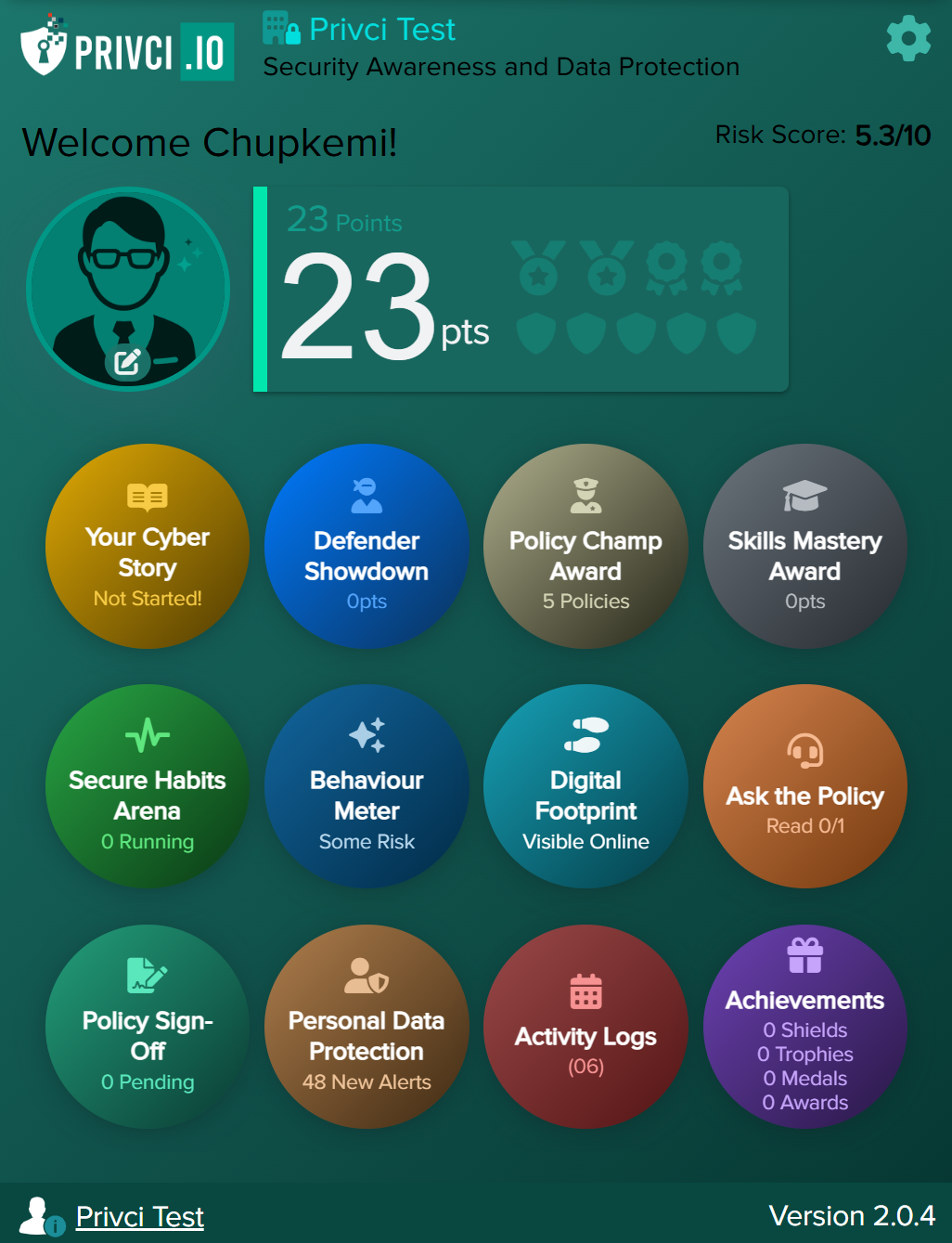
The Agent User Dashboard is the user’s command centre. It contains 12 core features, each represented by an icon on the home screen, alongside real‑time training points and behavioural risk score.

Overview of Privci’s browser‑based training agents
1

Behaviour‑Shaping Experiences

These features directly influence user behaviour through narrative immersion, gamification, and behavioural reinforcement. They are designed to make secure behaviour intuitive, rewarding, and engaging.

Your Cyber Story (Security Chronicles)

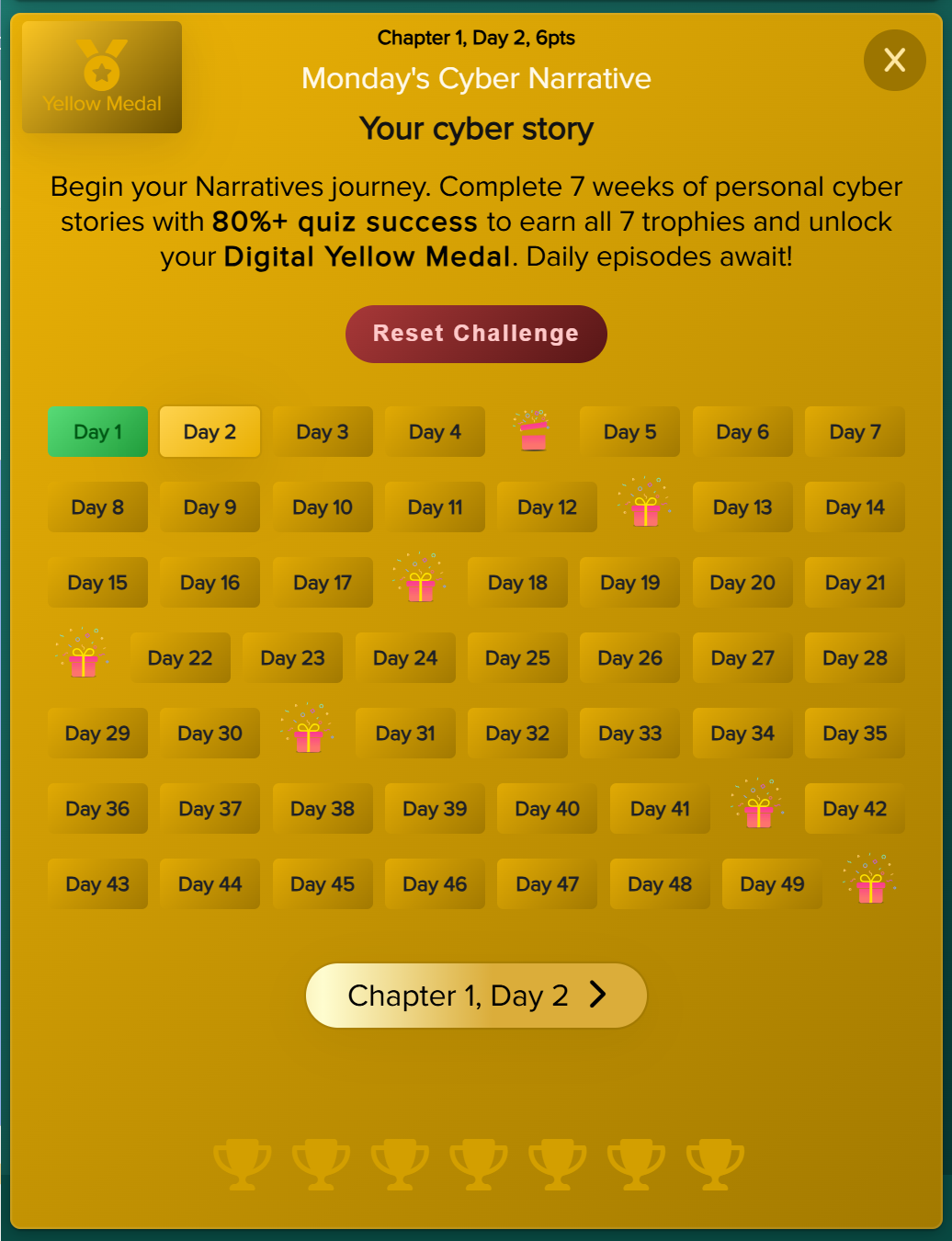
Your Cyber Story is a 49‑day personalised behavioural chronicle that places each user at the centre of a serialised adventure. Real‑world behaviours are translated into in‑game traits, helping users understand how their habits shape their “character”.

Behavioural Mechanism: Narrative immersion, identity reinforcement, positive habit anchoring.

  • Turns behaviour into a story, reducing resistance to change.
  • Highlights strengths and weaknesses in a non‑threatening way.
  • Reinforces positive habits through daily narrative feedback.
  • Includes 7 unlockable trophies.
  • Completing 6+ trophies earns the Digital Yellow Medal and unlocks Chapter 2.
Your Cyber Story
Your Cyber Story

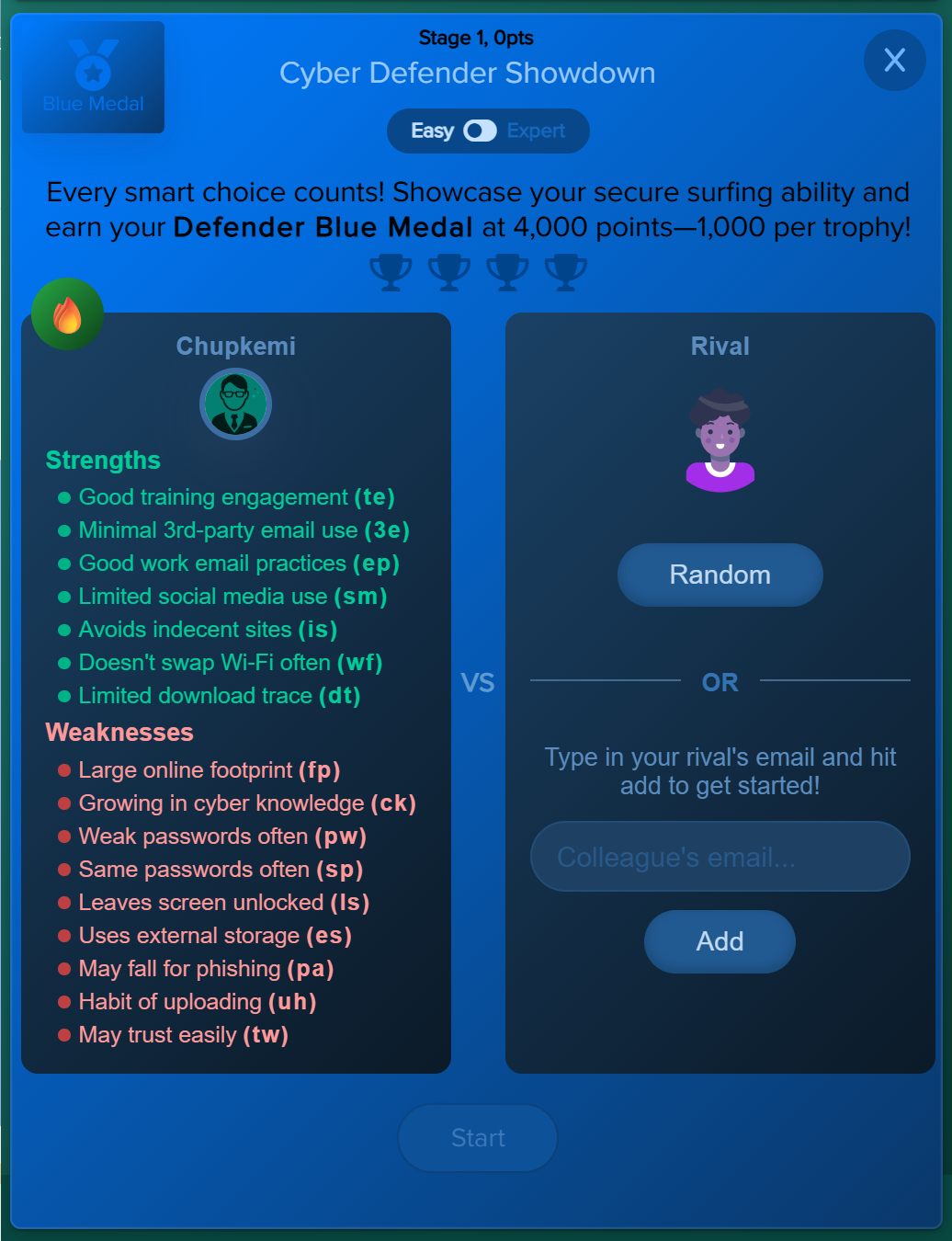
Defender Showdown

Defender Showdown teaches users the Tactics, Techniques, and Procedures (TTPs) behind the nine major end‑user threats. User behaviour directly influences their character’s shields, abilities, and power levels.

Behavioural Mechanism: Gamified threat modelling, experiential learning, competitive motivation.

Modes:

  • Easy Mode: Learn TTPs and strengthen your character.
  • Expert Mode: Face simulated attacks and choose the correct behaviours.

Progression:

  • Earn points for correct decisions.
  • Every 1000 points unlocks a trophy.
  • 4000 points earns the Defender Blue Belt.

Behavioural Impact:

  • Teaches users why behaviours matter.
  • Reinforces good habits through character progression.
  • Encourages peer competition and continuous improvement.
Defender Showdown
Defender Showdown

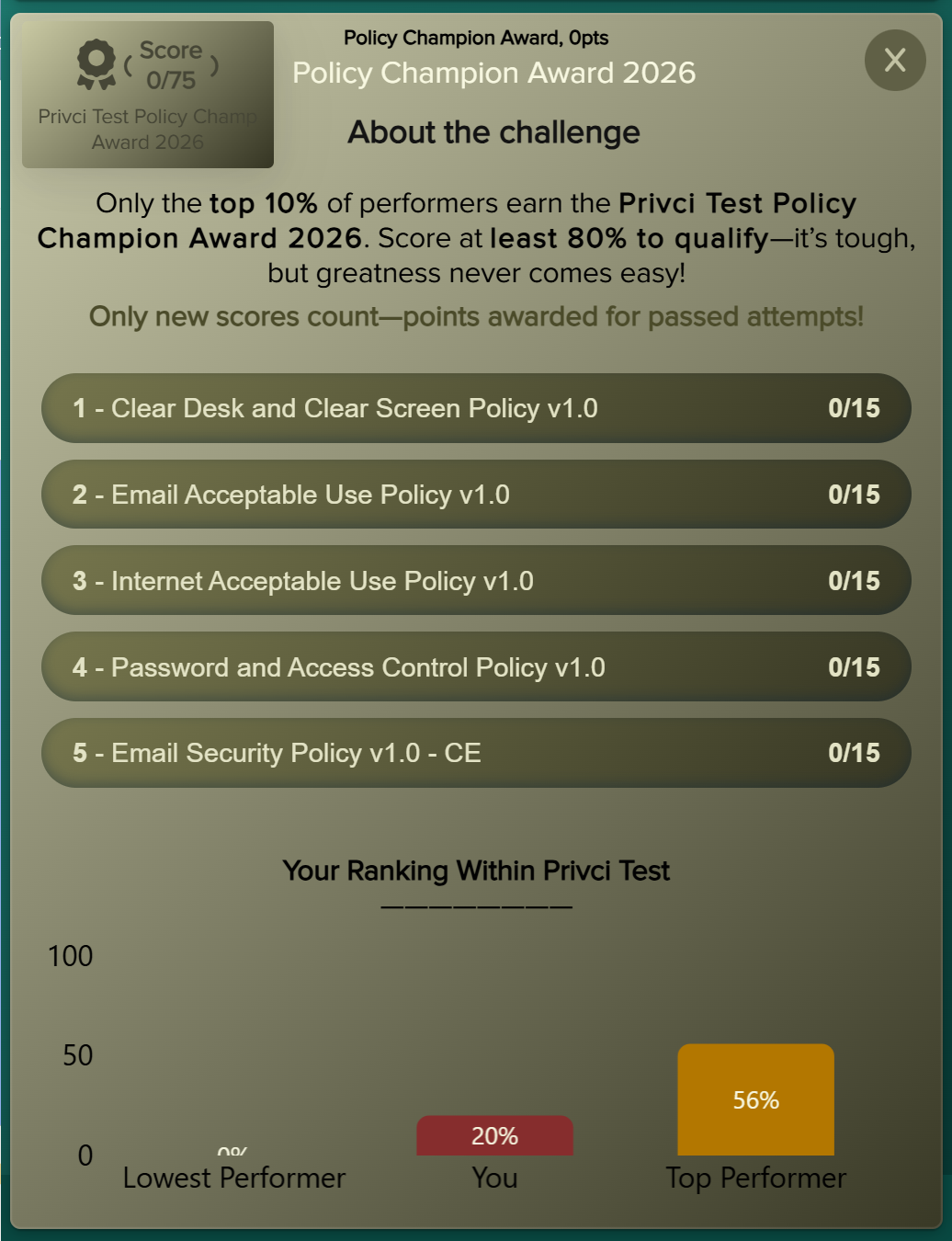
Policy Champ Award

Policy Champ Award transforms policy training into a competitive challenge. Users complete policy‑based tasks to compete for the Policy Champion of the Year.

Behavioural Mechanism: Gamified compliance, reward‑driven learning.

  • Turns policy reading into an engaging challenge.
  • Reinforces comprehension through repetition and rewards.
  • Drives high participation through invitations and reminders.
  • Improves policy knowledge by up to 60%.
Policy Champs
Policy Champs

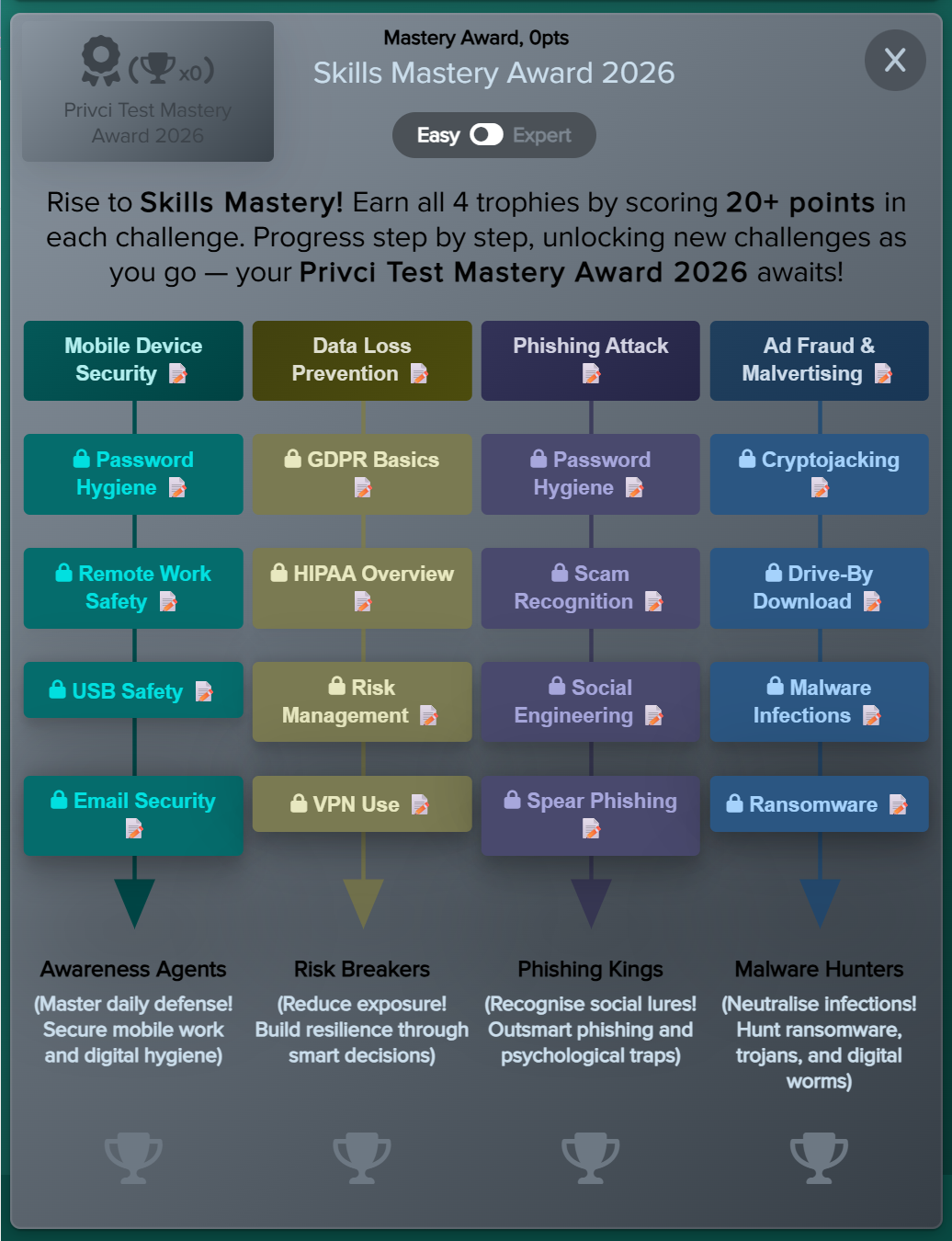
Skills Mastery Award (CyberSkills Training)

CyberSkills Training deepens user knowledge through a structured, trophy‑driven curriculum aligned with compliance frameworks.

Behavioural Mechanism: Progressive mastery, spaced learning, trophy‑driven motivation.

Stages:

  • Skills Mastery: 4 skill sets, 20 modules.
  • Legendary Award: 4 additional skill sets, 20 modules.
  • Total: 40 essential cybersecurity modules.

Behavioural Impact:

  • Builds long‑term knowledge.
  • Reduces human‑error incidents.
  • Strengthens the organisation’s “human firewall”.
CyberSkills Training
2

Behaviour Monitoring & Self‑Awareness

These features help users understand their behaviour, risk, and exposure — a key driver of self‑regulated improvement.

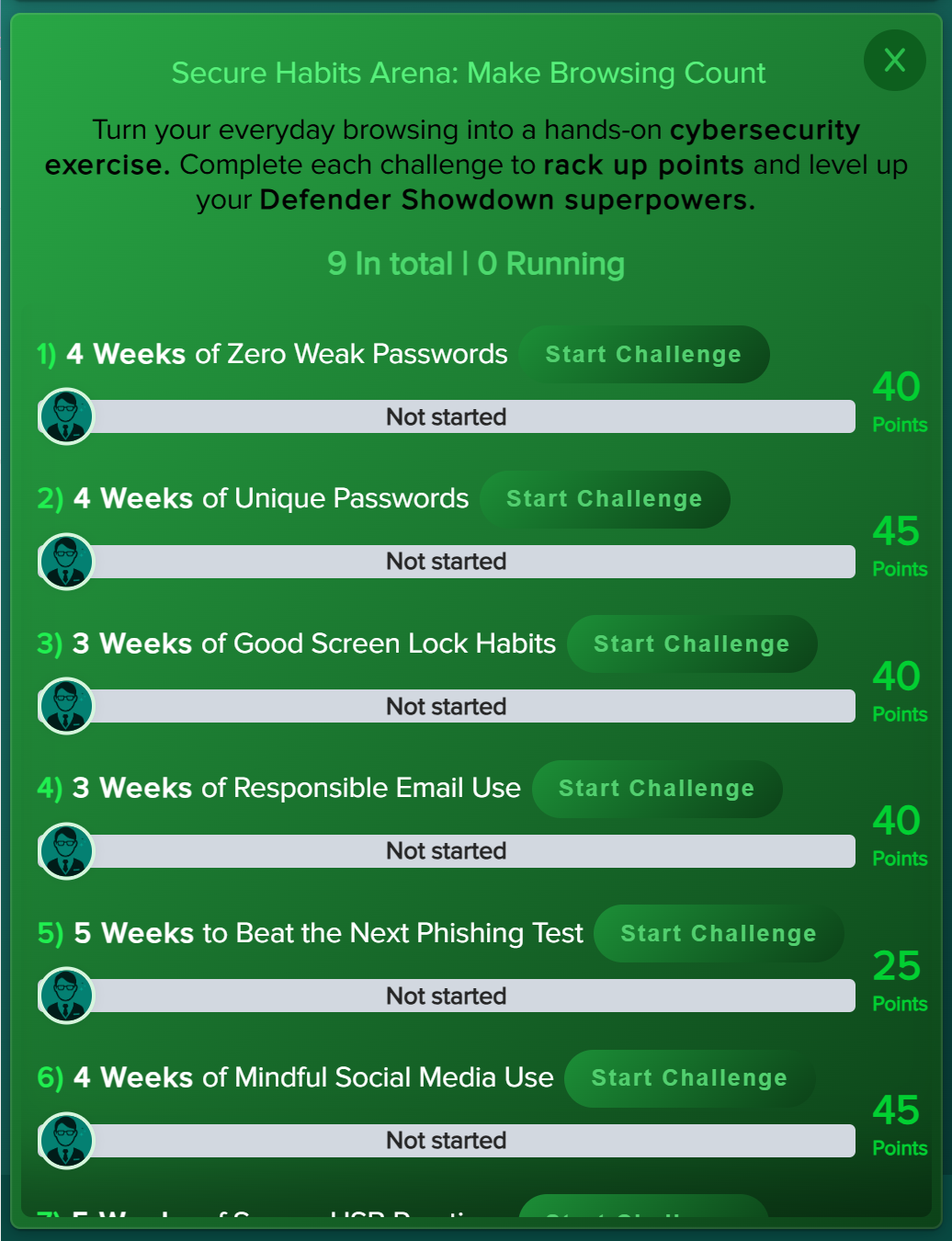
Secure Habits Arena

The Secure Habits Arena is the user‑facing interface for Direct Intervention. Users accept behaviour challenges and earn points for maintaining clean behaviour.

Behavioural Mechanism: Commitment contracts, challenge‑based reinforcement, COM‑B model.

  • Users accept challenges such as “No violations for 7 days”.
  • Earn points for consistency and improvement.
  • Challenges reset if violations occur.
  • Up to 60% improvement in targeted behaviours.
Secure Habits Arena
Secure Habits Arena

Behaviour Meter

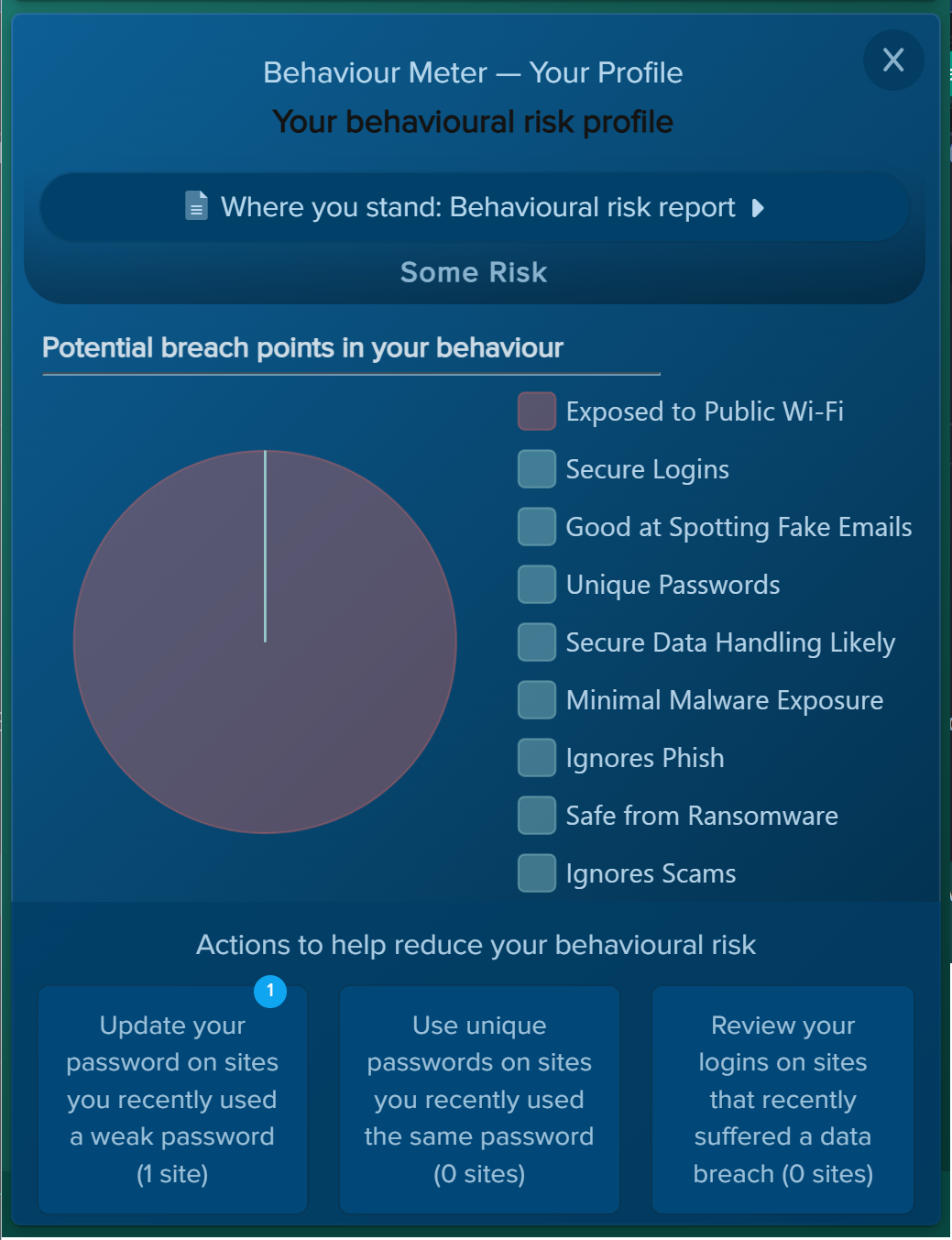
The Behaviour Meter provides real‑time feedback on the user’s behavioural risk score, highlighting key behaviours affecting their posture and recommending corrective actions.

Behavioural Mechanism: Real‑time feedback, self‑awareness, behavioural nudging.

  • Shows current behavioural risk score.
  • Highlights behaviours affecting the score.
  • Provides recommended actions.
  • Creates a continuous improvement loop.
Behaviour Meter dashboard

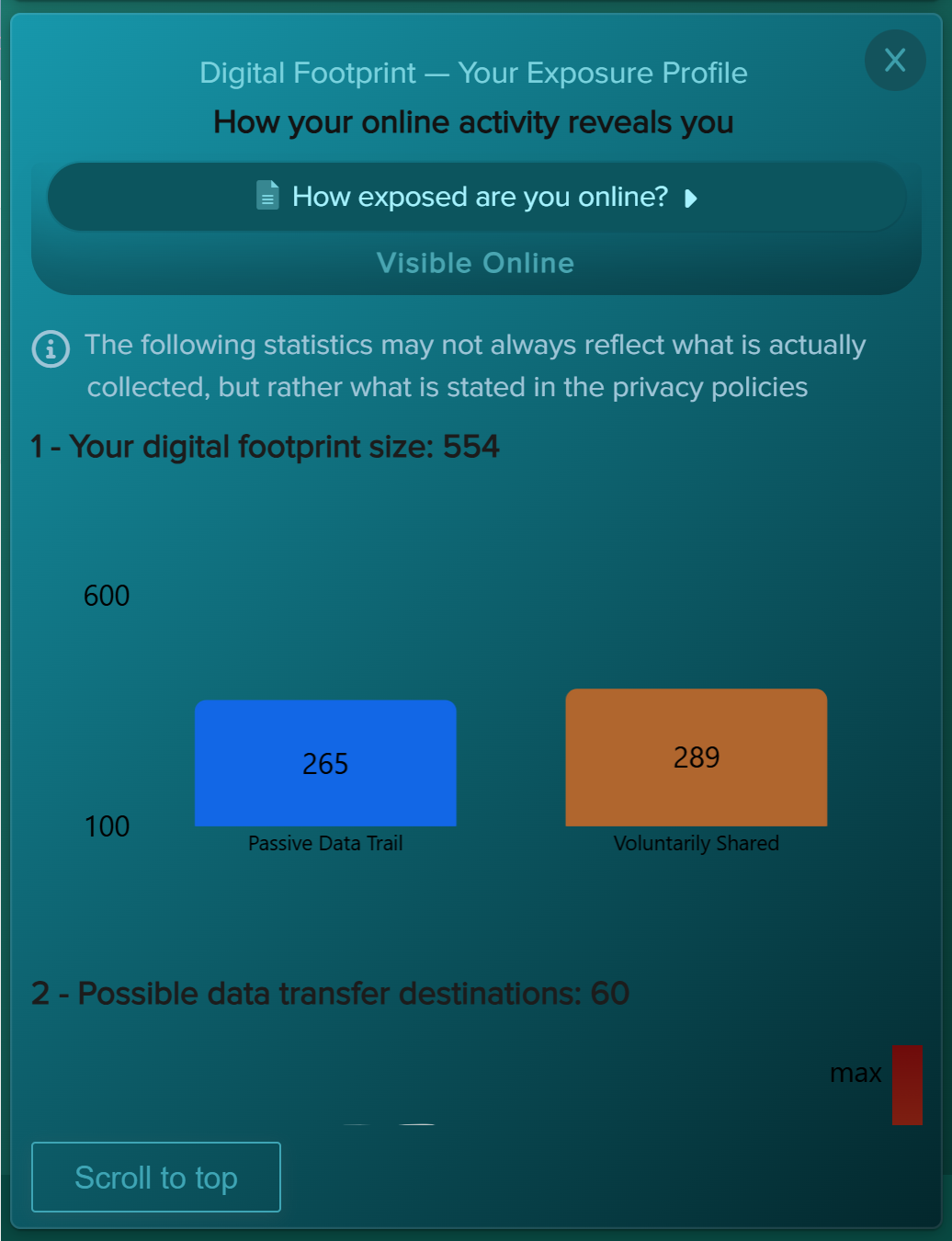
Digital Footprint

Digital Footprint visualises the user’s online exposure, including data brokers, breach history, and data transfer destinations.

Behavioural Mechanism: Risk visibility, exposure awareness, fear‑avoidance motivation.

  • Shows online data footprint.
  • Displays data transfer destinations.
  • Lists data brokers holding personal data.
  • Shows breach exposure history.
Digital Footprint
Digital Footprint
3

Knowledge Access & Compliance Support

These features support learning, policy adherence, and organisational compliance.

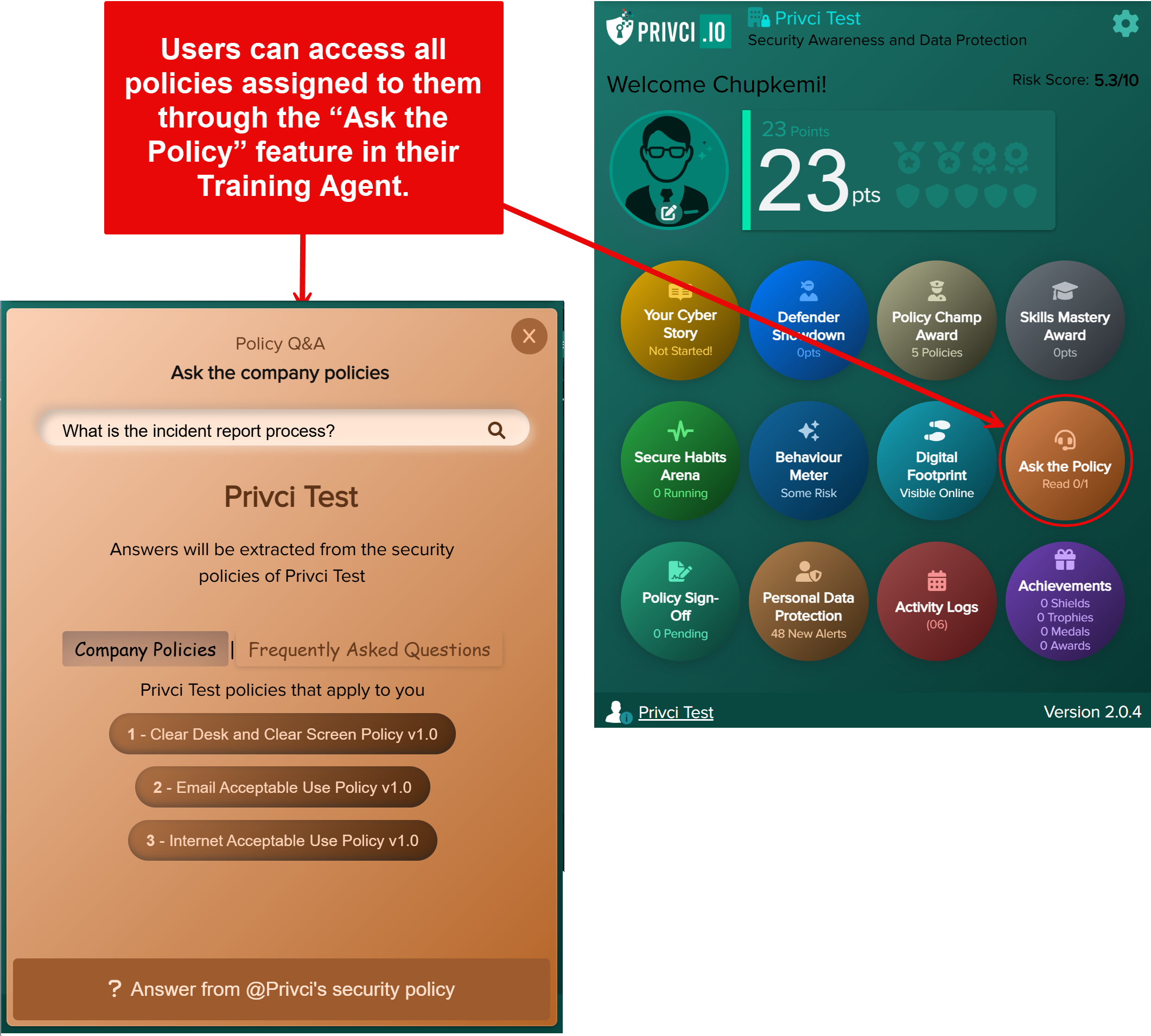
Ask the Policy

Users can ask any policy‑related question and receive answers sourced directly from the organisation’s Policy Hub.

Behavioural Mechanism: Just‑in‑time learning, frictionless access to knowledge.

  • Ask questions directly from the agent.
  • Answers are retrieved from uploaded policies.
  • FAQs configured by admins also appear here.
  • Improves policy adherence and reduces mistakes.
Ask the Policy
Ask the Policy

Policy Sign‑Off

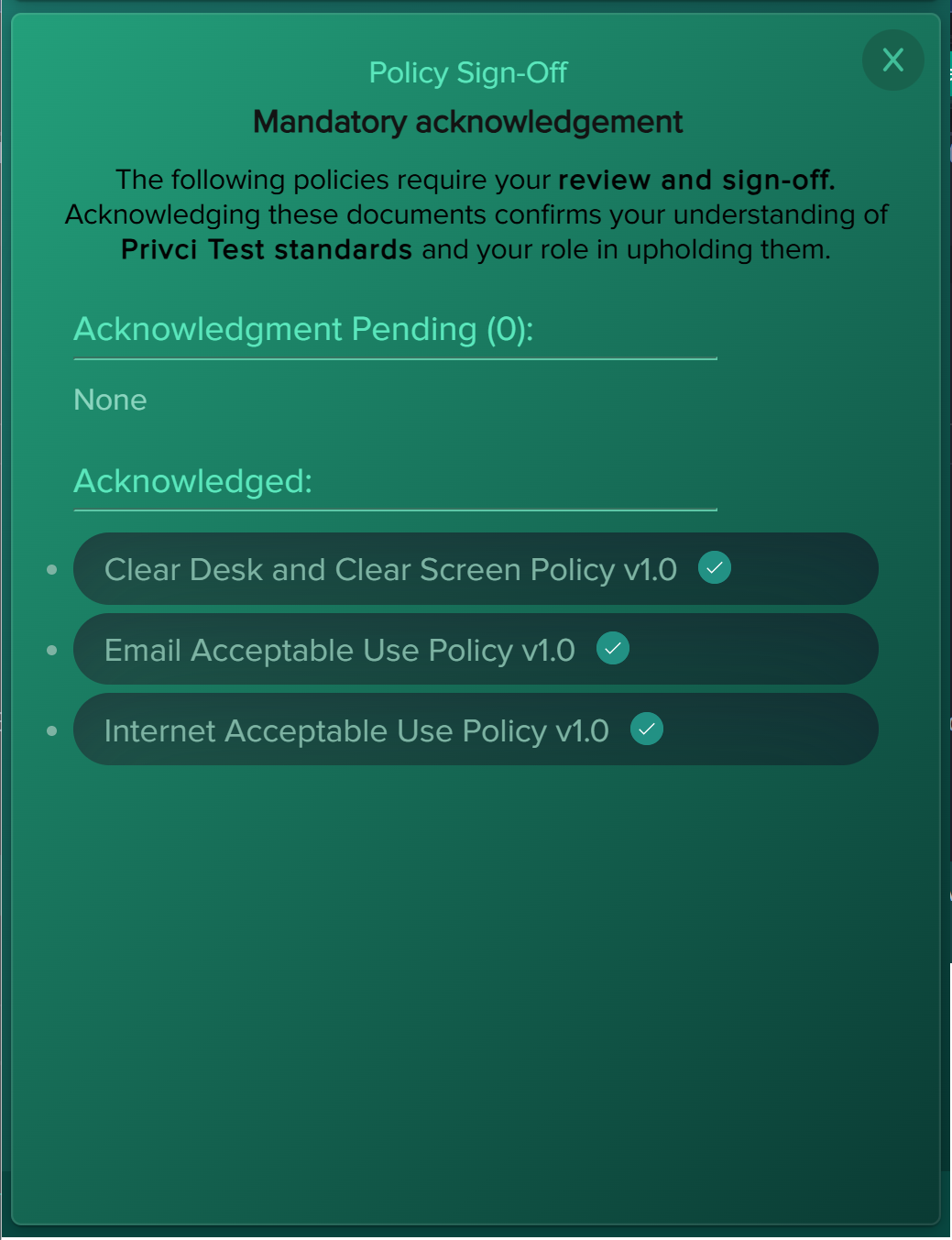
Policy Sign‑Off lists all policies pending acknowledgement and those already signed, supporting compliance workflows.

Behavioural Mechanism: Accountability, compliance reinforcement.

  • Shows pending and completed acknowledgements.
  • Supports Policy Hub workflows.
  • Ensures audit readiness.
Policy Sign‑Off
Policy Sign‑Off
4

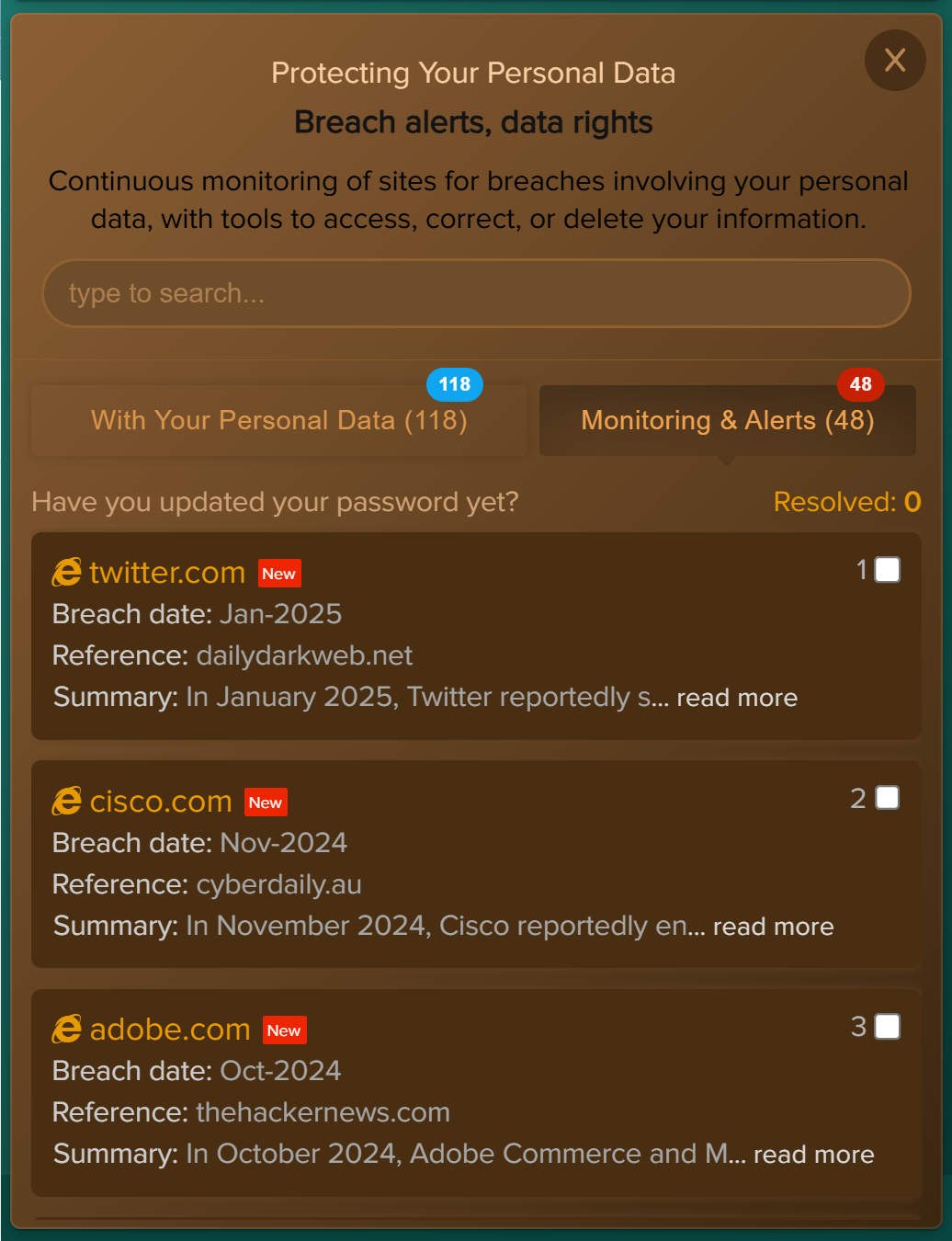
Personal Data Protection

This feature gives users visibility into their personal data exposure, breach alerts, and privacy‑related risks.

Behavioural Mechanism: Personal relevance, risk ownership, empowerment.

  • Shows breach alerts affecting the user.
  • Displays dark web exposure.
  • Lists sites holding personal data.
  • Provides tools for access, rectification, or erasure requests.
  • Includes privacy Q&A tools.
Personal Data Protection
5

Engagement & Motivation

These features reinforce progress, reward improvement, and encourage continuous learning.

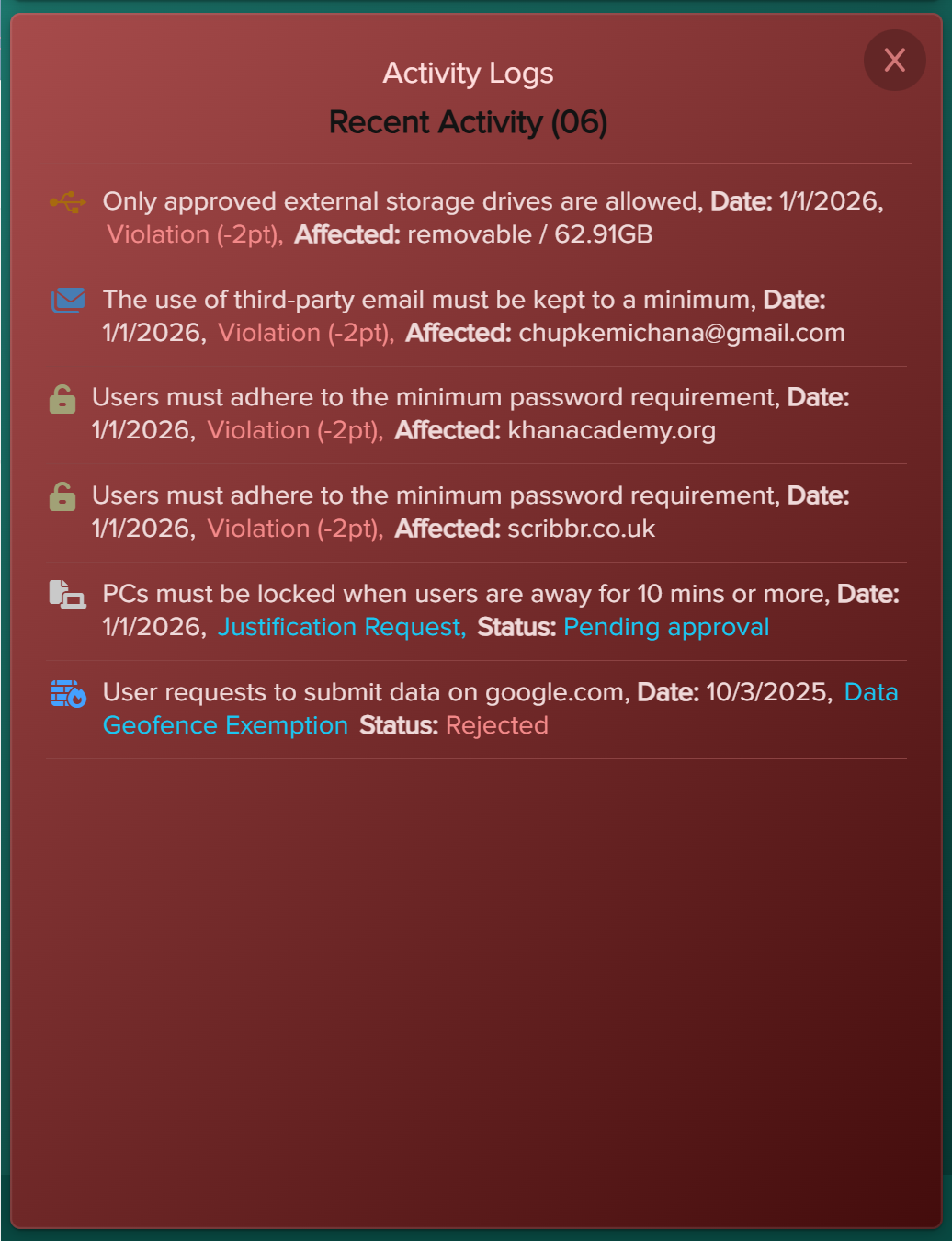
Activity Logs

Activity Logs show recent violations, achievements, and incentives earned.

Behavioural Mechanism: Progress tracking, reinforcement, accountability.

  • Displays recent behavioural events.
  • Shows achievements and earned incentives.
  • If points fall below zero, Zero Out Overall Points activates.
  • Encourages recovery and improvement.
Activity Logs
Activity Logs

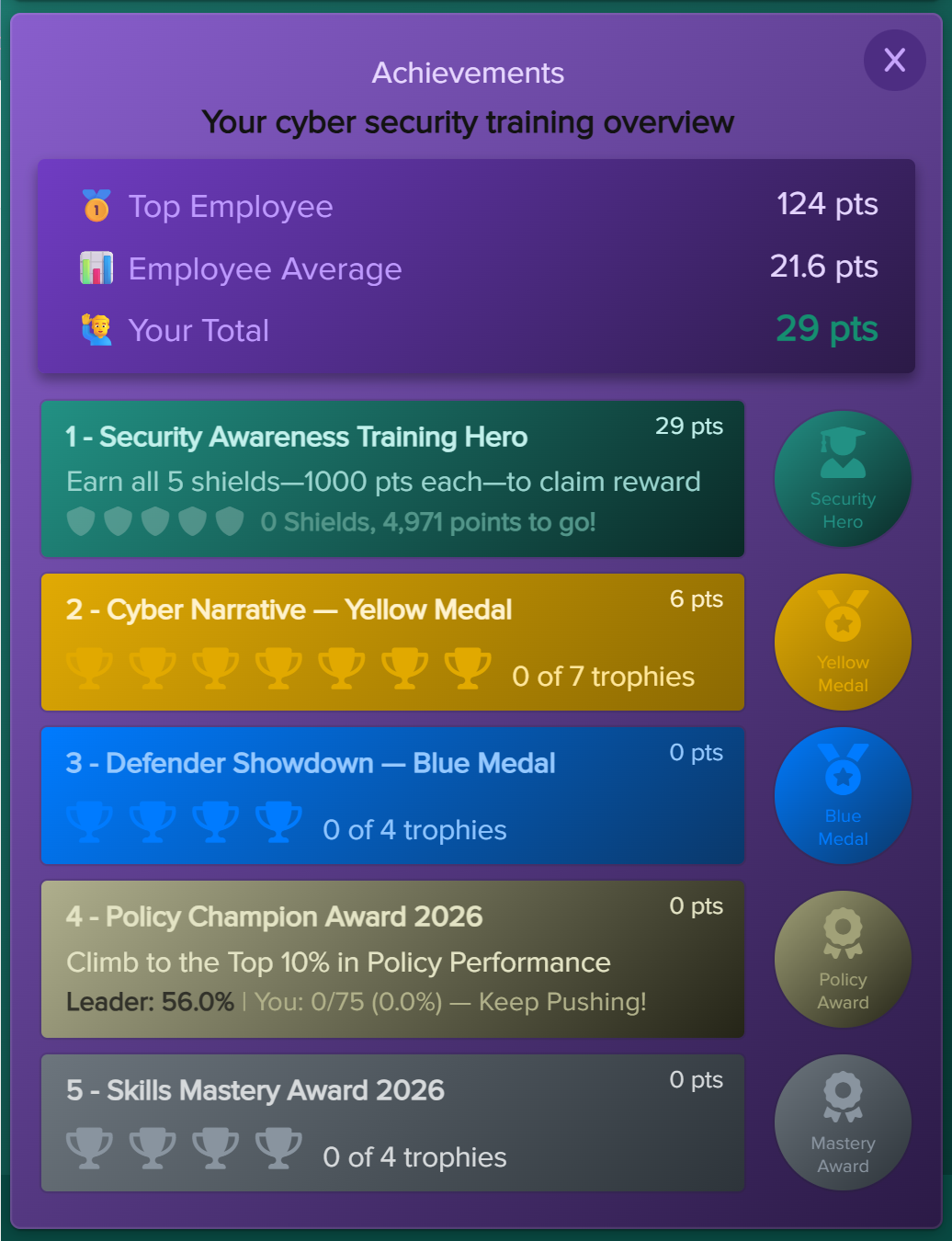
Achievements

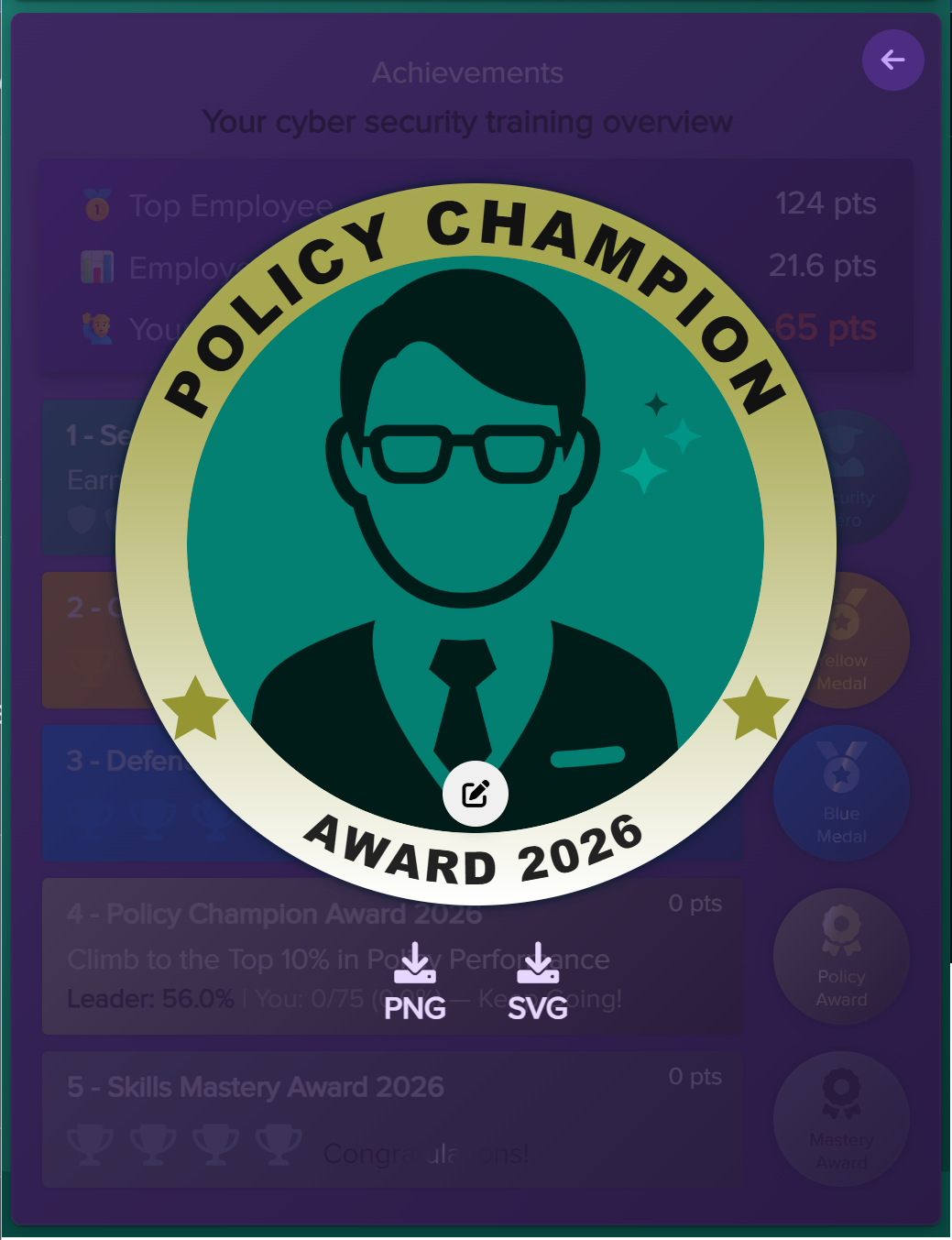
Achievements display trophies, medals, badges, and points distribution. Users can download badges with their profile image to showcase progress.

Behavioural Mechanism: Recognition, social motivation, reward reinforcement.

  • Shows all earned trophies and medals.
  • Displays badges and progress indicators.
  • Allows users to download badges with their profile image.
  • Boosts engagement and continuous learning.
Achievements dashboard
3

Training Prompts

Privci uses a variety of training prompts to guide behaviour, reinforce secure habits, and notify users of important events. Each prompt type is triggered by a specific feature and is designed to influence behaviour in a targeted, effective, and minimally disruptive way.

Prompts appear only when relevant and are rate‑limited to avoid overwhelming users. They can be managed from their respective feature settings across the platform.

1

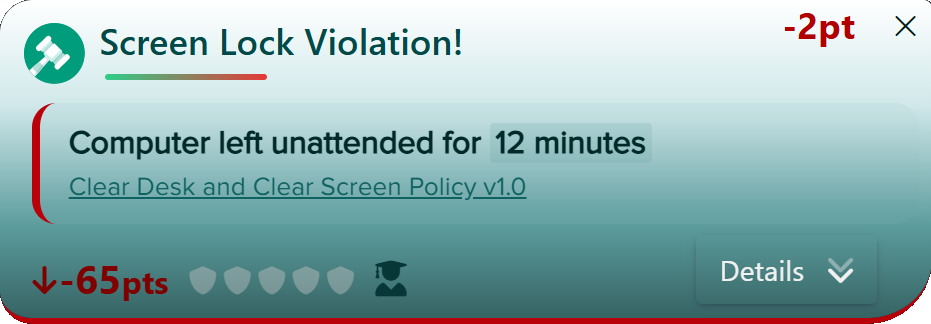
Baseline Training Notification Prompts

Baseline Training prompts appear when users violate a company policy while browsing. These prompts reinforce secure behaviour in real time and help users understand the impact of their actions.

There are two types of Baseline Training prompts:

Short Brief Notification Prompt

This lightweight prompt appears immediately at the moment of a policy violation. It is intentionally brief, showing for less than 5 seconds, and appears only once every 24 hours for the same violation type.
It displays:

  • A short statement describing the violation
  • Points lost
  • A Details button for users who want to learn more
Example of a short baseline violation prompt

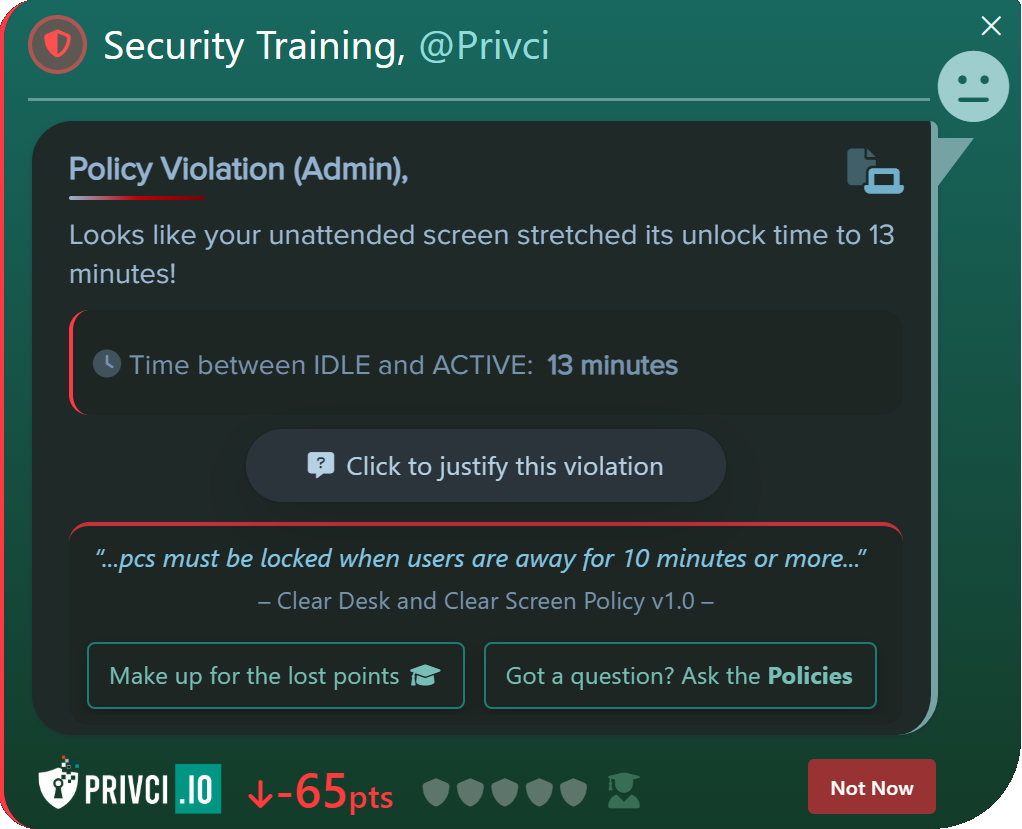
Detailed Violation Prompt

This prompt appears when the user clicks the Details button on the short prompt. It provides deeper context and offers corrective actions.

It includes:

  • List of affected services
  • Option to raise a justification (e.g., false positive)
  • Option to regain points by taking a quick quiz
  • “Ask the Policy” integration for policy clarification
Detailed violation prompt
2

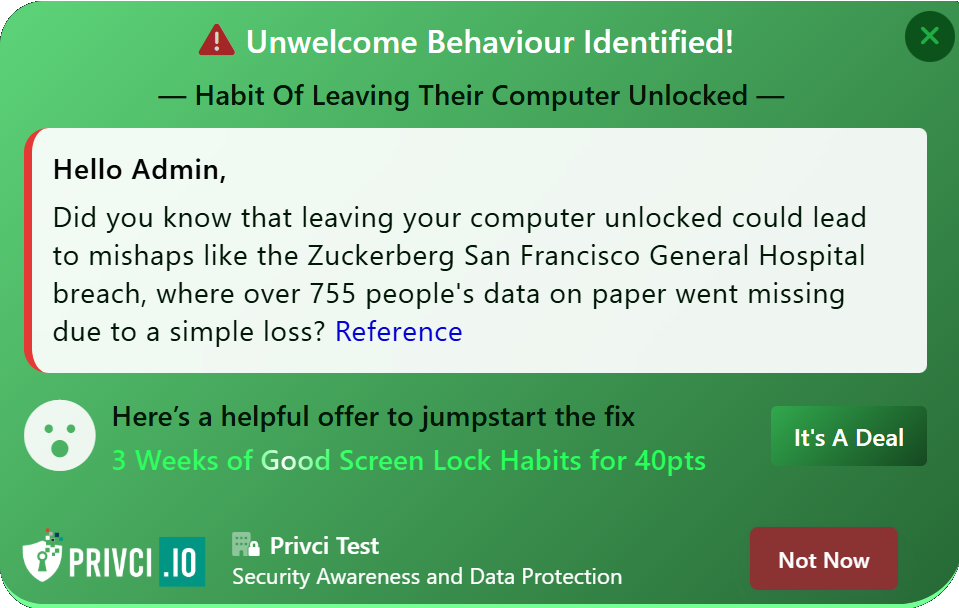
Intervention Prompts

Intervention Prompts are used exclusively by Privci’s 10 Behaviour Intervention Agents. They appear only when an intervention is active and are carefully crafted to influence user perception and behaviour.

These prompts:

  • Present behaviour‑shaping messages
  • Invite users to accept behaviour challenges
  • Announce challenge results (success or failure)
  • Reinforce the COM‑B behaviour change model

They are shown only to users whose behaviour is being addressed and only for the specific behaviour in question.

Intervention Prompt
3

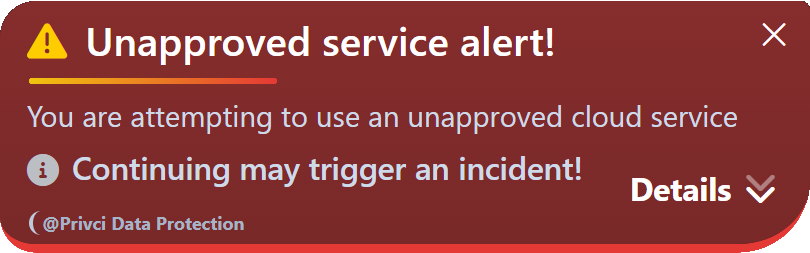
Shadow Watch Notifications

Shadow Watch notifications appear when users access services that have been marked as unapproved by the admin. These prompts communicate the admin’s message directly to the user at the moment of use.

Characteristics:

  • Appear only when the user is actively using the unapproved service
  • Show once every 48 hours per service
  • Display admin‑configured instructions or warnings
Shadow Watch notification
4

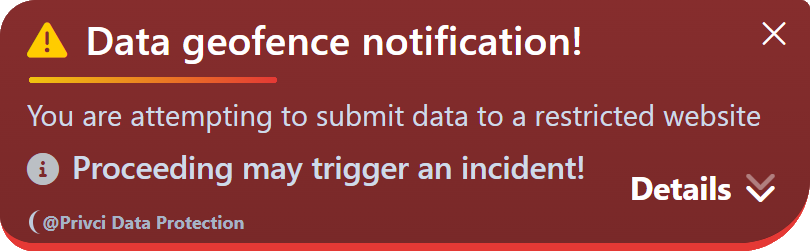
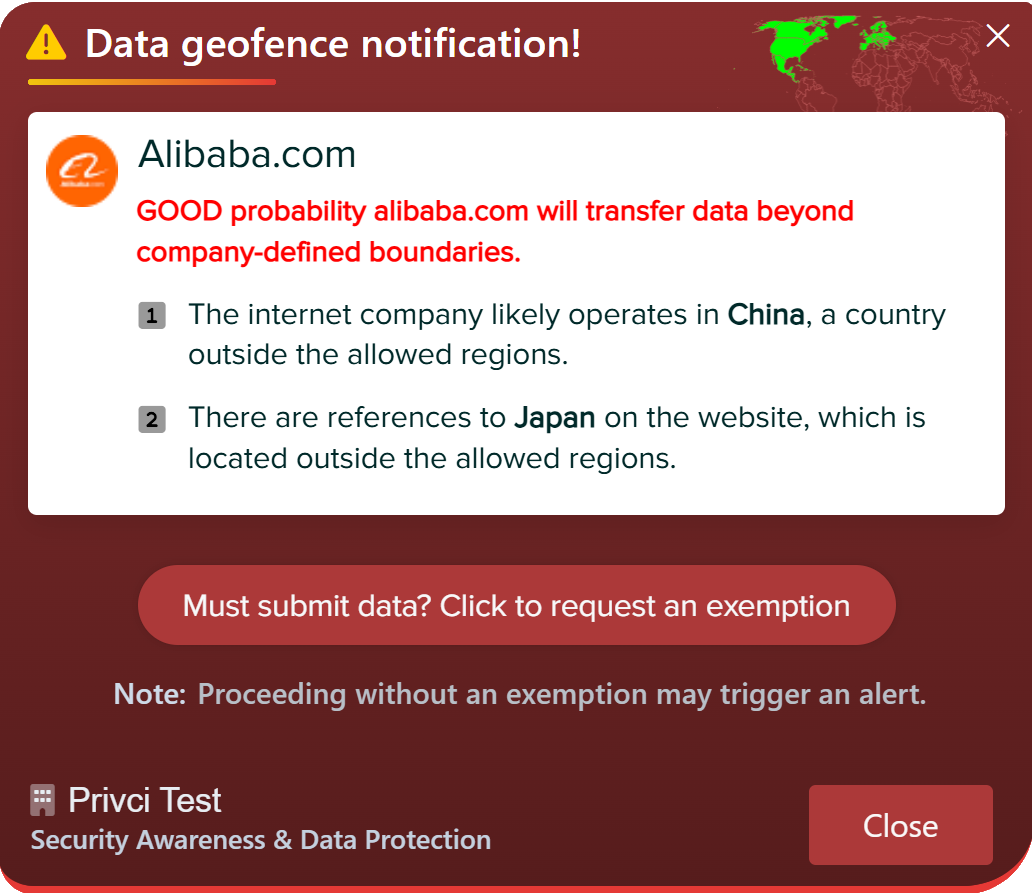
Geofence Prompts

Geofence Prompts notify users when they attempt to submit data on websites restricted by admin‑configured geofence rules. Like Baseline Training prompts, they come in two forms: a short brief prompt and a detailed prompt.

If the user ignores the prompt and continues the action, a Geofence Incident Alert is triggered for admins.

Geofence violation prompt
5

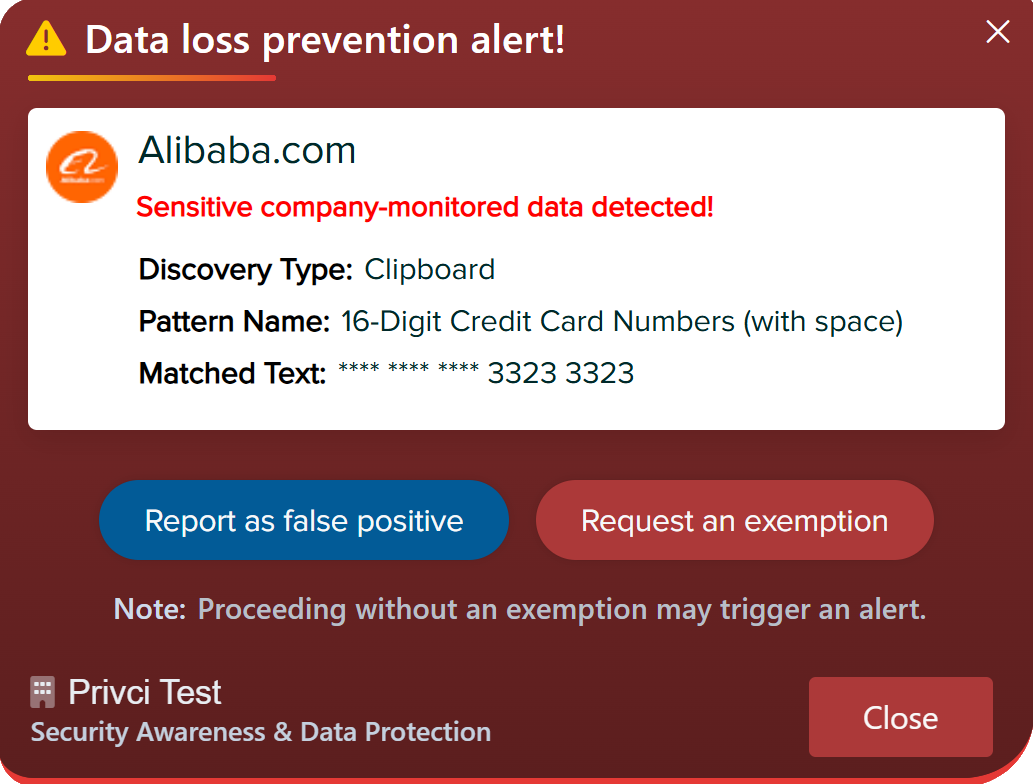
DLP Prompts

DLP Prompts appear when a user attempts to process or submit sensitive data monitored by Privci’s Data Loss Prevention (DLP) engine.

These prompts:

  • Notify the user of the detected sensitive data
  • Explain why the action is blocked or flagged
  • Trigger a DLP Incident Alert for admins

They function similarly to Geofence detailed prompts but focus specifically on data‑handling risks.

DLP prompt example
4

Behaviour Change Agent

Privci includes a suite of 10 specialist, AI‑enabled Behaviour Change Agents, each designed to identify, interrupt, and transform risky user behaviours before they escalate into security incidents. These agents form the core of Privci’s behavioural defence system, ensuring end‑user‑driven threats remain consistently low across the organisation.
At the heart of every agent is the COM‑B behaviour change model — Capability, Opportunity, and Motivation — a scientifically validated framework that explains why people behave the way they do and how to shift those behaviours effectively.

Intervention Prompt

How the Behaviour Change Agent Uses the COM‑B Model

Each Behaviour Change Agent follows a structured, adaptive process based on the COM‑B model. This ensures interventions are personalised, relevant, and effective at shifting behaviour.

1. Assessing Capability (C)
  • Evaluates whether the user has the knowledge or skills required for secure behaviour.
  • If a capability gap is detected, the agent provides:
    • Simple explanations of the behaviour
    • Micro‑lessons and examples
    • Quick, actionable guidance
    • Short quizzes to reinforce understanding
  • This ensures the user has the ability to change before being asked to change.
2. Assessing Opportunity (O)
  • Determines whether the user’s environment supports secure behaviour.
  • If an opportunity barrier exists, the agent provides prompts that:
    • Highlight environmental risks (e.g., unsafe WiFi, risky websites)
    • Suggest safer alternatives
    • Encourage small adjustments to daily routines
    • Provide nudges at the moment of risk
  • This ensures the user has the conditions needed to behave securely.
3. Strengthening Motivation (M)
  • Influences the user’s internal drive to change behaviour.
  • Motivational prompts may include:
    • Real‑world breach examples linked to the user’s behaviour
    • Personalised risk statements
    • Challenges that reward clean behaviour streaks
    • Simplified policy summaries
    • Opportunities to earn points, trophies, or badges
  • These prompts reshape the user’s perception of risk and reward.
Secure Habits Arena

How Prompts Drive Behaviour Change

Behaviour Change Agents communicate through short, targeted prompts that appear only when an intervention is active. These prompts are carefully crafted to influence perception, reinforce learning, and guide users toward safer habits.

A typical behaviour‑change prompt may include:

  • A clear explanation of the risky behaviour
  • A reference to a real breach caused by similar behaviour
  • A challenge encouraging the user to avoid the behaviour for a set period
  • A simplified policy summary with a quick quiz
  • A reward (points, badges, trophies) for successful completion

This combination of education + relevance + challenge + reward is proven to shift behaviour more effectively than traditional training alone.

Tracking Progress & Reinforcing Change

Behaviour Change Agents continuously track user progress and adapt interventions based on performance. This ensures behaviour change is reinforced over time and remains aligned with the user’s risk profile.

  • Tracks challenges the user has accepted
  • Monitors clean behaviour streaks
  • Announces results and rewards
  • Adjusts future interventions based on progress
  • Shows prompts only to users whose behaviour is being addressed

This ensures interventions remain personal, relevant, and unobtrusive.

Direct Intervention
5

Trophies & Achievements

The Trophies & Achievements section gives users a clear overview of their progress across Privci’s behaviour‑change programmes. It is designed to motivate participation, reinforce secure habits, and provide visibility into how users are improving over time.

This dashboard explains what each achievement represents, how points are earned, and how these awards contribute to Privci’s behaviour‑change methodology.

What Users See on the Achievements Dashboard

The Achievements Dashboard highlights key indicators that help users understand their progress and encourage positive, healthy competition across the organisation.
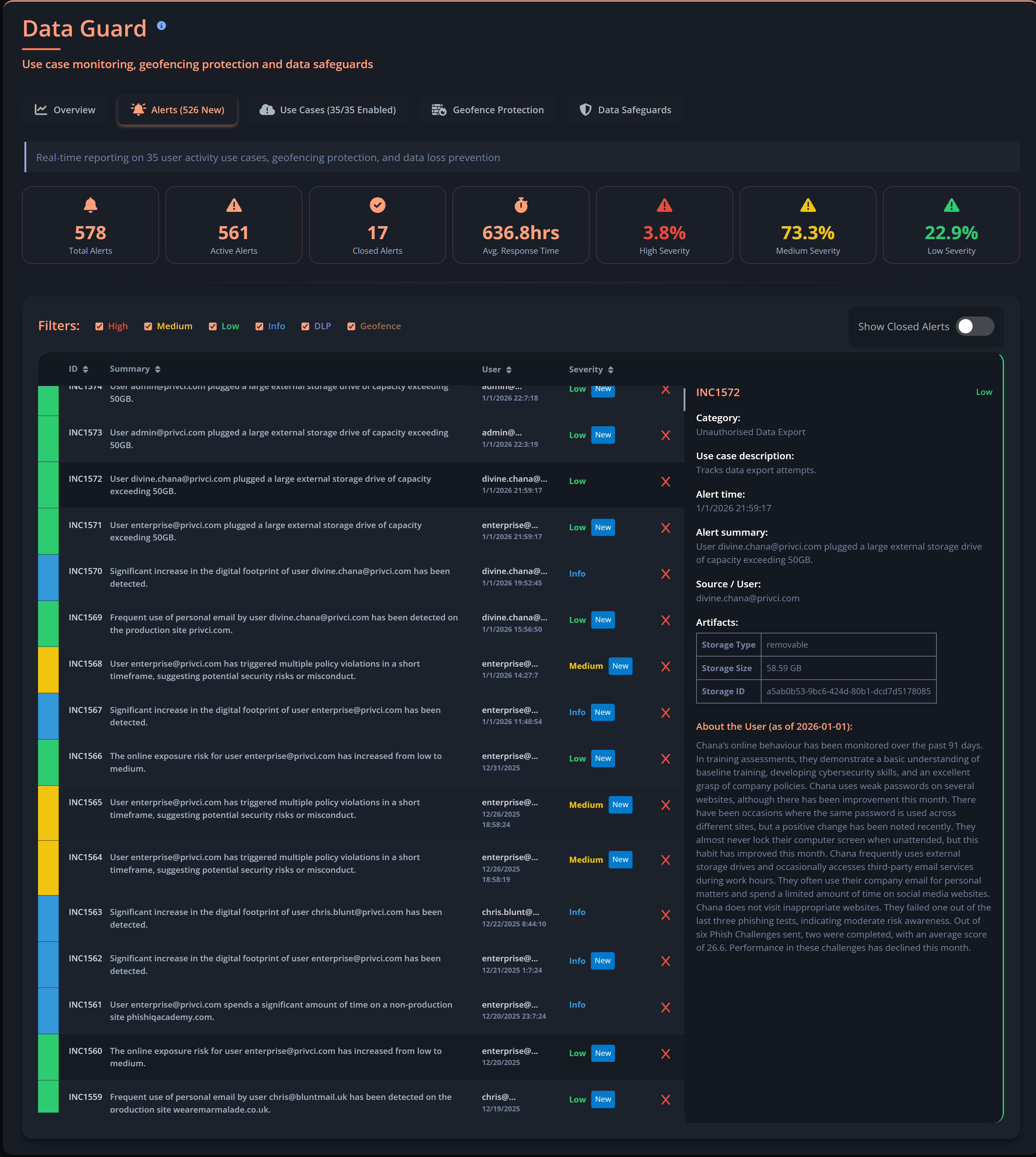
  • Top Employee: Highest points earned across the organisation
  • Employee Average: Average points earned by all employees
  • Your Total: The user’s personal total points
  • Trophies earned across all training modules
  • Medals awarded for major milestones
  • Badges for specific accomplishments
  • Points distribution across activities
  • Downloadable badges personalised with the user’s profile image

These metrics help users track progress, compare performance, share achievements with colleagues, and stay motivated.

Overview of user trophies, medals, badges, and progress indicators

Achievement Categories

Each achievement category reflects a different part of the user’s security‑training journey. Completing modules, challenges, and behaviour‑based tasks contributes to these awards.

1 - Security Awareness Training Hero

Progress Example: 9 pts
Goal: Earn all 5 Security Shields (1000 pts each)
Status Example: 0 Shields — 4,991 points remaining

This award recognises mastery of everyday security awareness. Users earn shields by:

  • Completing micro‑lessons
  • Avoiding risky behaviours
  • Responding correctly to awareness prompts

What it teaches:

  • Core security habits
  • Daily safe‑behaviour reinforcement
  • Awareness of common threats

2 - Cyber Narrative — Yellow Medal

Progress Example: 34 pts
Trophies Earned: 2 of 7

Awarded for progress in Your Cyber Story, Privci’s 49‑day personalised behavioural journey. Each trophy represents a milestone in the user’s narrative.

What it teaches:

  • Self‑reflection
  • Behaviour consistency
  • Understanding personal strengths and weaknesses

3 - Defender Showdown — Blue Medal

Progress Example: 2234 pts
Trophies Earned: 2 of 4

Earned by participating in Defender Showdown, where users learn to recognise and stop attacker TTPs (Tactics, Techniques, and Procedures).

Users earn points by:

  • Stopping simulated attacks
  • Selecting the correct defensive behaviours
  • Demonstrating threat‑resilient decision‑making

What it teaches:

  • Threat awareness
  • Attack‑pattern recognition
  • Behavioural defences against real‑world threats

4 - Policy Champion Award

Progress Example: 23 pts
Goal: Reach the Top 10% in policy performance
Example Standing: Leader: 56.0% | You: 0/75 (0.0%)

This award recognises excellence in company policy knowledge. Users progress by completing policy‑training challenges and demonstrating comprehension.
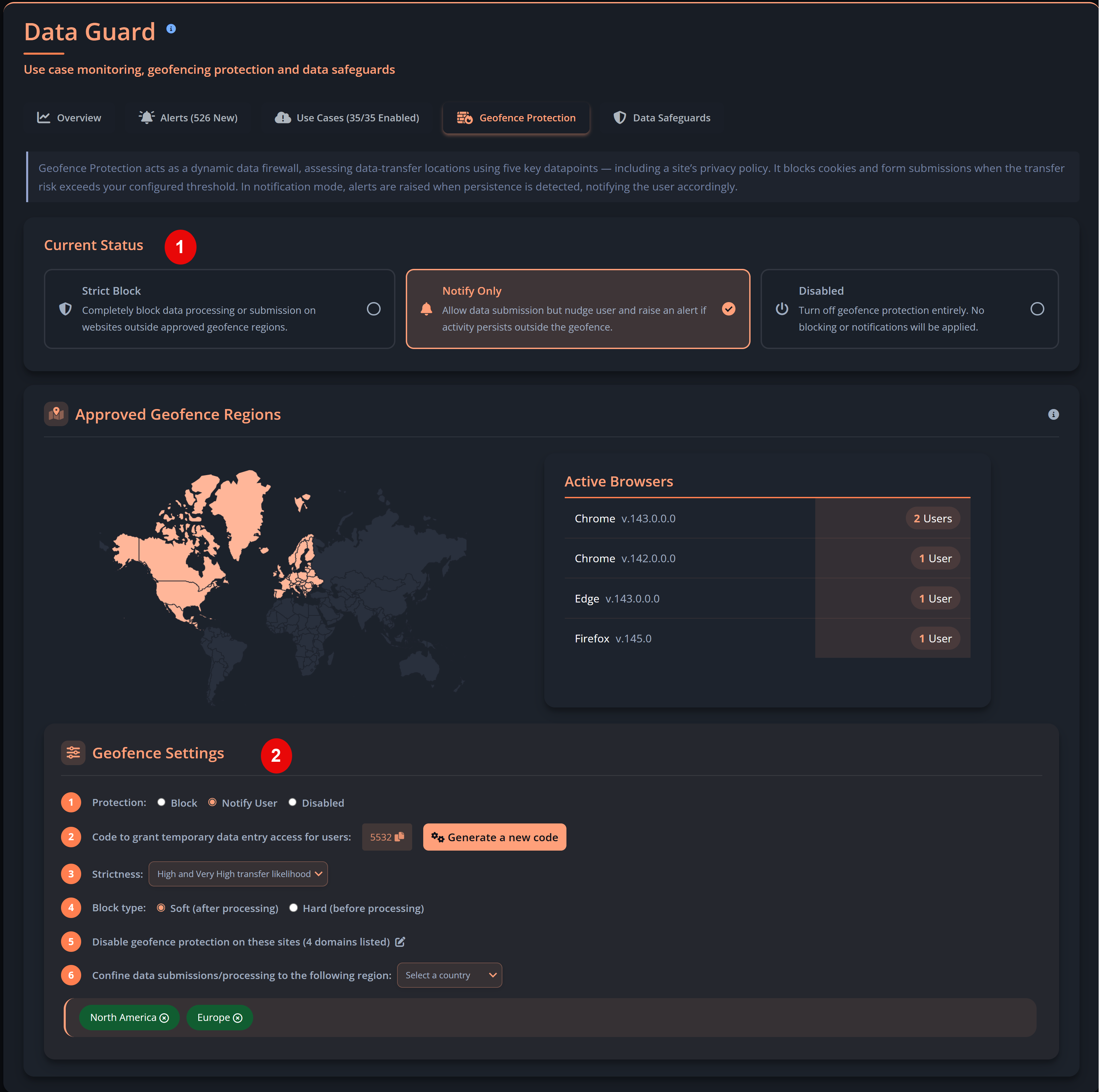
What it teaches:

  • Policy awareness
  • Compliance expectations
  • Understanding organisational rules

5 - Skills Mastery Award

Progress Example: 85 pts
Trophies Earned: 1 of 4

Awarded for completing the CyberSkills Training curriculum. Each trophy represents a completed skill set.

What it teaches:

  • Deep cybersecurity knowledge
  • Long‑term skill development
  • Advanced threat‑resilience capability

How Trophies & Achievements Support Behaviour Change

Privci’s achievement system is grounded in behavioural‑science principles. Each element is designed to reinforce secure behaviour and sustain long‑term engagement.

  • Recognition: Visible rewards reinforce secure habits.
  • Social Motivation: Leaderboards encourage healthy competition.
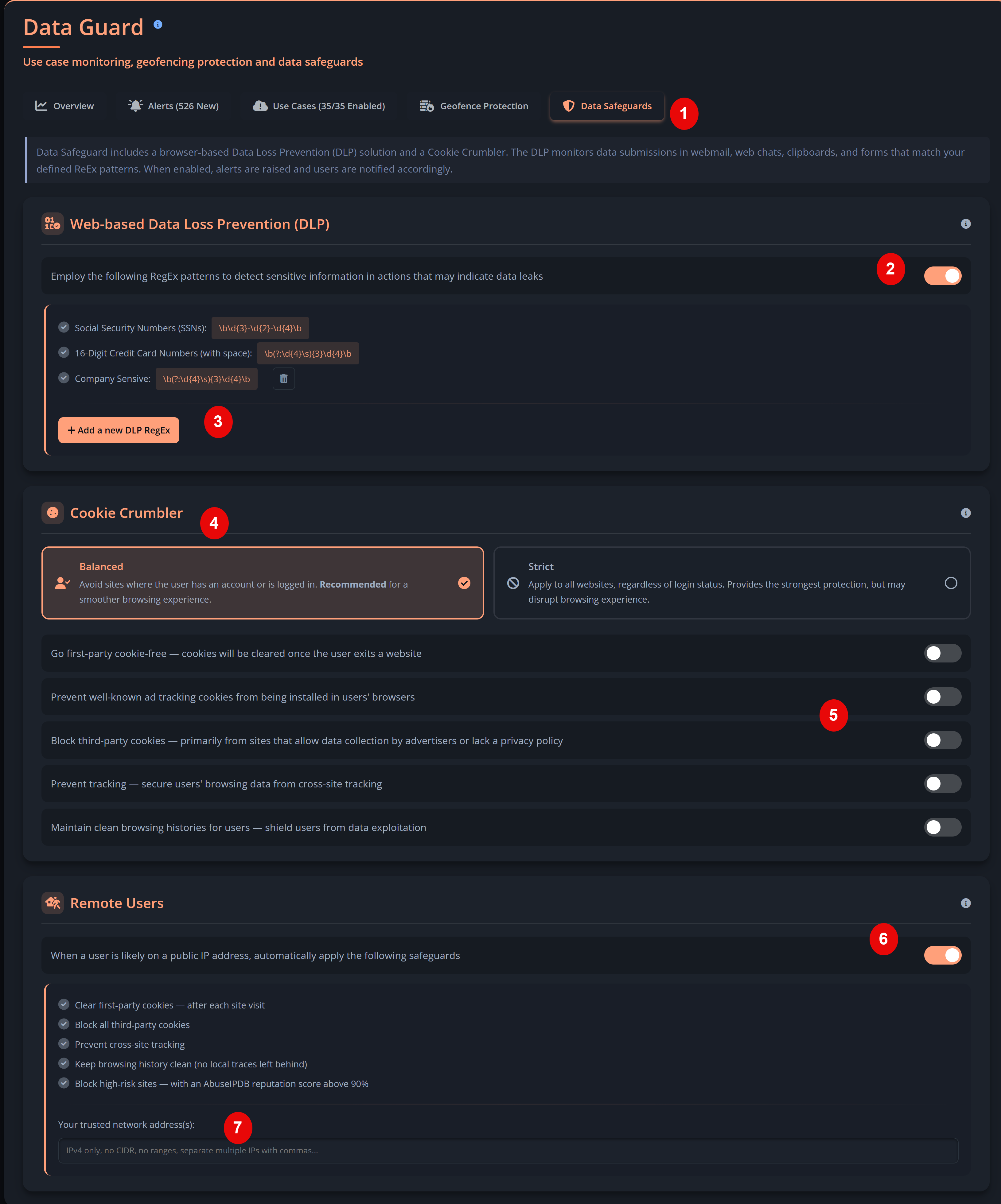
  • Reward Reinforcement: Points, badges, and medals sustain motivation.
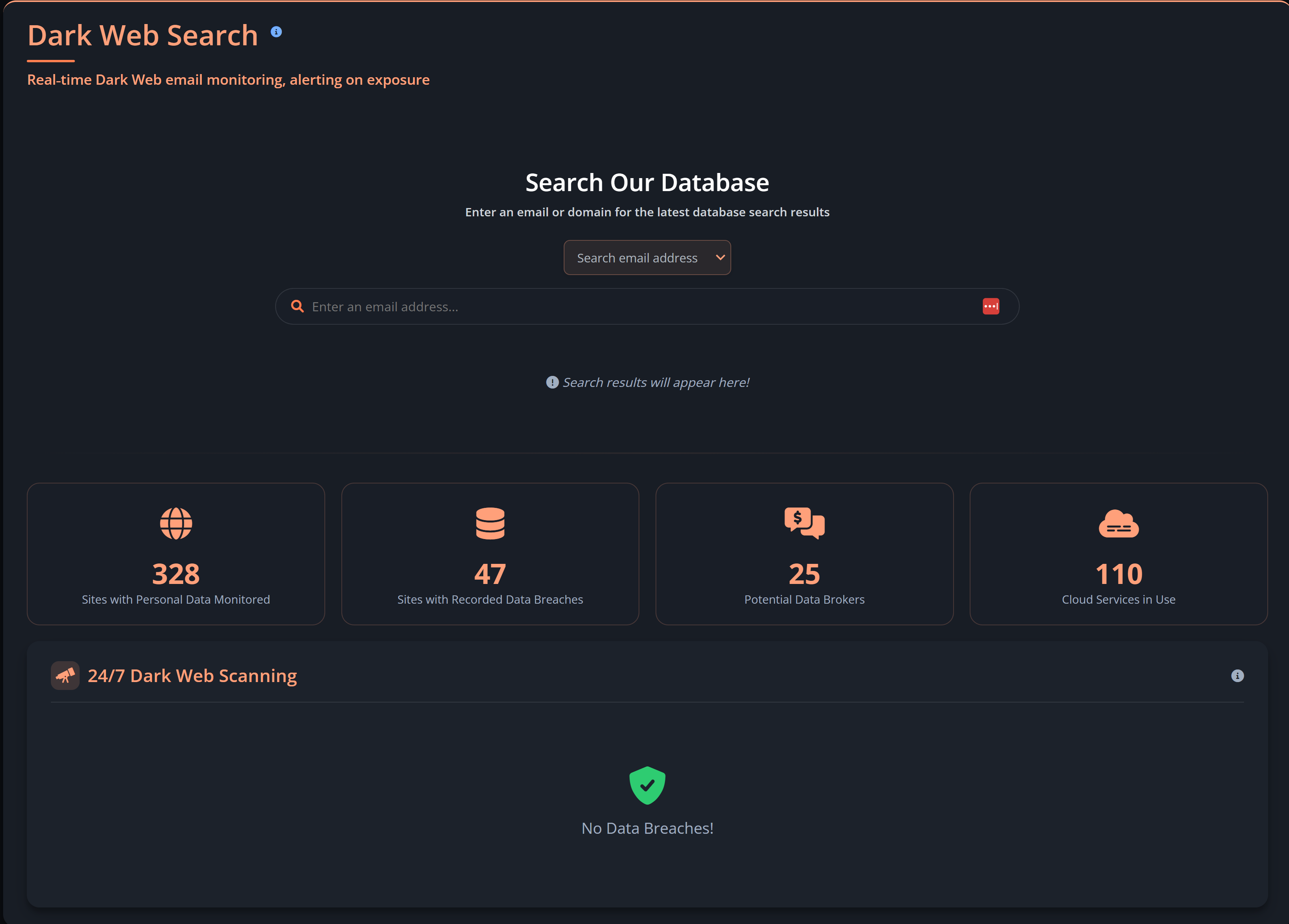
  • Progress Visibility: Users can see how their behaviour improves over time.
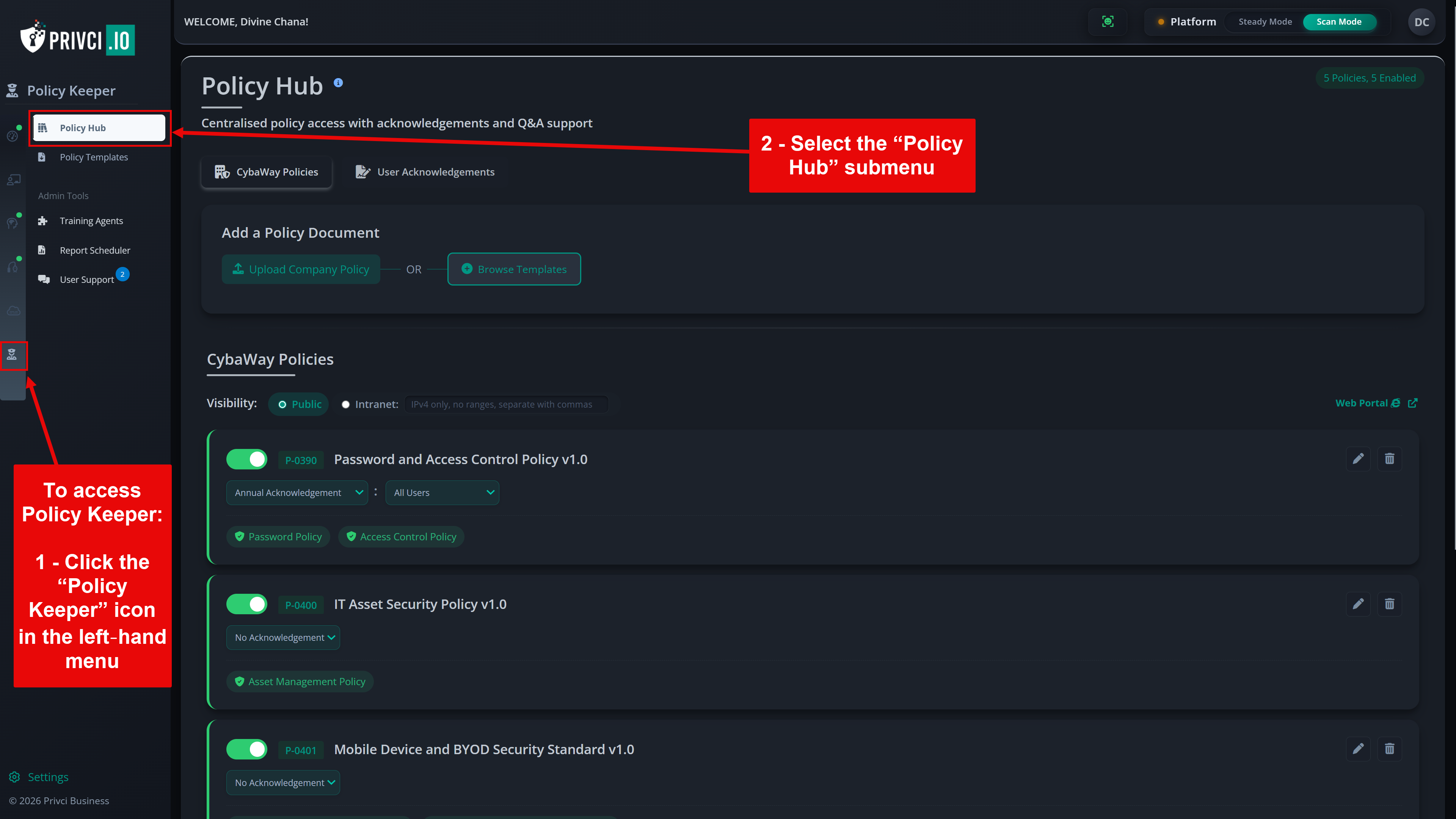
Policy Champion Award example

Get Support

Multiple ways to get help from our expert support team

Live Chat

Connect instantly with our support team for real-time assistance with technical issues or quick questions.

Availability: 24/5 (Monday–Friday)

Response Time: Instant

Start Live Chat

Support Request

Submit detailed support requests for complex issues, feature requests, or implementation guidance.

Availability: 24/7

Response Time: < 4 hours

Submit Ticket

Email Support

Contact our support team directly for urgent issues or advanced troubleshooting.

Availability: 9am–6pm GMT, Monday–Friday

Email: support@privci.com

Email Support

System Status

Real-time status of Privci services and components

All Systems Operational

Last updated: Today, 06:00 GMT

Human Vulnerability Scanner
Operational
Awareness Engine
Operational
Change Engine
Operational
Phish Aware
Operational
Business Watch
Operational
API & Integrations
Operational